
Manage (AI) is a clean, focused list of your forms — the quickest way to grab a share link, see a form’s status, and open it to edit.
Where to find it: Left menu → Marketing → Web → Forms → Manage (AI). Part of the Forms guide.
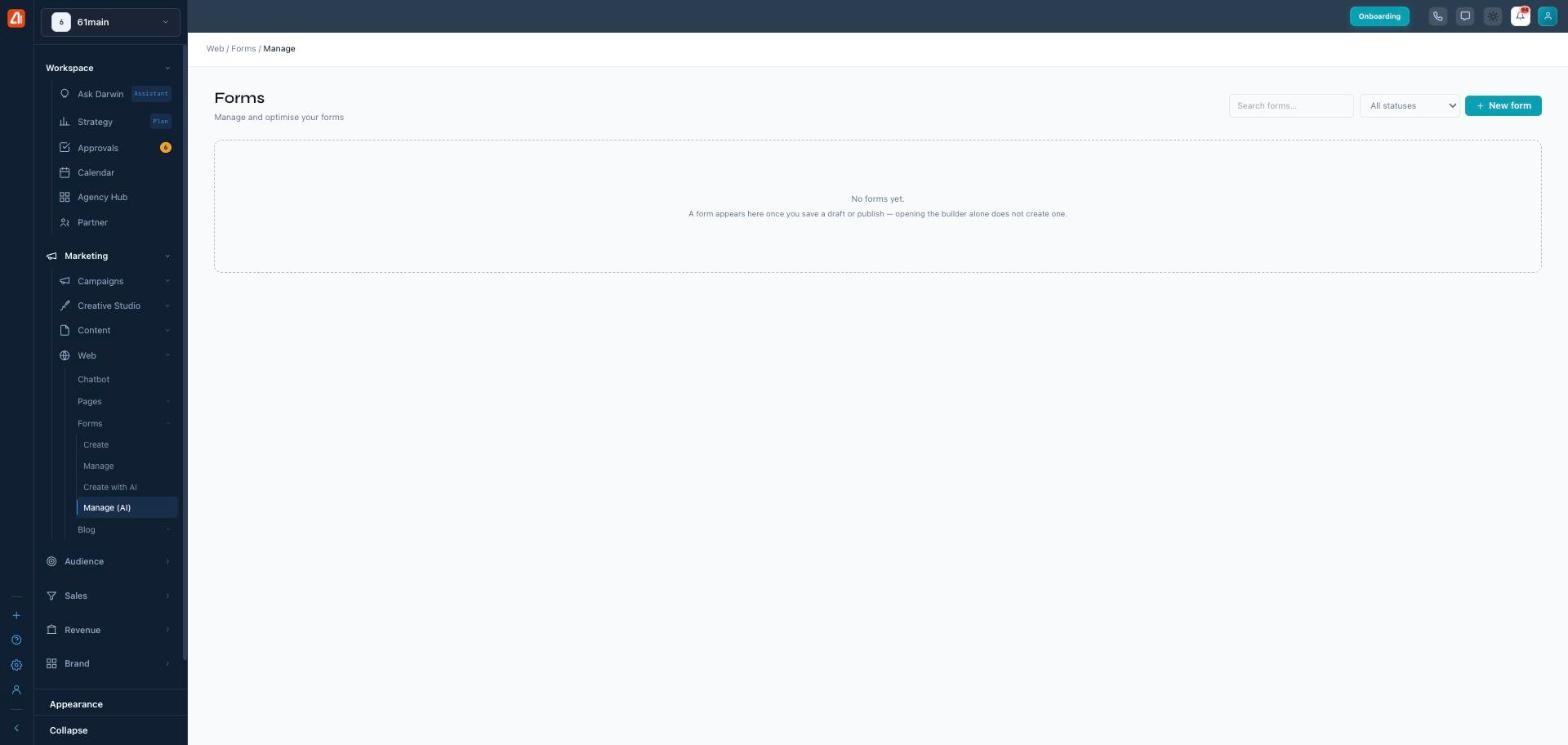
Manage (AI) is the simple list of your forms — with a share link and where each one sends data.
The forms list
Each form shows its name, its public URL with a one-click Copy (to share or embed), its destination (the CRM board submissions go to), its status (Draft, Pending approval, or Published), when it was updated, and its submissions count. A row appears here only after you save a form — opening the builder alone doesn’t create one.
Working with a form
Row actions let you open/edit (lands on the right step — the Publish step for a live form, the builder for a draft), duplicate (a fresh draft copy), delete, or copy the URL of a live form. Use the search box and the status filter to find one, and + New form to start another.
How it differs from classic Manage
This lists your AI-built forms only. The classic Manage page is a separate insights dashboard for forms built in the classic builder — the two sides don’t share a list, so manage each form where you built it. (Per-form analytics for an AI form live in its Publish step.)
What’s next
- Back to the Forms overview.
- See Create (the builder).
- See Manage.
- See Create with AI.