
Forms let you collect leads, bookings, and payments from your website — build one by hand or let AI do it, then manage every form and its results in one place. Forms live under Marketing → Web → Forms.
Where to find it: Left menu → Marketing → Web → Forms.
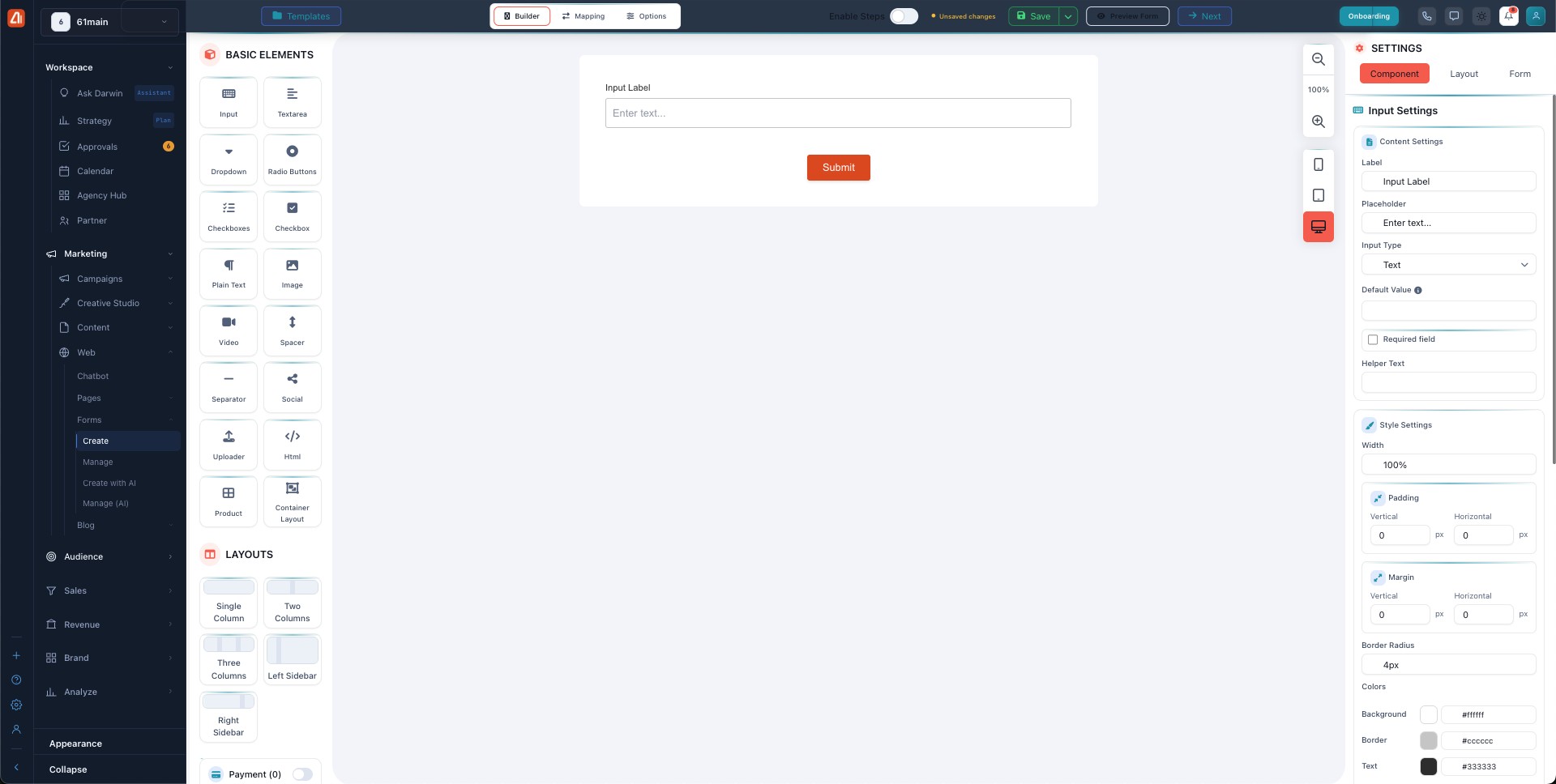
The form builder — drag fields onto the canvas and publish.
The four Forms pages
| Page | What it’s for | Guide |
|---|---|---|
| Create | The drag-and-drop builder — add fields, style, publish. | Open → |
| Manage | Your forms dashboard — performance stats and every form. | Open → |
| Create with AI | Describe the form and AI builds it. | Open → |
| Manage (AI) | The clean list of your forms, with share links. | Open → |
Two form builders under one menu
Forms has a classic side (Create + Manage) and an AI side (Create with AI + Manage (AI)). They’re separate systems: a form you build on one side is managed on that same side — forms don’t move between them. Use Create with AI for the fastest start, or the classic builder when you want to place every element by hand. Both send submissions to a CRM board.
What’s next
- Fastest start: Create with AI.
- Full control: the builder.
- Track results in Manage.