
The Brand Identity tab is where Darwin lays out the visual building blocks of your brand — your colors, type, and logos — so you can confirm they’re right and approve them for use everywhere else in the platform.
Where to find it: Brand Analysis → Brand Identity. Part of the Brand Analysis guide.
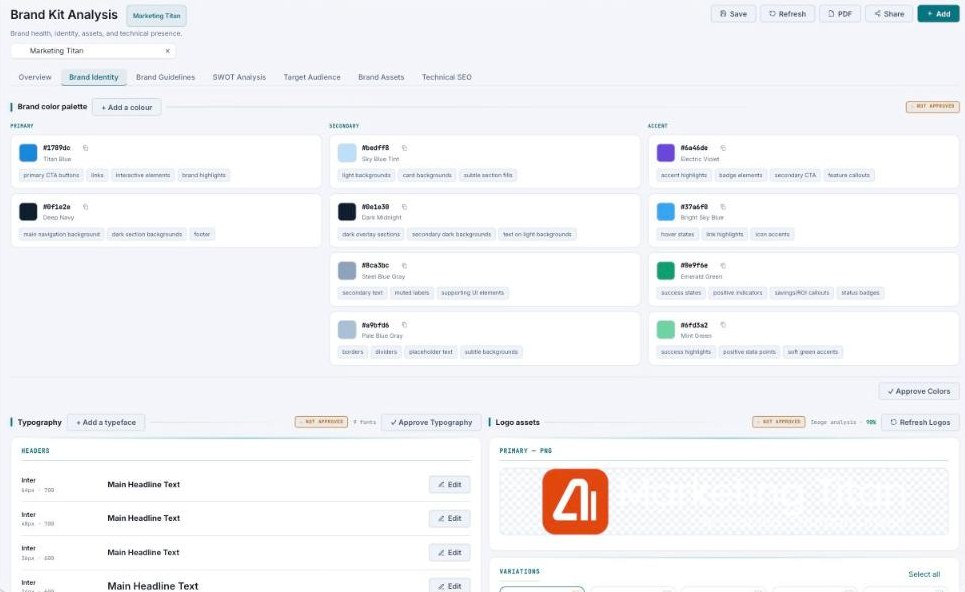
Brand Identity — your palette, type, and logos, each with an Approve control.
Brand color palette
Your colors are grouped into Primary, Secondary, and Accent. Each swatch shows its hex code (with a copy button), a name, and usage tags (like “primary CTA buttons,” “link highlights,” “success states”) so everyone knows where each color belongs. You can add a color, edit any swatch, and then Approve Colors — a badge shows whether the section is approved yet.
Typography
Type is split into Headers, Body, and Captions, each with its font family, size, and weight. Edit any style inline, add a typeface, and click Approve Typography when it’s right.
Logo assets
Your primary logo appears with its detected confidence score, alongside a grid of variations. Select the ones to keep, upload your own, use Refresh Logos to re-detect, and Approve logos to lock them in.
Export your brand kit
Three export cards turn the identity into shareable files:
| Export | What you get |
|---|---|
| Brand Style Guide | A polished PDF of colors, type, and logos. |
| Design Asset Package | A ZIP of the logo and asset files. |
| Developer Kit | CSS with your colors and type, ready for a website. |
Approving matters
Approving a section tells Darwin these are the official colors, fonts, and logos — so everything it generates elsewhere (ads, emails, carousels) stays on-brand. If a section is “Not approved,” review it and approve it.
See a “crawl blocked” banner? Your site blocked Darwin’s crawler, so some colors, fonts, or logos couldn’t be read automatically — add them by hand, or unblock the crawler and Refresh.
What’s next
- Set your voice in Brand Guidelines.
- Review your Brand Assets.
- Back to Brand Analysis.