
The Icons page keeps a consistent set of icons for your brand, so everything you build uses the same visual language.
Where to find it: Left menu → Brand → a brand → Icons. Part of the Brand Guidelines guide.
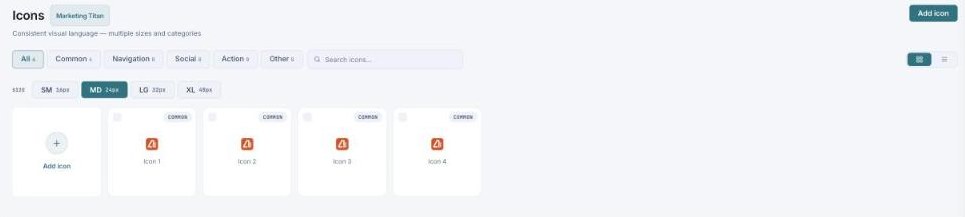
Your icon set — a consistent visual language, organized by category and size.
Browse by category & size
Filter icons by category (All, Common, Navigation, Social, Action, Other) and pick a size (SM 16px, MD 24px, LG 32px, XL 48px). Use the search box to find one fast.
Add your own
Use Add icon to bring your own into the set, so custom icons live alongside the standard ones.
What’s next
- Back to the Brand Guidelines guide.
- See Colors.
- See Typography.
- See Brand Voice.