
Setup is a short three-step wizard that gets you calling fast. It reads your brand and pre-fills an AI voice, a persona and a starter script — you review and edit, then launch. You only need to do it once, and you can change everything later.
Where to find it: Left menu → Sales → Outreach → AI Caller → Setup. Part of the AI Caller guide.
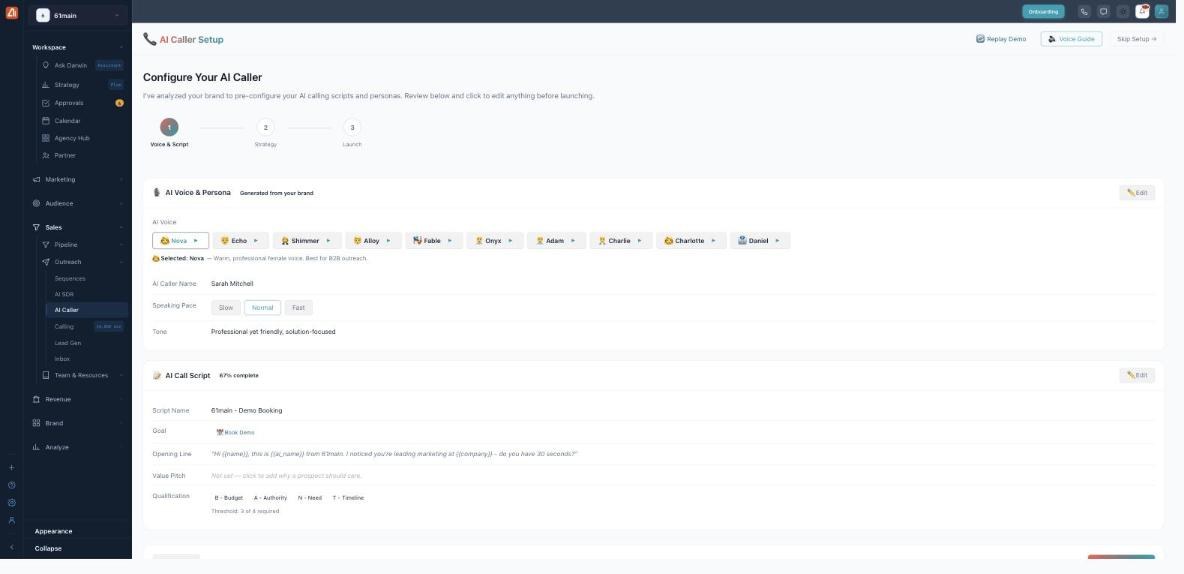
Setup pre-configures your voice, persona and script from your brand.
How to set up AI Caller
- Open AI Caller → Setup. The wizard opens on Step 1 — Voice & Script.
- Pick an AI Voice and press its play button to hear a sample.
- Set the AI Caller Name, Speaking Pace and Tone.
- Review the pre-filled AI Call Script and edit anything with the pencil (✎) icons.
- Click Next: Strategy, set how calls should run, then continue to Launch and turn AI Caller on.
Step 1 — Voice & Script
Choose the voice your callers will hear. The ready-made voices are Nova, Echo, Shimmer, Alloy, Fable, Onyx, Adam, Charlie, Charlotte and Daniel — each has a short description (for example, “Nova — warm, professional female voice, best for B2B outreach”). Then set:
- AI Caller Name — the name the AI gives on the call (e.g. “Sarah Mitchell”).
- Speaking Pace — Slow, Normal or Fast.
- Tone — the manner of the conversation, e.g. “Professional yet friendly, solution-focused.”
Underneath, the AI Call Script card shows a completeness meter and these fields:
| Field | What it does |
|---|---|
| Script Name | A label for the starter script (e.g. “61main — Demo Booking”). |
| Goal | What the call is for — e.g. Book Demo. |
| Opening Line | The first thing the AI says. Tokens like {{name}}, {{ai_name}} and {{company}} are filled in per contact. |
| Value Pitch | Why the prospect should care — click to add it if it’s not set. |
| Qualification | The BANT checklist — Budget, Authority, Need, Timeline — and how many of the four must be met to count as qualified (the threshold). |
Step 2 — Strategy
Shape how the AI runs the conversation. This step has two panels, both pre-filled from your brand and editable:
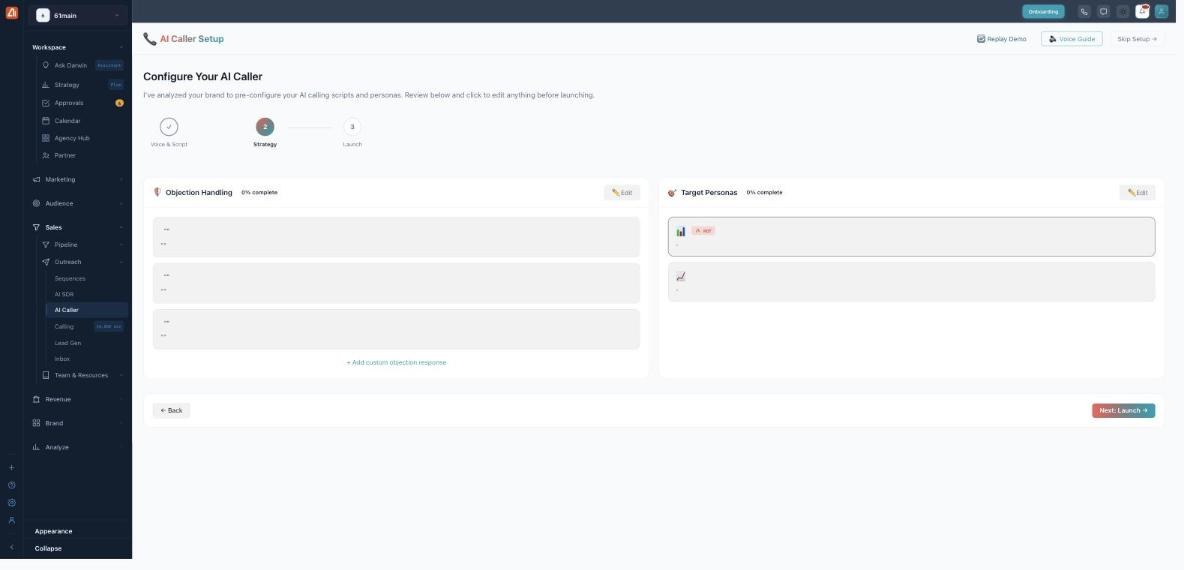
Step 2 — tune objection responses and who you’re calling.
- Objection Handling — the responses the AI gives to common push-back. Edit each one, or click Add custom objection response to add your own.
- Target Personas — who you’re calling. The AI tailors its pitch to the persona; use Edit to refine them.
Step 3 — Launch
Set the final call rules, connect the services that power the calls, and go live.
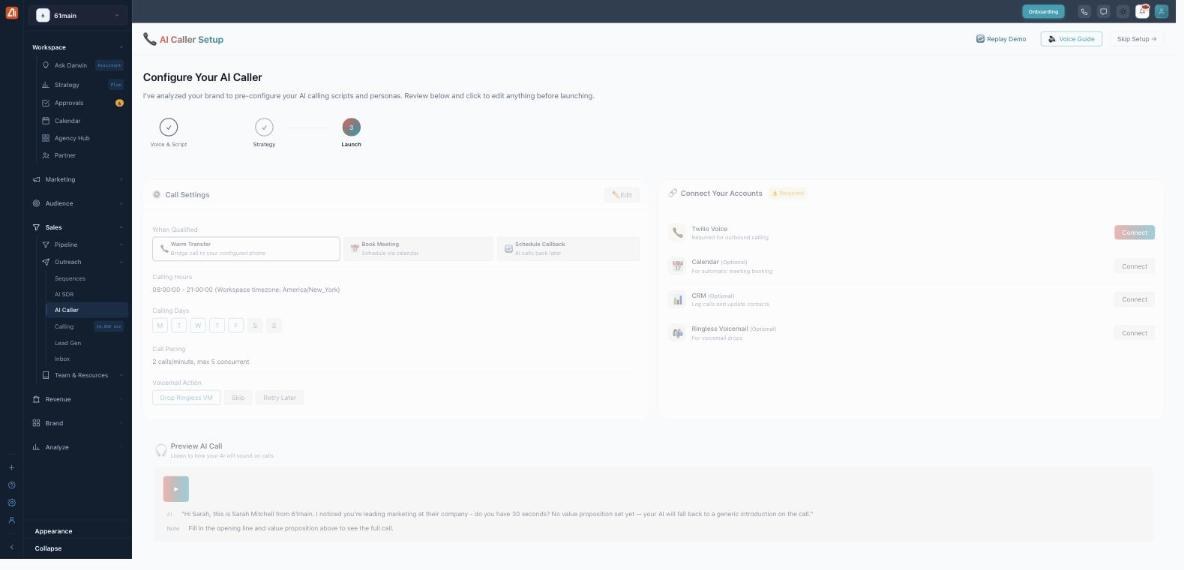
Step 3 — call settings, account connections and a call preview.
Call Settings
- When Qualified — what happens when a prospect qualifies: Warm Transfer (bridge the call to your phone), Book Meeting (schedule via your calendar) or Schedule Callback.
- Calling Hours, Calling Days and the workspace timezone — the window the AI is allowed to dial in.
- Call Pacing — how hard it dials (for example, 2 calls per minute, max 5 concurrent).
- Voicemail Action — what to do on no-answer: Drop Ringless VM, Skip or Retry Later.
Connect your accounts
| Account | Why |
|---|---|
| Twilio Voice (required) | Powers the outbound calls — you can’t launch without it. |
| Calendar (optional) | Lets the AI book meetings automatically. |
| CRM (optional) | Logs calls and updates your contacts. |
| Ringless Voicemail (optional) | Enables VoiceDrop voicemail drops. |
Use Preview AI Call to hear how the AI will sound first. Once Twilio is connected, launch — you’re ready to build a campaign.
Helpful extras
- Replay Demo — walks you through a sample call.
- Voice Guide — narrates the setup screen as you go.
- Skip Setup — jumps straight to the dashboard to configure things later.
💡 Good to know: Setup writes a starter script for you. You can create as many more as you like on the Scripts tab and pick a different one per campaign.
FAQ
Can I change my voice or script later?
Yes. Everything in Setup can be edited any time — voices from Setup, and scripts from the Scripts tab.
What if I skip Setup?
You go straight to the dashboard. You’ll still need a script and a Caller ID before a campaign can dial, so most people run Setup at least once.
How does it use my brand?
AI Caller reads your brand profile and Knowledge Base to pre-fill the persona and script and to keep the AI on-message during calls.