
Contacts is your CRM address book with AI on top. It’s where every person you work with lives — names, companies, titles, and emails — all in one place. The example account here holds 307 contacts, organized so you can find anyone fast.
What makes it different is Darwin, your AI assistant. Darwin scores every contact, spots gaps in your book, and tells you who to reach next. It does the heavy lifting — scoring, enriching, and recommending — and you decide what to act on.
To get here, go to the left menu → Sales → Contacts (your CRM contacts board). You’ll see two tabs at the top: Contacts and Lists.
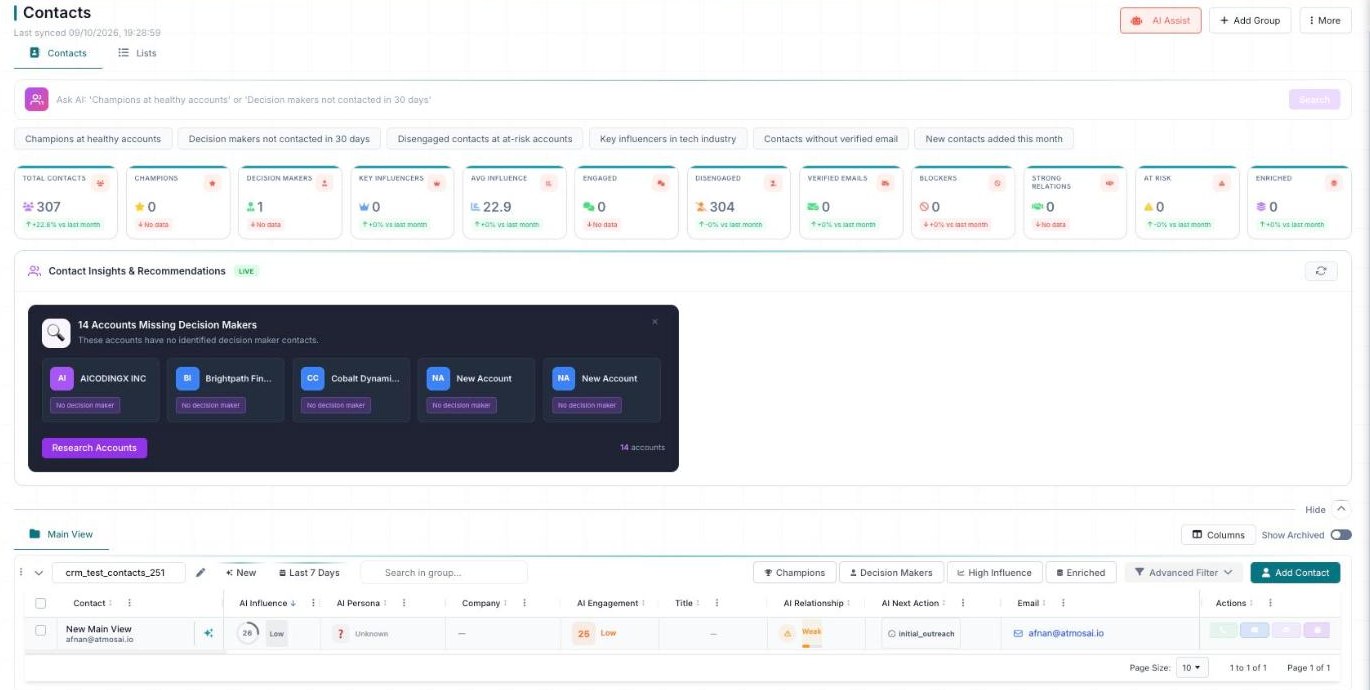
Contacts — live stat cards, Ask AI, and Contact Insights & Recommendations.
Your contacts at a glance
The top of the page shows the title, a Last synced time, and a few buttons: AI Assist, Add Group, and More. Just below, the Contacts tab holds your CRM contacts, and the Lists tab holds your saved lists.
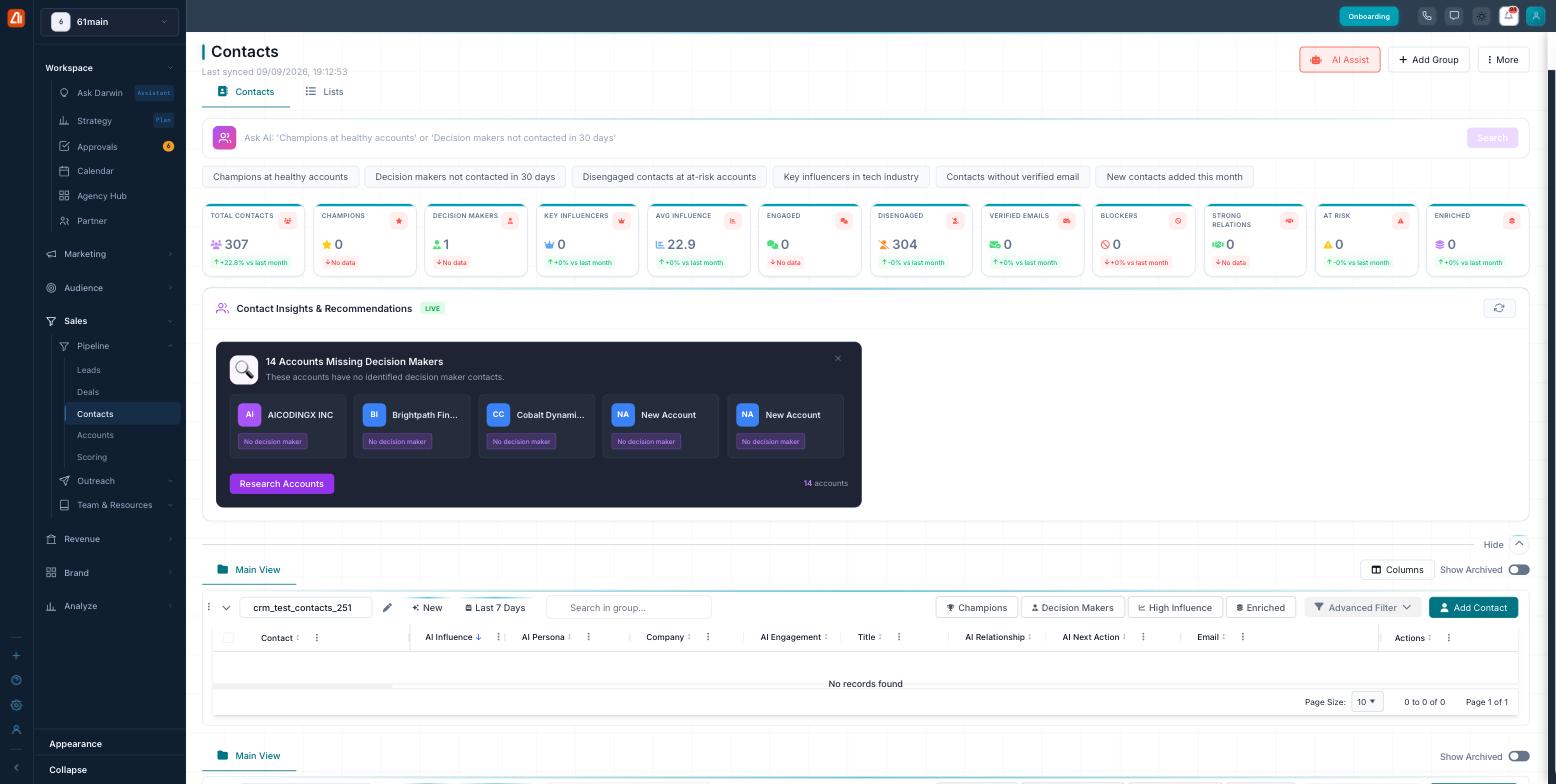
Your contacts, scored and organized, with Darwin’s recommendations up top.
Across the top, a row of stat cards summarizes your whole book at a glance. Each one is a quick count you can scan in a second:
- Total Contacts — everyone in your book.
- Champions — your strongest advocates.
- Decision Makers — the people who can say yes.
- Key Influencers — those who sway others.
- Avg Influence — the average influence score.
- Engaged and Disengaged — who’s active and who’s gone quiet.
- Verified Emails — how many emails are confirmed.
- Blockers, Strong Relations, At Risk, and Enriched — relationship health and how many contacts Darwin has filled out.
Ask AI to find people
At the top is the Ask AI bar. Type a plain-English question and Darwin filters your contacts for you — no menus, no clicking. Try something like “Champions at healthy accounts” or “Decision makers not contacted in 30 days” and Darwin does the rest.
Below the bar are one-click starter chips for common questions:
- Champions at healthy accounts
- Decision makers not contacted in 30 days
- Disengaged contacts at at-risk accounts
- Key influencers in tech industry
- Contacts without verified email
- New contacts added this month
Not sure where to start? Just type a plain-English question the way you’d ask a teammate — “who should I follow up with this week?” — and let Darwin narrow it down.
What Darwin tells you
In the grid, Darwin adds its own columns alongside the usual details. These AI columns are how it shares what it knows about each person:
| Column | What it tells you |
|---|---|
| AI Influence | How much sway this person has with others at their company. |
| AI Persona | The role they play — like Champion, Decision Maker, or Influencer. |
| AI Engagement | How active they’ve been with you lately. |
| AI Relationship | How strong your connection is — from strong to at risk. |
| AI Next Action | Darwin’s suggestion for what to do next with this contact. |
Above the grid, the Contact Insights & Recommendations (LIVE) panel surfaces things worth acting on. For example, it might flag “14 Accounts Missing Decision Makers” and list those accounts with a Research Accounts button so you can fill the gap in one click.
The sections — each has its own guide
Contacts is organized into the areas below. Open any one for the full, detailed walkthrough.
| Section | What it covers | Guide |
|---|---|---|
| Groups | Organize your contacts into reusable groups. | Open guide → |
| Filtering & Columns | Advanced filters and choosing which columns to show. | Open guide → |
Common questions
What’s a group versus a list?
A group is a section on the Contacts tab that holds and organizes your CRM contacts, each with its own toolbar and filters. A list lives on the separate Lists tab. Groups are how you sort your address book; lists are saved sets you keep on their own tab.
What do the AI columns mean?
They’re Darwin’s read on each person: AI Influence (how much sway they have), AI Persona (their role), AI Engagement (how active they are), AI Relationship (how strong your connection is), and AI Next Action (what to do next).
How do I ask a question in plain English?
Type it into the Ask AI bar at the top, just like you’d ask a coworker — for example, “Decision makers not contacted in 30 days.” Darwin filters your contacts to match. You can also click a starter chip to fill the bar for you.
How do I add a group?
Click Add Group at the top right of the page. A new group appears with its own toolbar, ready for you to add contacts.
How do I build a complex filter?
Open Advanced Filter from a group’s toolbar, pick a scope, then add conditions using a field and an operator. Combine rules with AND or OR, add nested rules with Add Group, and then Apply Filter or Save to view.
How do I show or hide columns?
Click Columns above the grid to open Column Visibility, flip the columns you want on or off, then click Save. Use Reset Columns to return to the default set.
What does “Enriched” mean?
An enriched contact is one Darwin has filled out with extra detail — things like a verified email, title, or company info — so you have a fuller picture without digging for it yourself.
Why is a contact “At Risk”?
Darwin marks a relationship At Risk when the signs point to a connection cooling off — for example, a once-engaged contact who has gone quiet. It’s a nudge to reach out before the relationship slips.
Having trouble? If a group looks empty, check the date range at the top of that group — and make sure you’re looking at the right group. If a filter returns nothing, loosen the conditions or switch AND to OR so more contacts can match. If contacts aren’t showing at all, confirm you’re on the right group and the Contacts tab.
What’s next
- Open the Groups guide.
- Open the Filtering & Columns guide.