
The Template Library is where you find a ready-made design to start from — browse by category, switch views, search, and filter, then preview and use it.
Where to find it: Left menu → Content → Templates. Part of the Templates guide.
The Template Library at a glance
The library greets you with three quick counters — Templates, AI-Generated, and Saved — and two buttons in the corner: Upload (bring your own file in) and New Template (build one from scratch). Below that, templates are laid out one row per category, so you can scan the whole library top to bottom.
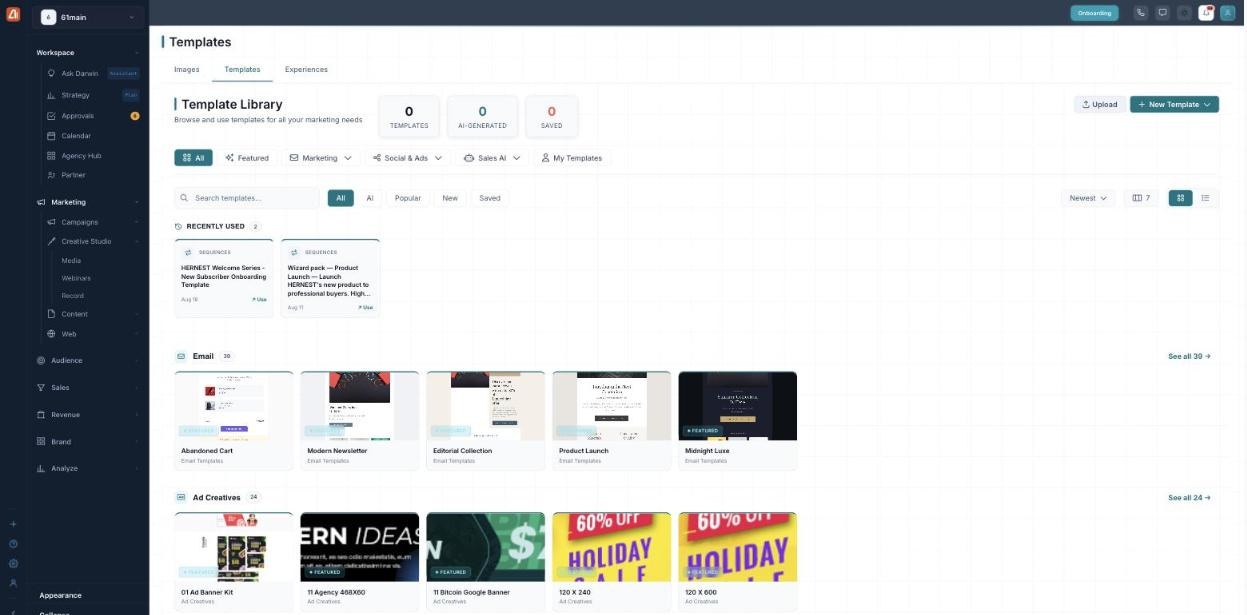
The Template Library — every category in its own row, with live design previews.
A Recently Used strip sits up top so the templates you keep coming back to are one click away. Each category row shows a handful of previews plus a See all link and a count, so you always know how much is in there.
Categories: every template type in one place
The library groups templates by what they’re for. Scroll down and you’ll pass through each one — Email, Ad Creatives, Social Ads & Post, Scripts (AI caller and SDR call scripts), and more. A Show all categories button expands the full list.
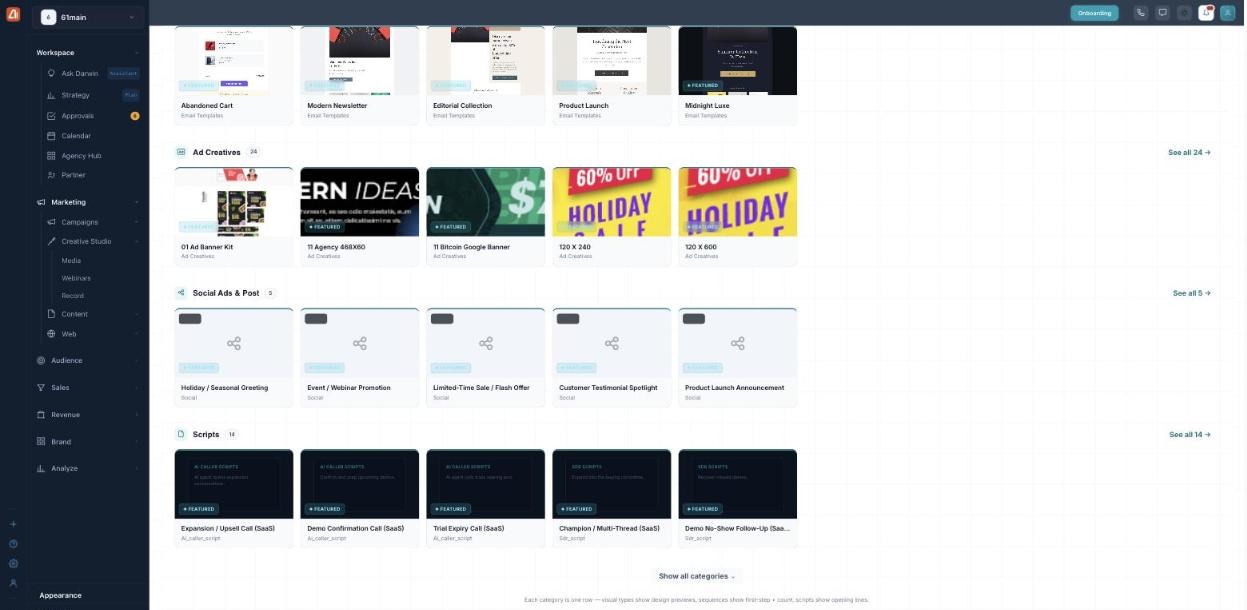
Categories run down the page — ads, social posts, and call scripts, each in its own row.
The previews are smart about their content: visual types (email, ads, social) show a design preview, sequences show their first step and a count, and scripts show their opening lines — so you can judge a template without opening it.
Grid view vs. list view
Two toggles in the top-right switch how templates are shown. Grid view is the visual layout above — best for browsing by look. List view (the table icon) turns everything into a sortable table with columns for Name, Type, Category, Tags, Last Modified, and Uses, plus a Use button on every row.
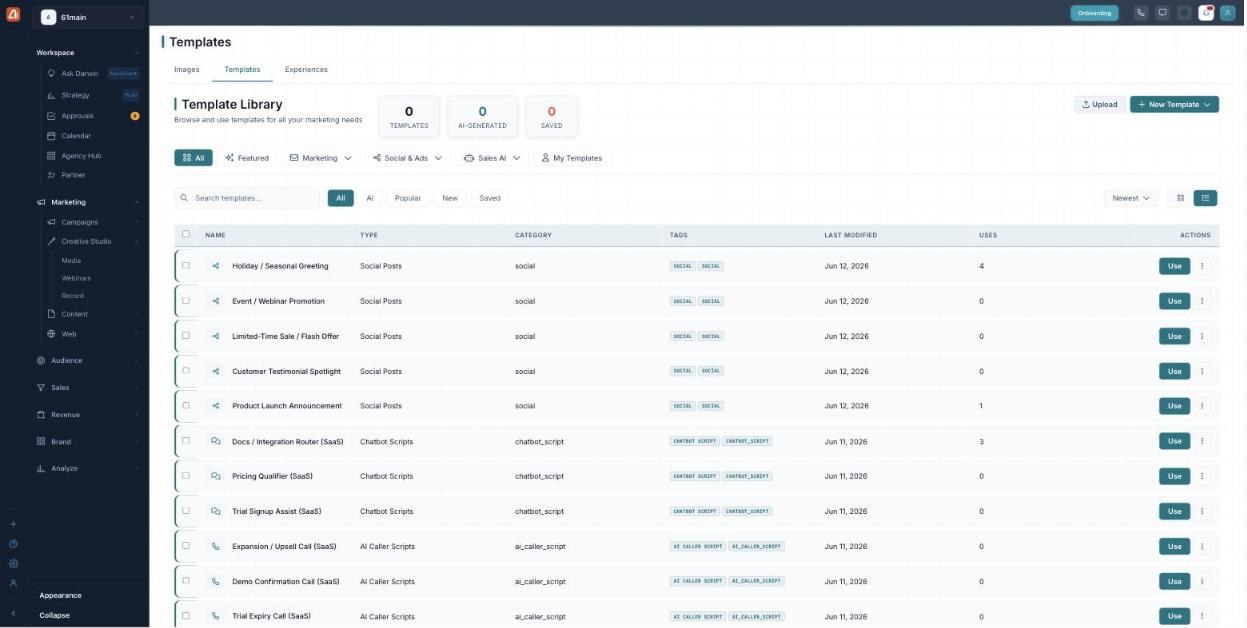
List view — the same templates as a sortable table you can scan and act on fast.
Use grid view when you’re choosing by design, and list view when you want to sort by how often a template gets used or when it was last touched.
Finding the right template
Above the templates sits a full filter bar. The top row filters by purpose — All, Featured, Marketing, Social & Ads, Sales AI, and My Templates (the ones you’ve made or uploaded). Below it, quick chips narrow further: All, AI, Popular, New, and Saved. There’s a search box, a Newest sort, and a Columns slider to control how many previews fit per row.
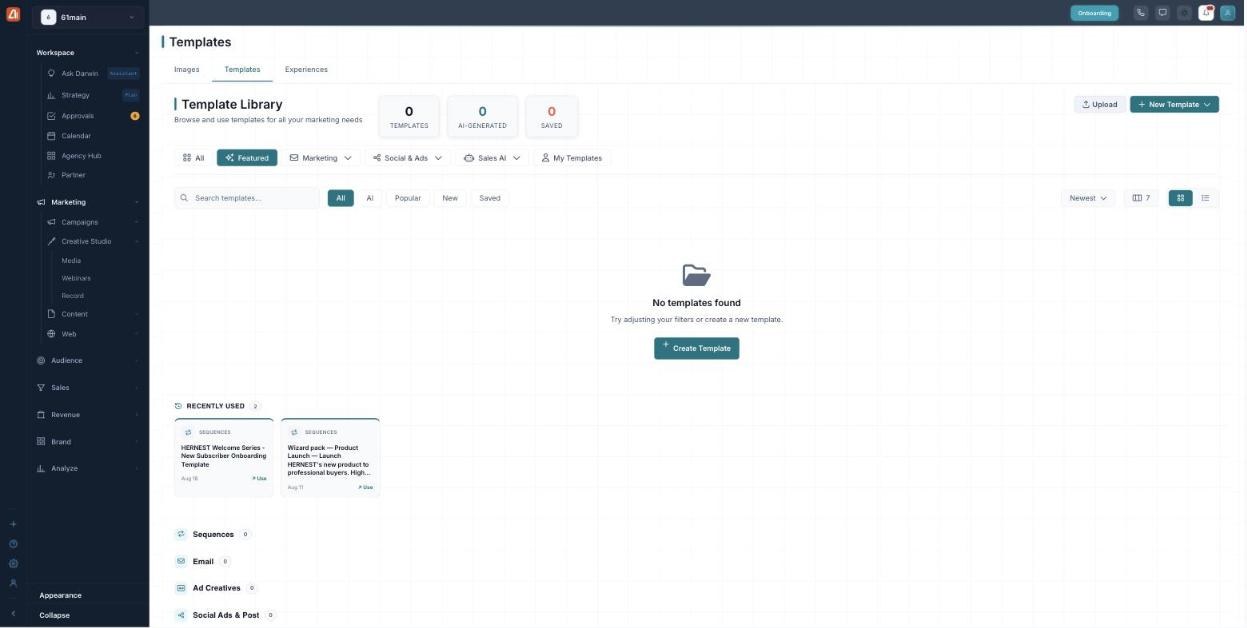
Filter by purpose, then narrow with quick chips, search, and sort.
Deep filters inside a category
Click See all on any category and you drop into that category’s own view with much finer controls. For Email, for example, you can filter by Origin (Stock Templates vs. My Templates), Type (full templates vs. headers), Style (Bold Type, Editorial, Minimal, Promo, and more), and Size (Wide, Tall, Square, Story, Landscape). A Columns slider sets the grid density.
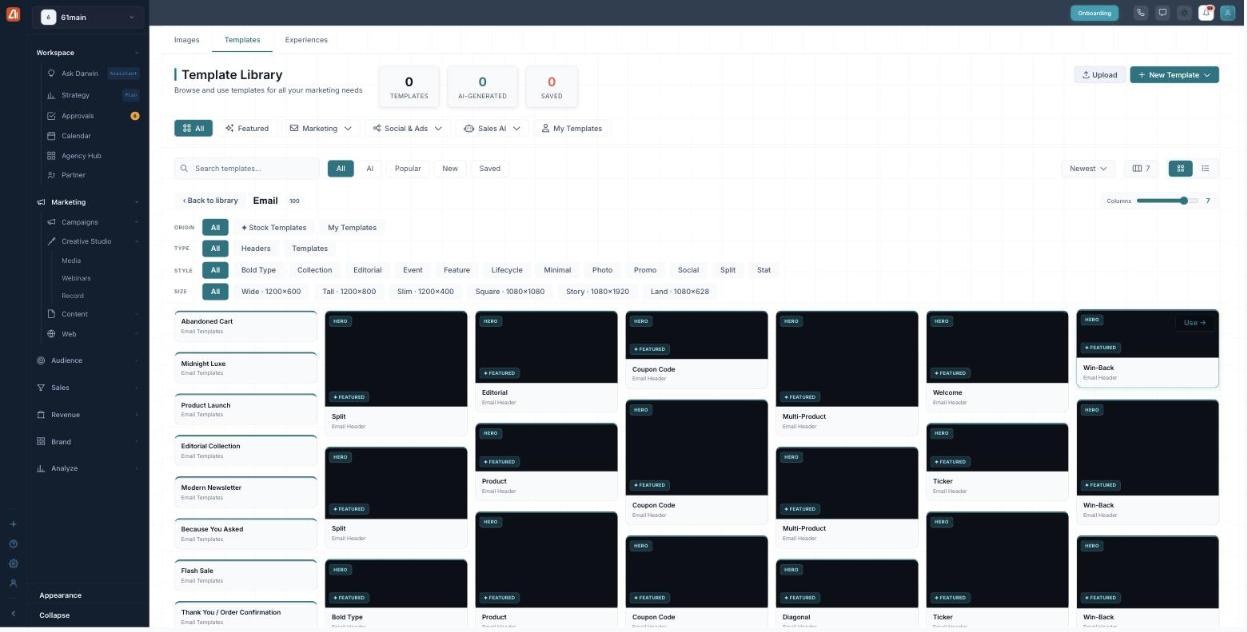
Inside a category: filter by origin, type, style, and exact size.
Use ← Back to library to return to the all-categories view whenever you want.
Previewing & using a template
Click any template to open a full preview. You’ll see exactly how it looks — the rendered email, ad, or post — alongside its name, type, and a short description of what it’s for. When it’s the one, hit Use template and it opens in the right editor, already loaded with your brand.
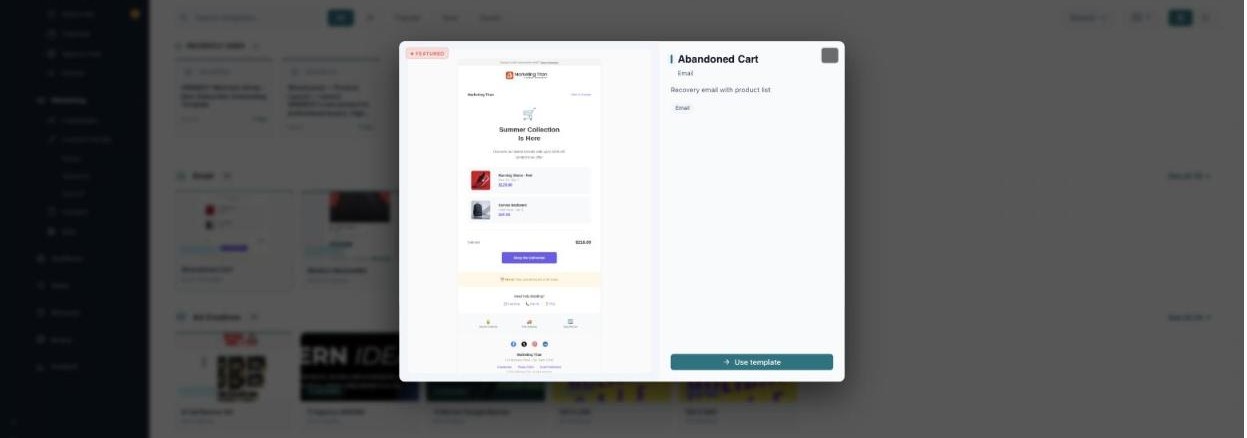
Preview a template in full, then click Use template to start editing.
What’s next
- Back to the Templates overview.
- See Upload a Template.
- See Create a Template.