
The Template Library is your starting line. Instead of building every email, ad, social post, or call script from a blank page, you pick a ready-made template that already looks and reads the way good marketing should — then make it yours. It’s the fastest way to go from “I need to send something” to “it’s ready.”
Every template is designed to work with your brand. When you use one, Darwin fills it with your colors, fonts, logo, and voice, so what you ship looks on-brand automatically. The library holds templates for every channel you work in, plus the ability to upload your own files and turn them into reusable, editable templates.
Where to find it: Left menu → Content → Templates. The page has three tabs across the top — Content, Templates, and Experiences — and opens on the Template Library.
The sections — each has its own guide
Templates is organized into the areas below. Open any one for the full, detailed walkthrough.
| Section | What it covers | Guide |
|---|---|---|
| Browse the Library | Categories, grid/list views, search, and deep filters to find the right template. | Open guide → |
| Upload a Template | Bring your own design file into the library. | Open guide → |
| Create a Template | Start a brand-new template from scratch. | Open guide → |
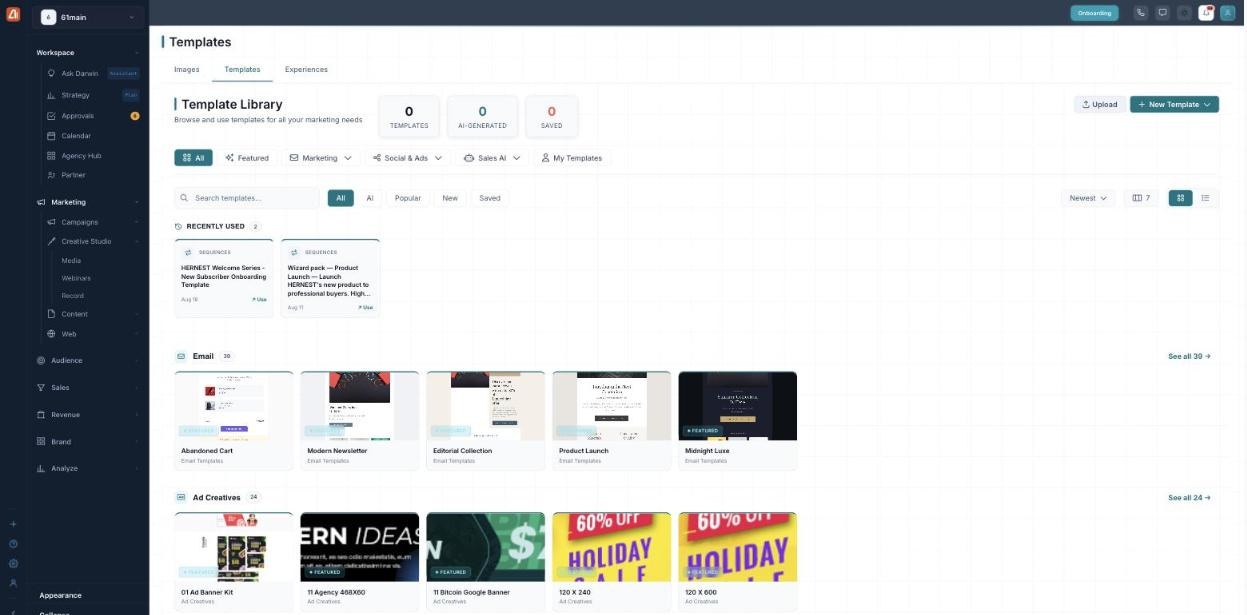
The Template Library — every category in its own row, with live design previews.
Common questions
What’s the difference between a stock template and My Templates?
Stock templates are the ready-made ones Marketing Titan provides. My Templates are the ones you’ve created or uploaded yourself. The purpose filter and the Origin filter both let you show one or the other.
How do I use a template?
Click it to preview, then hit Use template (or the Use button in list view). It opens in the matching editor with your brand already applied.
Can I upload my own design?
Yes — click Upload, pick a type and name, and drop in an HTML, PNG, JPG, or PDF file (up to 25 MB). If it’s a supported format, choose Make editable to turn it into a real template.
What does “Featured” mean?
Featured templates are hand-picked highlights. Filter to Featured to see just those; if a category has none yet, you’ll see an empty state inviting you to create one.
How do I search across everything?
Use the Search templates… box at the top of the library, or drop into a category’s See all view for its own search and filters.
What kinds of templates can I create?
From the New Template menu: emails and sequences, social posts, ad creatives, SMS, webinars, blog posts, forms, landing pages, automations, and sales scripts (SDR, chatbot, and AI caller).
Why do some previews show text instead of a picture?
Previews match the template type — visual templates show a design, sequences show their first step and step count, and scripts show their opening lines.
Having trouble? If you see “No templates found,” clear your filters or switch back to All. If an uploaded file won’t become editable, check it’s a supported format (HTML, PNG, JPG, PDF) and under 25 MB. If a template opens without your brand, confirm the right brand is selected at the top of your workspace.
What’s next
- Open the Browse the Library guide.
- Open the Upload a Template guide.
- Open the Create a Template guide.