
Carousels are multi-slide posts people swipe through — perfect for tips, product line-ups, before-and-afters, and mini-stories. The carousel builder writes the whole deck for you: you answer a few questions, and Darwin creates every slide, on-brand, with a scored cover and platform-ready sizes. You go from idea to a finished swipe set in minutes.
You can build one carousel at a time, generate a whole series across products and audiences, start from a template, or build slide-by-slide on a blank canvas. Throughout, a live preview and an engagement prediction update as you make choices, so you can see what’s working before you spend a credit.
Where to find it: Left menu → Marketing → Creative Studio → Media → Generate tab → Carousel.
Four ways to start
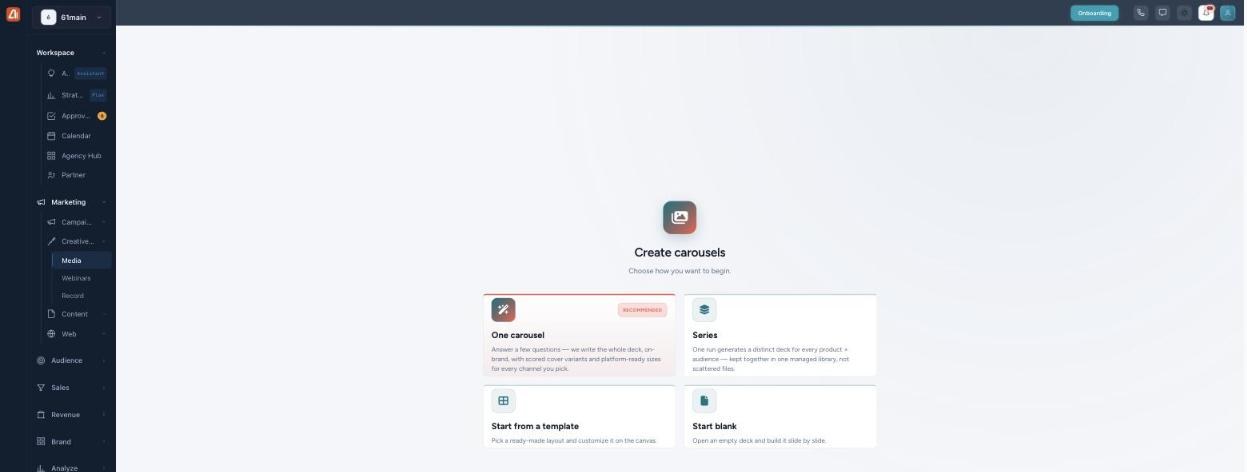
Choose how to begin — guided, in bulk, from a template, or blank.
| Option | When to use it |
|---|---|
| One carousel (recommended) | Answer a few questions and Darwin writes the whole deck, on-brand, with scored cover variants and platform-ready sizes for every channel. |
| Series | One run generates a distinct deck for every product × audience combination — kept together in one managed library, not scattered files. |
| Start from a template | Pick a ready-made layout and customize it on the canvas. |
| Start blank | Open an empty deck and build it slide by slide. |
The guided builder
The guided builder is the fastest path. It shows a live preview of your carousel and an AI Performance Prediction (an estimated engagement score) that updates as you choose. There are two modes: Express and Step-by-step.
Express mode
Express pre-picks sensible defaults so you can click Next straight through, or hit Let AI pick on any step. Step 1 simply asks which brand, product, and persona the carousel is for.
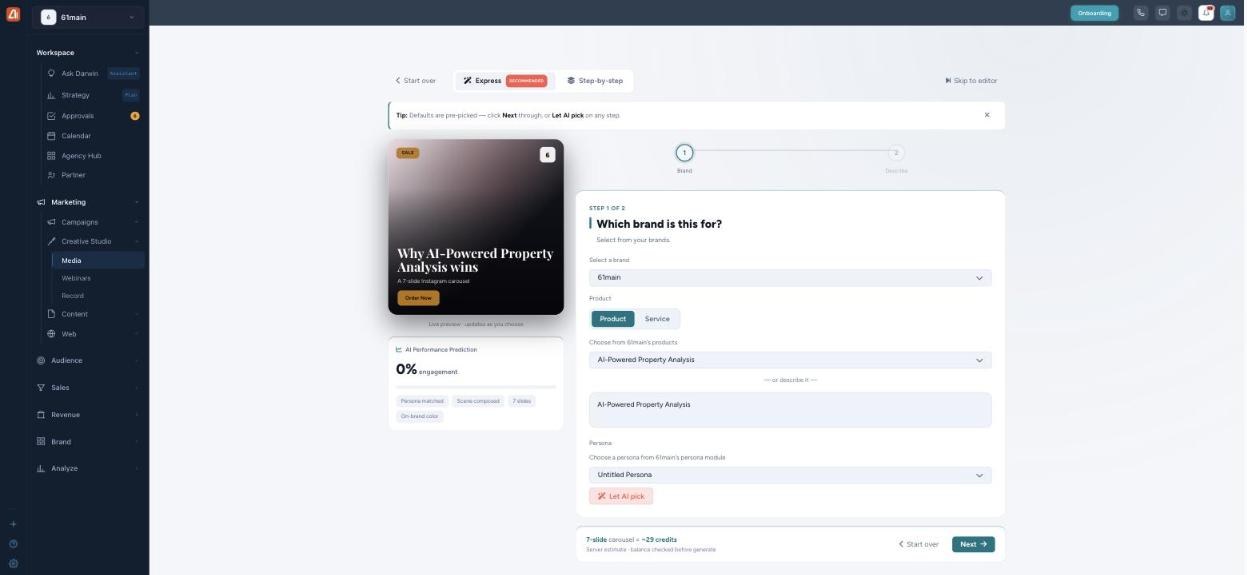
Express mode — a couple of questions, a live preview, and a predicted engagement score.
Step-by-step mode
Prefer more control? Switch to Step-by-step and you’ll walk through six stages: Brand → Products → Personas → Goal → Formats → Direction.
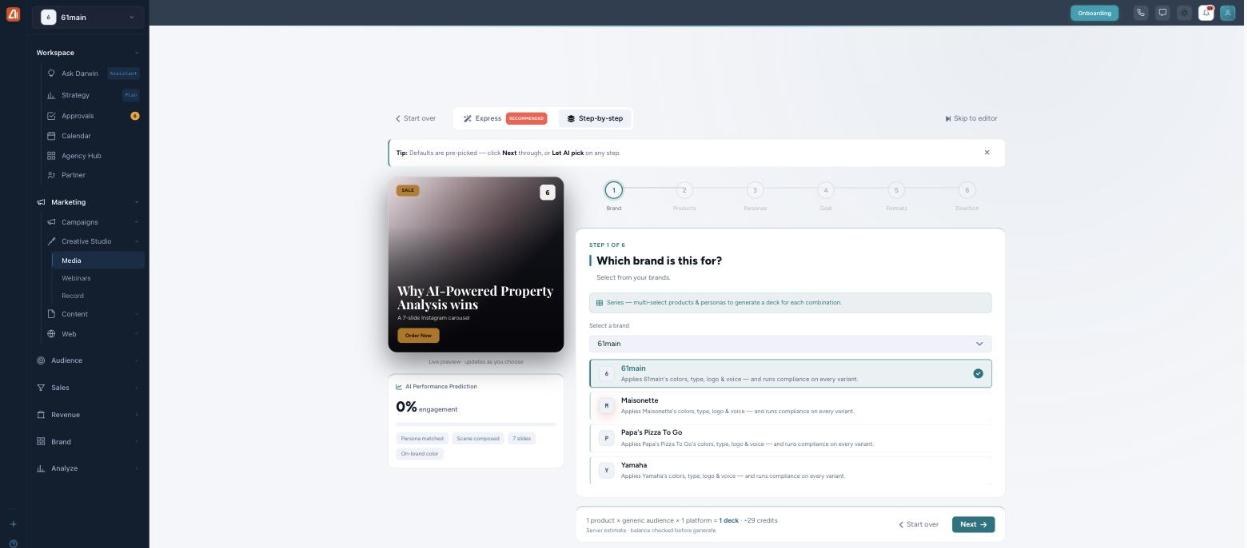
Step-by-step mode — six stages, starting with which brand to apply.
| Stage | What you set |
|---|---|
| 1. Brand | Which brand’s colors, type, logo, and voice to apply — compliance runs on every variant. |
| 2. Products | The product or service the carousel is about. |
| 3. Personas | Who you’re writing for — Darwin tailors the copy per persona. |
| 4. Goal | The objective, which shapes the hook, story arc, and CTA slide. |
| 5. Formats | The sizes and channels to produce. |
| 6. Direction | Final creative direction before you generate. |
Choosing personas
On the Personas step you pick every persona the carousel should speak to (multi-select). Darwin then tailors the copy to each one, so a deck aimed at two audiences gets two on-message versions rather than one generic one.
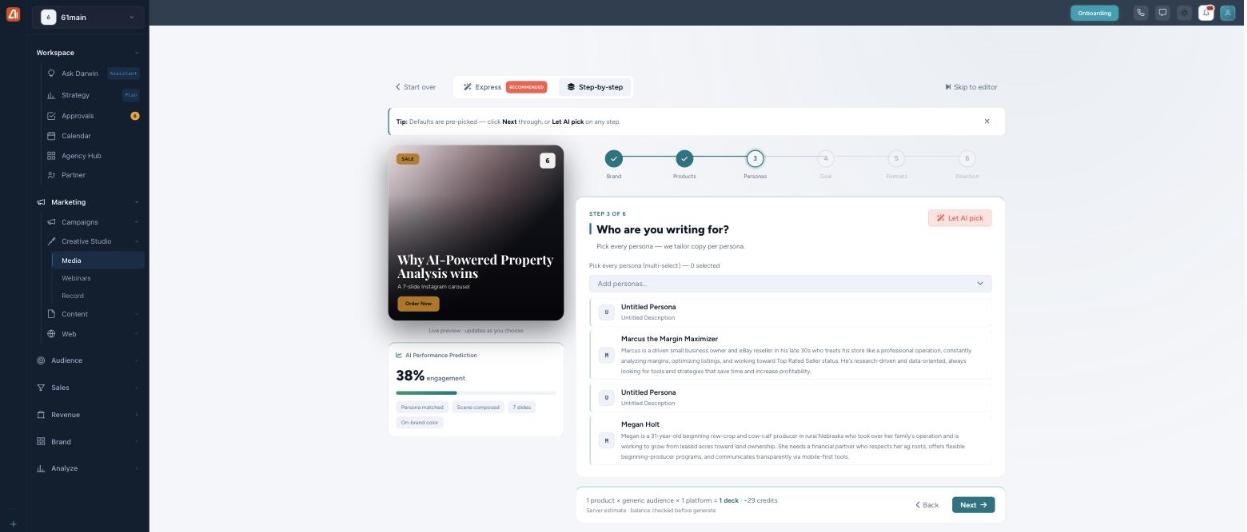
Pick every persona — the copy is tailored to each audience.
Setting the goal
The Goal step is where the deck gets its shape — it sets the hook, the story arc, and the call-to-action slide. Choose from Drive Sales, Brand Awareness, Engagement, Website Traffic, Lead Generation, Product Launch, or a custom goal, and set the tone. Watch the predicted engagement respond as you choose.
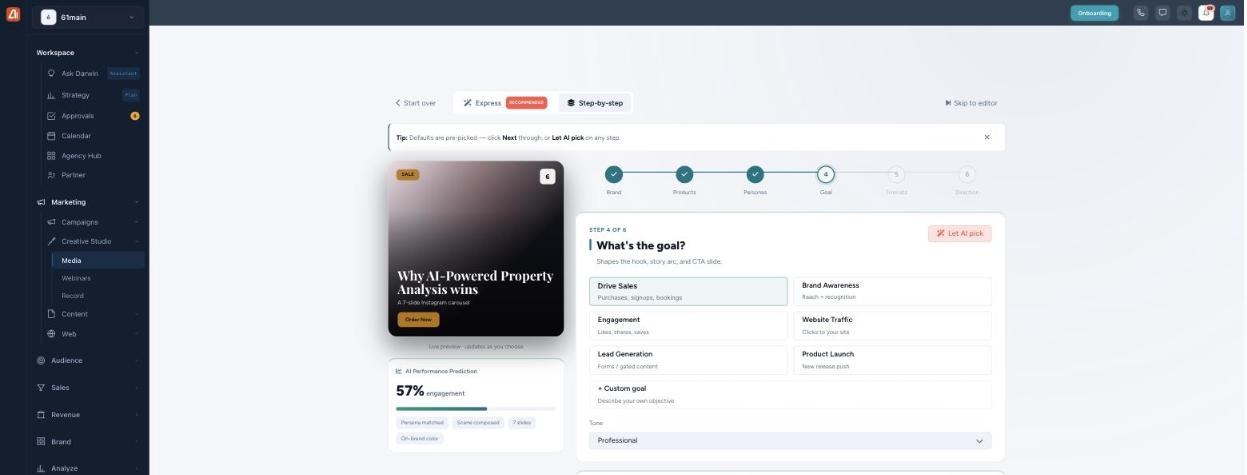
The Goal step sets the hook, arc, and CTA — and the score jumps as you choose.
How Darwin builds the deck
From your brand, product, persona, and goal, Darwin writes every slide, composes on-brand visuals, sizes the deck for each channel you pick, and even scores cover variants so the strongest opener rises to the top. That’s a full, swipe-ready carousel from a few clicks — and the live preview means you’re never guessing.
Usage & credits
Generating a carousel uses credits, and the estimate is shown before you generate — you’ll see something like “7-slide carousel ≈ 29 credits,” with the note that your balance is checked before generating. Your remaining balance is in the top-right of Creative Studio.
- More slides = more credits. The estimate scales with the slide count, so a longer deck costs more.
- Series multiplies the cost. A series generates one deck per product × audience, so the credits are roughly the per-deck cost times the number of combinations. The estimate line spells this out (e.g. “1 product × generic audience × 1 platform = 1 deck”).
- Formats add up. Producing the same deck for several sizes/channels increases the render count.
- The balance is checked before generate, so you won’t start a run you can’t finish.
Building for two audiences? Use Series instead of running the wizard twice — it produces a tailored deck per audience in one go and keeps them together in one library.
Common questions
What’s the difference between Express and Step-by-step?
Express pre-picks defaults so you click through fast. Step-by-step walks you through all six stages for full control. You can switch between them at any time.
What’s the difference between One carousel and Series?
One carousel makes a single deck. Series makes a distinct deck for every product × audience combination in one run, kept in one managed library.
What’s the AI Performance Prediction?
A live estimate of engagement that updates as you make choices — so you can see the effect of a persona, goal, or format before generating.
Can I edit the slides afterwards?
Yes. Start from a template or a generated deck and customize it on the canvas, or use Start blank to build slide by slide.
How many slides can a carousel have?
Decks are commonly around 7 slides; the credit estimate updates with the slide count you choose.
Having trouble? If the estimate looks high, check the slide count and whether you’re in Series mode (which multiplies decks). If Generate won’t run, check your credit balance. If the deck looks off-brand, confirm the right brand is selected on the Brand step.
What’s next
- Start One carousel and click through Express mode.
- Switch to Step-by-step to fine-tune personas, goal, and formats.
- Use Series to make a tailored deck for every audience at once.
- Find your finished carousels in My Assets under Carousel Series.