
Creative Suite (Creative Studio) is where you make the visuals — images, carousels, ads, videos, and Stories — without a designer and without starting from a blank canvas. You tell it what you want, and Darwin generates polished, on-brand creative sized for wherever it’s going. This page is the overview; each creator has its own detailed guide, linked below.
Everything you make is brand-aligned by default: Darwin pulls in your colors, fonts, logo, and voice, and can build around your product, your audience, and your goal. Finished assets are saved to your own library, and a Gallery of templates and community inspiration is always there to kickstart the next one.
Where to find it: Left menu → Marketing → Creative Studio → Media. Four tabs run across the top: Generate, My Assets, Saved Ad Packs, and Gallery. A credits counter in the corner shows what you have to spend.
Generate: pick what you want to make
The Generate tab asks one question — What do you want to create? — and offers four asset types. Each one opens its own guided builder. Use Enhance existing assets to upscale or remove backgrounds on images you’ve already made.
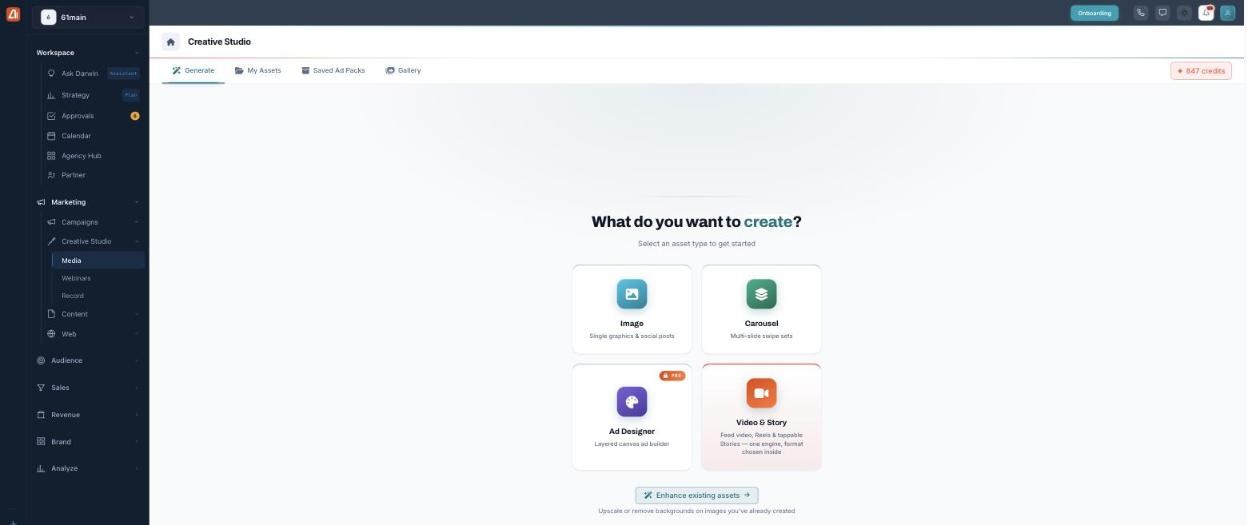
Start here — four ways to create, each with its own guide.
The four creators — each has its own guide
| Creator | What it makes | Guide |
|---|---|---|
| Image Generator | Single graphics and social posts from a prompt. | Open guide → |
| Carousels | Multi-slide swipe sets, written for you. | Open guide → |
| Ad Designer (Pro) | Polished ad creative on a layered canvas. | Open guide → |
| Video & Story | Feed video, Reels, and tappable Stories. | Open guide → |
New here? Start with the Image Generator — it’s the fastest way to see how a prompt becomes an on-brand asset.
My Assets: your creative library
Everything you generate lands in My Assets. It’s a searchable library organized into collections — All Assets, Saved Designs, Ad Packs, Carousel Series, Videos, AI Generated, Recent, and Never Used — so nothing gets lost.
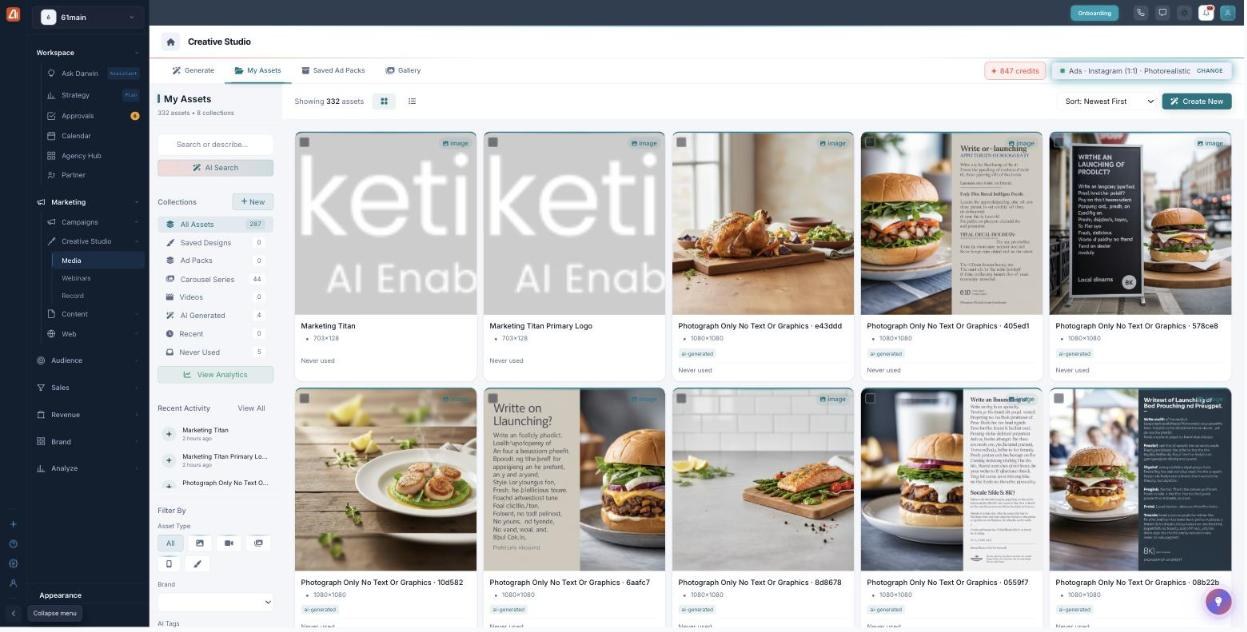
My Assets — every creative you’ve made, in searchable collections.
Use AI Search to find an asset by describing it, Filter By asset type, brand, or AI tags, and switch between grid and list. View Analytics shows how your creatives are performing, and Create New starts another one.
The Gallery: templates & inspiration
The Gallery tab is a jumping-off point — templates and community inspiration to kickstart your next creative. Switch between Templates, Community Inspiration, and My Assets, then narrow by Format (Ads, Carousels, Videos, Stories, Memes) and Industry (E-commerce, Social, Fashion, Food, Tech, Real Estate, Fitness).
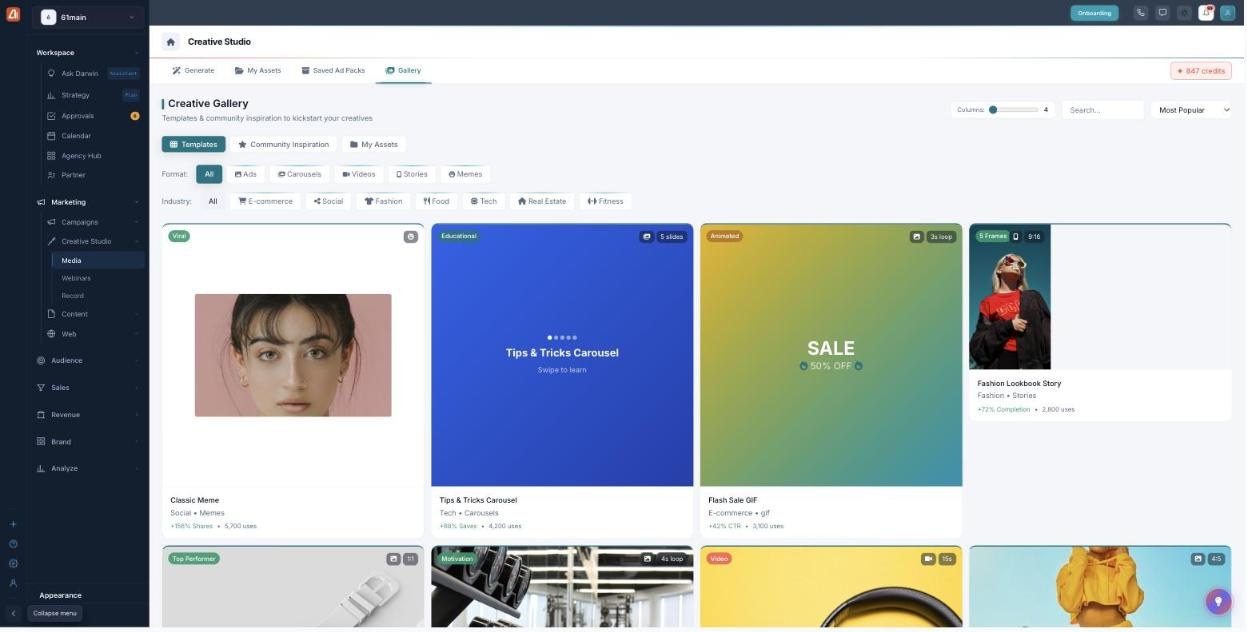
The Gallery — ready-made templates and inspiration, filtered by format and industry.
Saved Ad Packs
When you generate ads in bulk (in Ad Designer), they’re grouped into packs — batches of ads created together. The Saved Ad Packs tab is where those batches live; open one to view or edit its variations.
Saved Ad Packs — batches of ads generated together, ready to open and edit.
How Darwin creates for you
Every creator here starts from the same three things: your brand (colors, fonts, logo, voice), your product, and your goal. Darwin composes the scene, writes the copy, sizes it for the platform you pick, and even scores variants so the strongest one rises to the top. The more you set up your brand and products, the better the output gets.
Credits: the basics
Generating uses credits, and the cost is always shown before you commit — your balance sits in the top-right corner of Creative Studio. As a rough guide, images are the lightest, carousels and ads scale with slides and formats, and video is the most credit-heavy. Anything generated as a Series or Bulk pack multiplies the cost by the number of combinations. Each creator’s guide has the detail.
Common questions
What can I create here?
Four things: images, carousels, ads, and videos & Stories. Each has its own guided builder and detailed guide.
What are credits?
Generating uses credits, and the cost is shown before you commit. Your balance appears in the top corner of Creative Studio.
Where do my finished creatives go?
Into My Assets, sorted into collections. Bulk-generated ads are grouped under Saved Ad Packs.
Do I need to set up my brand first?
It helps a lot — Darwin applies your brand’s colors, fonts, logo, and voice to everything, so setting it up makes every asset come out on-brand automatically.
Having trouble? If Generate won’t run, check your credit balance in the top corner. If output looks off-brand, confirm the correct brand is selected. For anything creator-specific, open that creator’s guide above.
What’s next
- Open the Image Generator guide to make your first image.
- Build a deck with the Carousels guide.
- Design an ad with the Ad Designer guide.
- Make a video with the Video & Story guide.
- Track everything in My Assets.