
Video & Story is one engine for everything that moves — feed videos, Reels, and tappable Stories. Tell Darwin your product, who it’s for, and what you want it to do, and it builds a brand-aligned video with a proper structure: a hook to stop the scroll, a feature to make the point, and a call-to-action to close. The format (feed, Reel, Story) is chosen inside, so you don’t juggle separate tools.
You can build one video, generate a series across products and audiences, start from a professional template, or upload your own clip and let AI enhance it. A live vertical preview shows the safe area as you go, so text never ends up behind the app’s buttons.
Where to find it: Left menu → Marketing → Creative Studio → Media → Generate tab → Video & Story.
Four ways to start
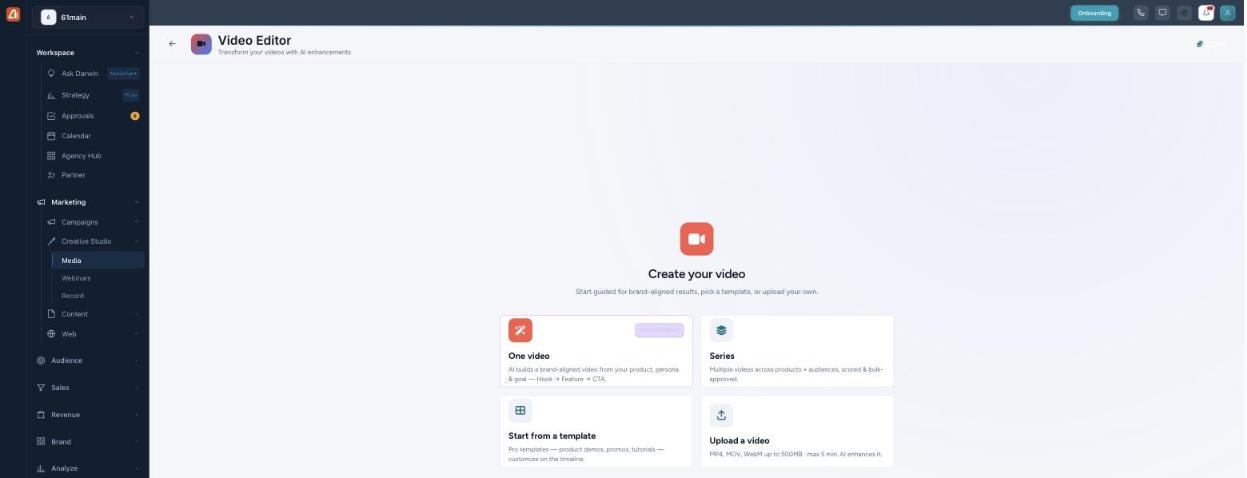
Make a video from scratch, in a series, from a template, or by uploading your own.
| Option | When to use it |
|---|---|
| One video | Darwin builds a brand-aligned video from your product, persona, and goal — Hook → Feature → CTA. |
| Series | Multiple videos across products × audiences, scored and bulk-approved. |
| Start from a template | Pro templates for product demos, promos, and tutorials — customize on the timeline. |
| Upload a video | Bring your own clip (MP4, MOV, or WebM, up to 500 MB and 5 minutes) and AI enhances it. |
The guided builder
The guided flow shows a live 9:16 vertical preview with a dashed safe area guide (keep text inside it so it isn’t hidden by the app’s chrome). There are two modes: Express and Step-by-step.
Express mode
Express pre-picks defaults so you can click Next through. Step 1 is the Brand — which loads the StyleID (type, color roles, logo, motif) that every layer composes inside — plus the product and persona.
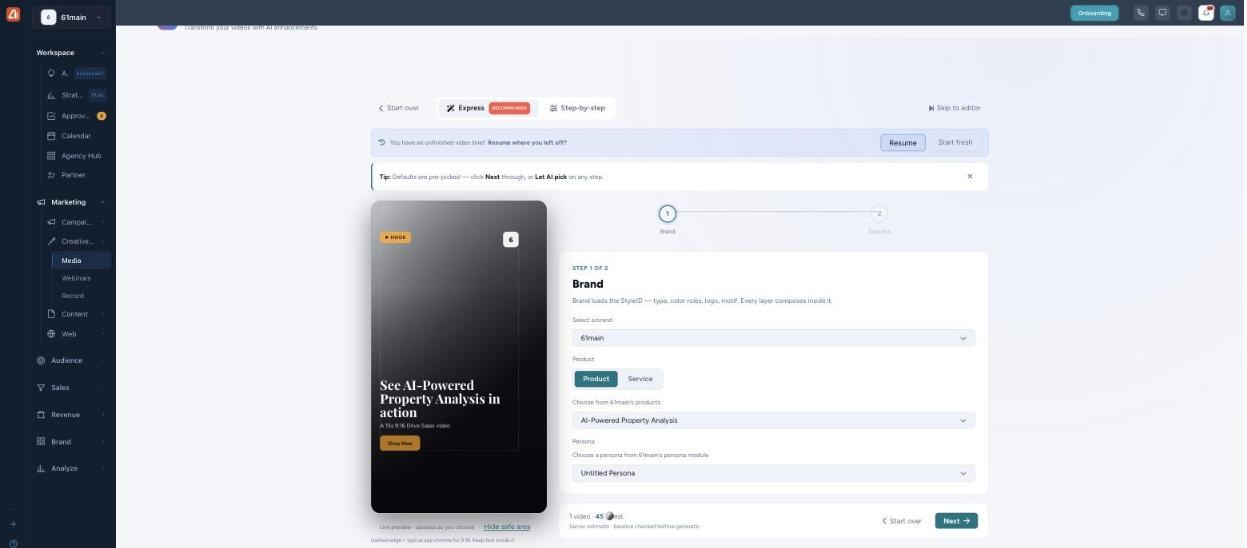
The video wizard — a live vertical preview and the brand that drives the whole look.
Step-by-step mode
Switch to Step-by-step for four stages: Offering → Audience & goal → Destination → Direction & review. The Offering step is where you pick the product and how the video should use it — generate a scene around it, or cut out a product photo and place the real object.
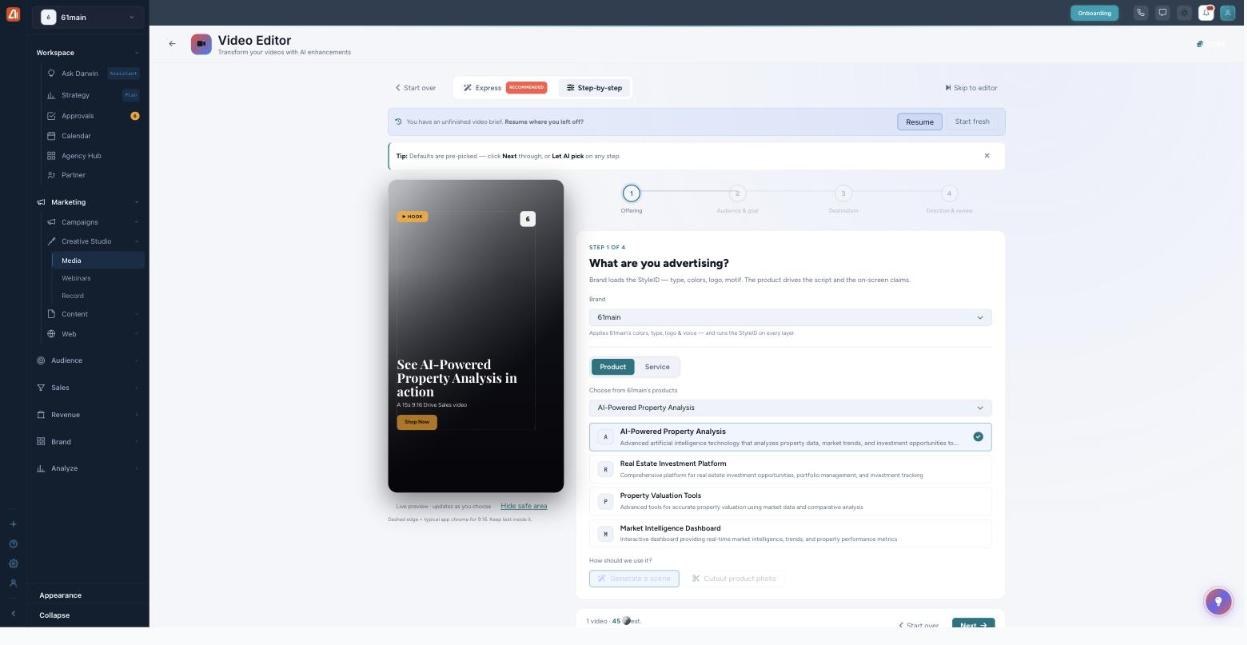
Step-by-step — pick the product and how the video should use it.
Audience, goal & the script arc
The Audience & goal step sets the persona (which drives tone, pace, and the hook) and the goal — Brand Awareness, Drive Sales, Product Launch, Engagement, Product Demo, or Social / Trend. As you choose, a Script Arc Preview shows the timing of your Hook, Feature, and CTA across the video’s length. The actual copy is AI-generated on Generate from your brand, product, persona, and goal.
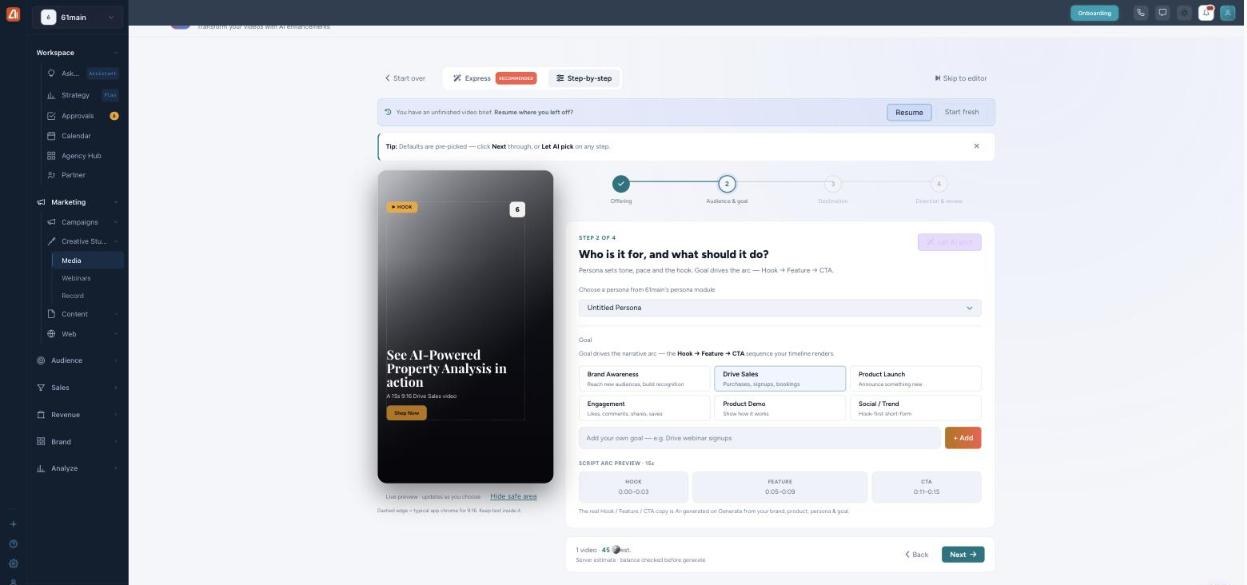
Audience & goal — the goal drives a timed Hook → Feature → CTA arc.
How Darwin builds the video
From your brand, product, persona, and goal, Darwin writes the script, composes brand-aligned scenes, and structures the video as Hook → Feature → CTA — sized for the format you pick. In a series, it scores and bulk-approves multiple videos across products and audiences, so you get a whole set that’s consistent and on-message.
Usage & credits
Generating video uses credits, and the estimate is shown before you generate — you’ll see something like “1 video · 45 est.,” with a note that the balance is checked before generating. Your balance is in the top-right of Creative Studio.
- Video costs more than images or carousels — it’s the most compute-heavy asset, so plan for a higher per-item cost.
- Series multiplies the cost — it renders one video per product × audience, so the total scales with the number of combinations.
- Longer videos and higher quality increase the estimate.
- Uploading your own clip and enhancing it is a lighter-weight option than generating from scratch (MP4, MOV, WebM — up to 500 MB and 5 minutes).
- The balance is checked before generate, so you won’t start a render you can’t finish.
Nail the concept with One video first — then use Series to produce the same idea across products and audiences in one approved batch, rather than paying to iterate each one separately.
Common questions
What formats can I make?
Feed video, Reels, and tappable Stories — one engine, and the format is chosen inside the builder.
What’s the safe area in the preview?
The dashed edge marks where the app’s buttons and chrome sit on a 9:16 screen. Keep important text inside it so nothing gets covered.
Can I upload my own video?
Yes — choose Upload a video (MP4, MOV, or WebM, up to 500 MB and 5 minutes) and AI will enhance it.
What is the Hook / Feature / CTA arc?
It’s the structure of the video — a hook to grab attention, a feature to make the point, and a call-to-action to close. The goal you pick drives this arc, and the timings show in the Script Arc Preview.
What’s the difference between One video and Series?
One video makes a single video. Series makes multiple across products × audiences in one run, scored and bulk-approved.
Having trouble? If Generate won’t run, check your credit balance (video costs more per item). If an upload is rejected, confirm it’s MP4/MOV/WebM, under 500 MB, and under 5 minutes. If text is getting cut off, keep it inside the dashed safe area. If a series is bigger than expected, reduce the products or audiences.
What’s next
- Start One video and click through Express mode.
- Switch to Step-by-step to set the offering, audience, and goal.
- Use Series to produce a set across products and audiences.
- Or Upload a video and let AI enhance it.