
Categories keep the knowledge base tidy. Every document belongs to a category, so answers can be scoped, the library can be filtered, and your team always knows where things live.
Where to find it: Left menu → Sales → Team & Resources → Knowledge Base → Overview → Manage Categories. Part of the Knowledge Base guide.
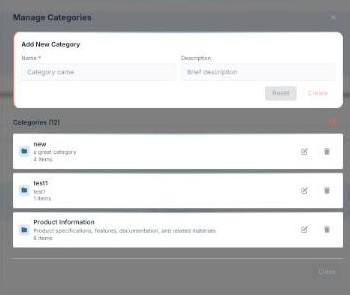
Manage Categories — add, edit and remove categories, each with its own item count.
What a category holds
| Field | Meaning |
|---|---|
| Name | What the category is called (required) — for example Pricing & Quotes. |
| Description | A short note on what belongs there, so teammates file content correctly. |
| Items | How many documents are in the category. |
| Actions | Edit (rename / change description) or delete the category. |
Where categories appear
- On the Overview as the Knowledge Categories grid, each card showing its item count.
- On Upload Content, where you must pick a category for each file.
- In Manage Content, as a filter and on every row.
- In Smart AI Search, via the
category:Nameshortcut.
Add a category
- On the Overview, click Manage Categories.
- In Add New Category, enter a Name and an optional Description.
- Click Create — it appears in the list and is ready to use on upload.
Edit or remove a category
- Open Manage Categories.
- Use the edit (pencil) icon on a category to rename it or change its description.
- Use the delete (trash) icon to remove one you no longer need.
💡 Tip: A clear description helps teammates file documents in the right place — and helps the AI scope answers when someone uses category:.
FAQ
Is a category required on upload?
Yes — Upload Content asks you to choose one before adding files.
What happens to an empty category?
It simply shows 0 items; empty categories can be hidden on the Overview until you add content.
Can I scope a search to one category?
Yes — type category:Name in Smart AI Search.