
The Manage Content tab is your content library. Search it, filter it, see how each item is doing, and keep it accurate — because clean content means better answers.
Where to find it: Left menu → Sales → Team & Resources → Knowledge Base → Manage Content. Part of the Knowledge Base guide.
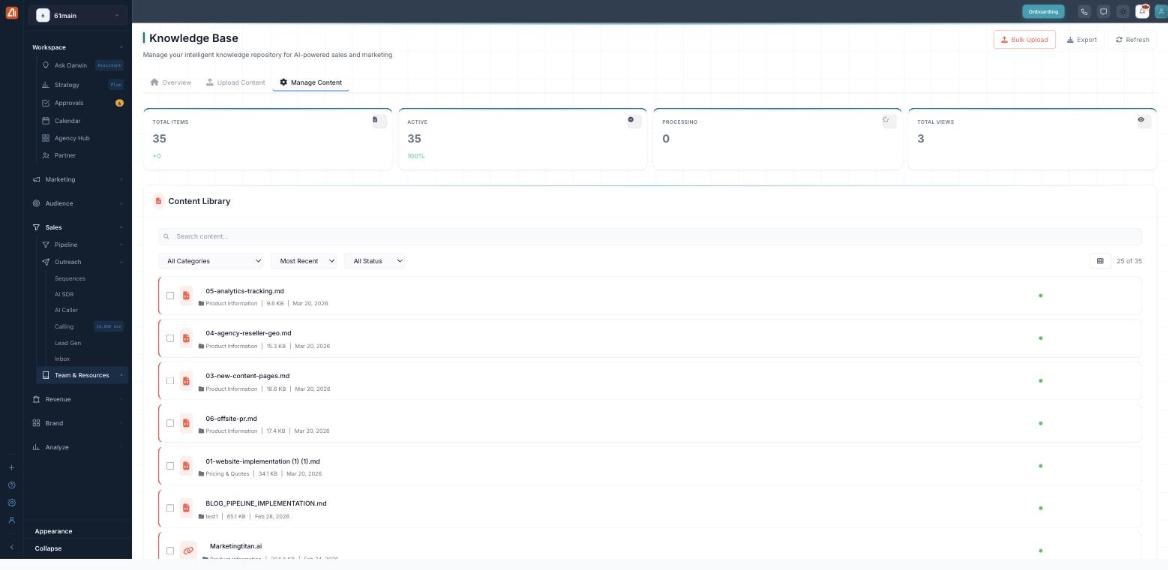
Manage Content — the content library with search, filters and per-item status.
Find and filter content
- Open the Manage Content tab.
- Search by name, or use the filters: All Categories, Most Recent and All Status.
- Read each row — name, category, size, date and a status dot (green = active).
The top actions
| Action | What it does |
|---|---|
| Bulk Upload | Add many files at once — see Upload Content. |
| Export | Download a list of your content for reporting. |
| Refresh | Pull the latest state of the library. |
Read the library stats
| Stat | Meaning |
|---|---|
| Total Items | Everything in the library. |
| Active | Items that are live and searchable. |
| Processing | Items still being indexed. |
| Total Views | How often your content has been opened. |
💡 Tip: Content can be files or web links — both live here, so a page you linked shows up alongside your PDFs.
FAQ
How do I remove outdated content?
Find it in the library and remove it — keeping stale docs out keeps answers correct.
What does the green dot mean?
The item is active — indexed and available to Smart AI Search.
Can I export the whole library?
Yes — use Export; apply a filter first to export just a subset.