
The Upload Content tab is where you feed the knowledge base. Choose a category, drag in your files, and the AI indexes them so they are searchable straight away.
Where to find it: Left menu → Sales → Team & Resources → Knowledge Base → Upload Content. Part of the Knowledge Base guide.
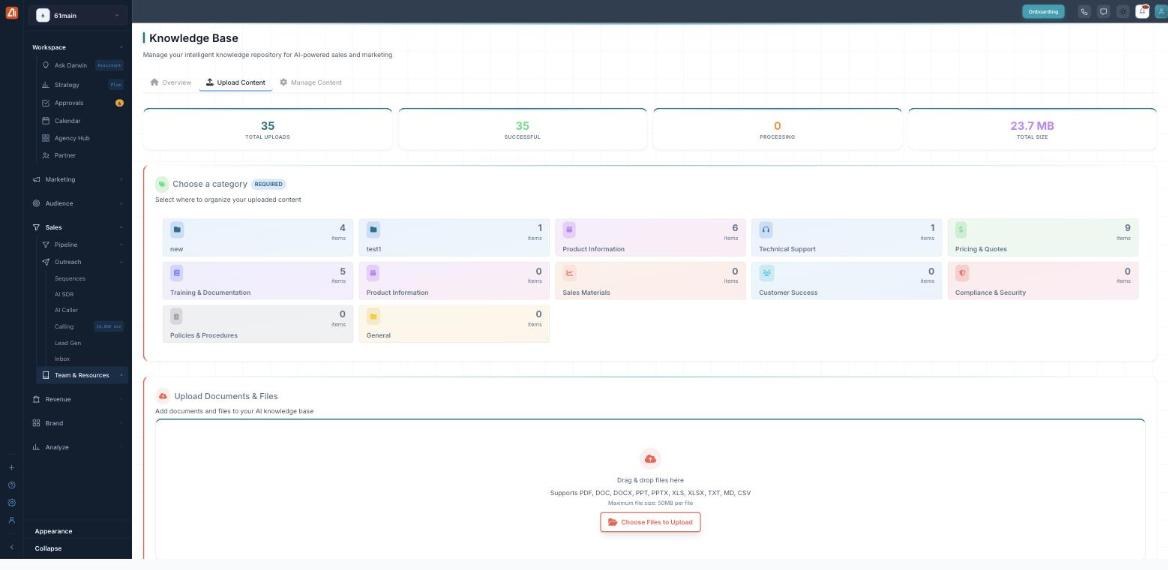
Upload Content — pick a category, then drag and drop your files.
Upload a document
- Open the Upload Content tab.
- Under Choose a category (required), click the category the file belongs to.
- Drag & drop your files into the upload area — or click Choose Files to Upload.
- Watch the stats — each file moves from Processing to Successful once indexed.
Supported files
| What | Details |
|---|---|
| File types | PDF, DOC, DOCX, PPT, PPTX, XLS, XLSX, TXT, MD and CSV. |
| Maximum size | 50 MB per file. |
| Category | Required — every upload is filed under a category. |
Read the upload stats
| Stat | Meaning |
|---|---|
| Total Uploads | Everything you have added. |
| Successful | Files indexed and ready to search. |
| Processing | Files still being read by the AI. |
| Total Size | The combined size of your content. |
💡 Tip: Pick the category before you drop files — it is required, and it saves re-filing them later.
FAQ
What if my file is over 50 MB?
Split it or compress it — 50 MB is the per-file limit.
How long until a file is searchable?
As soon as it moves from Processing to Successful; large files take a little longer to index.
Can I bulk upload?
Yes — drop several files at once, and see Manage Content for Bulk Upload.