
Smart AI Search is the heart of the Knowledge Base. Ask a question in plain English and the AI answers from your own uploaded content — no exact keywords, no folder-digging.
Where to find it: Left menu → Sales → Team & Resources → Knowledge Base → Overview → Smart AI Search. Part of the Knowledge Base guide.
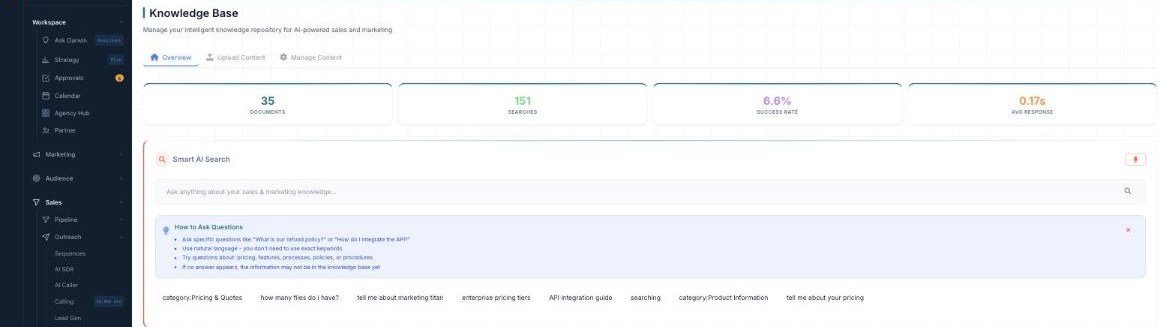
Smart AI Search — ask in plain English; example queries sit right below the box.
How to ask a good question
- Be specific — “What is our refund policy?” or “How do I integrate the API?”
- Use natural language — you do not need exact keywords.
- Ask about your business — pricing, features, processes, policies or procedures.
- Notice the gaps — if no answer appears, that information may not be in the knowledge base yet.
Ask a question
- Open the Overview tab.
- Type your question into the Smart AI Search box (or tap the microphone to ask by voice).
- Press enter — the AI answers from your uploaded content.
- No answer? The topic likely is not uploaded yet — add it in Upload Content.
Handy query shortcuts
| Type this | What you get |
|---|---|
category:Pricing & Quotes | Answers scoped to one category. |
| how many files do I have? | A count of what is in the knowledge base. |
| enterprise pricing tiers | A direct answer pulled from your pricing docs. |
| API integration guide | The relevant document surfaced for you. |
💡 Tip: The example chips under the box are clickable — tap one to see how a good question is phrased, then edit it.
FAQ
Does it search the whole web?
No — it answers only from the content you uploaded, so answers stay on-brand and accurate.
Can I ask by voice?
Yes — use the microphone icon in the search box.
Why did I get no answer?
The information probably is not in the knowledge base yet. Upload the document and ask again.