
The Knowledge Base is your intelligent knowledge repository. Upload your documents — pricing sheets, product specs, playbooks, policies — and the AI reads them so your whole team (and the platform’s AI features) can get instant, plain-English answers instead of digging through files.
Where to find it: Left menu → Sales → Team & Resources → Knowledge Base. Part of the Knowledge Base guide.
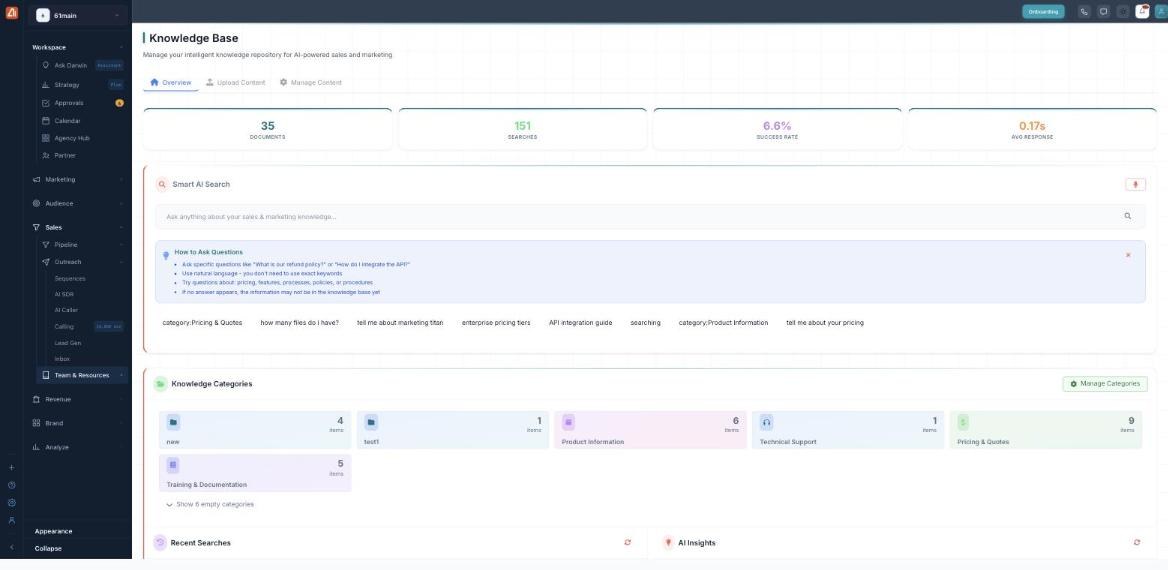
The Knowledge Base Overview — stats, Smart AI Search, and your knowledge categories.
What you can do here
- Ask questions in plain English — the Smart AI Search answers from your own content.
- Organize with categories — group content so it is easy to find and filter, with Knowledge Categories.
- Add documents — drag in files and the AI indexes them, via Upload Content.
- Curate the library — search, filter, view, export and remove content in Manage Content.
The three tabs
| Tab | What it’s for |
|---|---|
| Overview | The home — stats, Smart AI Search, your categories, recent searches and AI insights. |
| Upload Content | Add documents and files to the knowledge base. |
| Manage Content | Browse, filter and manage everything you have uploaded. |
Read the Overview stats
| Stat | Meaning |
|---|---|
| Documents | How many items are in the knowledge base. |
| Searches | How many questions have been asked. |
| Success Rate | The share of searches that returned a useful answer. |
| Avg Response | How fast the AI answers, on average. |
Get started in three steps
- Add content — open Upload Content, pick a category and drag in your files.
- Ask a question — back on the Overview, type a question into Smart AI Search.
- Keep it tidy — use categories and Manage Content to keep answers accurate.
💡 Why it matters: The better your knowledge base, the smarter every AI feature becomes — the AI Chatbot, AI SDR and Ask Darwin all draw on this content.
Also on the Overview
- Recent Searches — the latest questions people asked.
- AI Insights — suggestions such as your most-opened document or gaps to fill.
FAQ
What can I put in the knowledge base?
Documents and files — and even web links — about your business: pricing, products, processes, policies and more. See Upload Content for supported types.
Who can use the answers?
Your team through Smart AI Search, and the platform’s AI features that rely on your content.
Is the knowledge base empty for me?
If the stats read zero, nothing is uploaded yet — start with Upload Content.