
Every step is editable. Open a step’s Edit to change its wording, timing, and hero — by hand or with AI — or Regenerate for a completely fresh version.
Where to find it: Left menu → Sales → Outreach → Sequences (a step → Edit). Part of the Sequences guide.
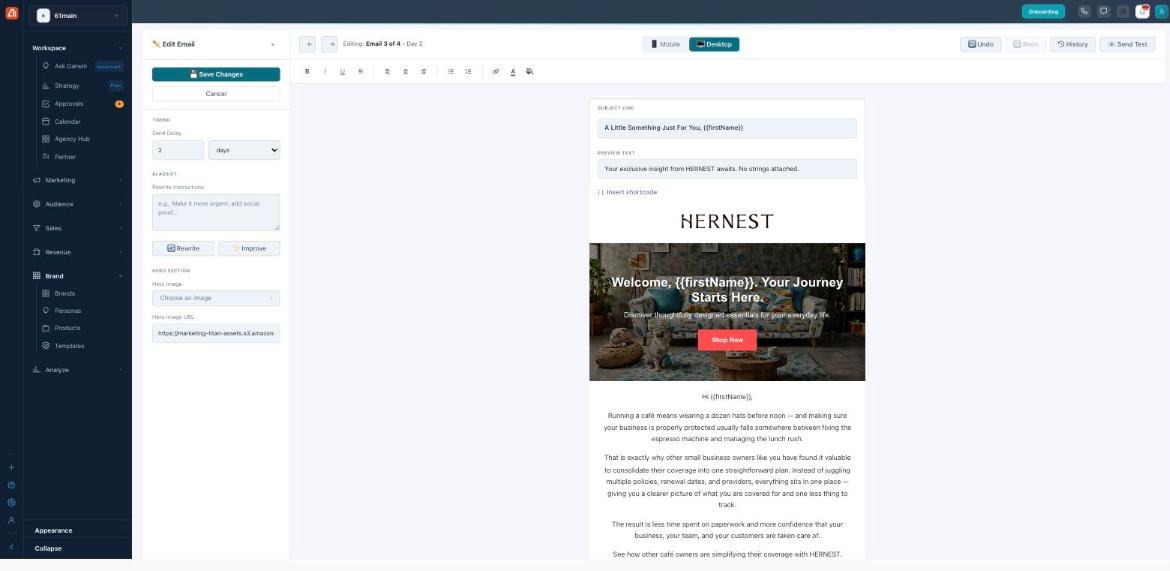
Edit any step by hand or with AI — then regenerate if you want a fresh take.
Timing
Under Timing, set the Send Delay — a number plus days or hours — to control how long after the previous step this one sends.
AI Assist: Rewrite & Improve
AI Assist rewrites the message for you. Type Rewrite Instructions (e.g. “make it more urgent, add social proof”) and click Rewrite, or click Improve for a general polish. Both are free.
Subject, preview text & merge fields
Edit the Subject line and Preview text (what shows in the inbox) right in the preview. Insert shortcode drops in merge fields that personalize each send — {{name}}, {{email}}, {{company}}, {{phone}}, {{address}}, and {{website}}.
Hero image
The Hero Section sets the step’s banner image — pick one with Hero Image (from your assets or an upload) or paste a Hero Image URL.
Regenerate a step
Prefer a clean slate? Regenerate (on the step’s menu) has AI rewrite that single step from scratch — it works for Email, SMS, LinkedIn, and AI Call steps, and costs no credits.
Preview, test & history
Toggle Mobile / Desktop, Undo / Redo, open History to roll back, or Send Test to see the real thing in your own inbox. Save Changes when you’re happy.
What’s next
- Back to the Sequences overview.
- See Three ways to build.
- See Describe your goal (Express).
- See Steps, channels & preview.
- See Review & Activate.