
When generation finishes you land on the preview: the whole sequence laid out as step cards, with predicted metrics up top and everything editable.
Where to find it: Left menu → Sales → Outreach → Sequences (the generated sequence). Part of the Sequences guide.
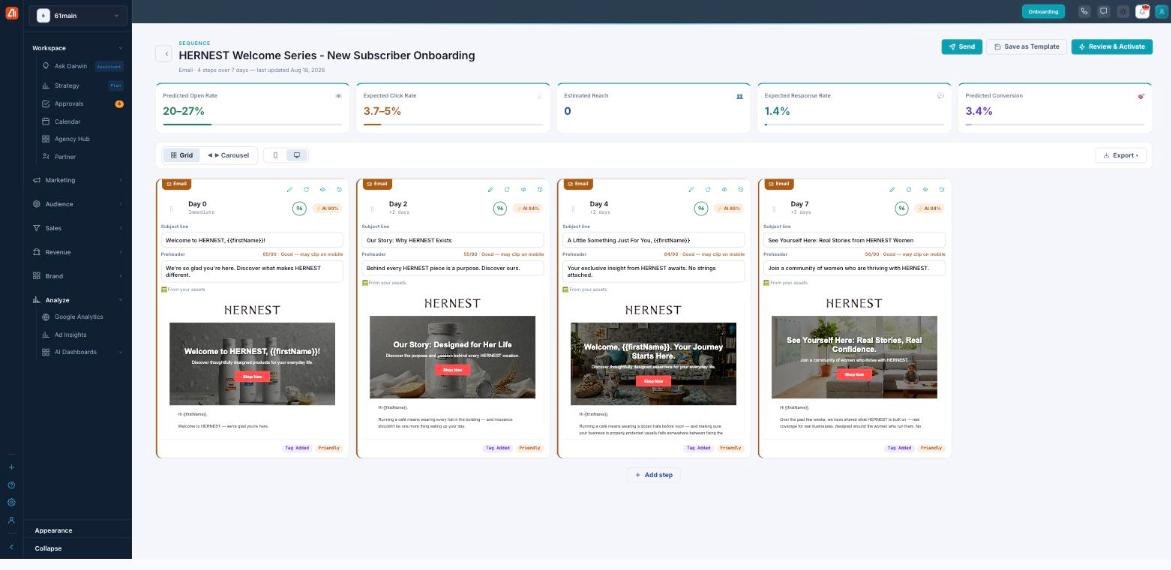
The generated sequence — every step, with predicted metrics.
Four channels
A sequence can mix four channels: Email (rich, long-form), SMS (short, urgent), LinkedIn (B2B outreach), and AI Call (a voice agent). Each step shows a channel badge; AI picks the mix from your goal, or you choose the channels yourself in Step-by-step.
The step cards
Each card is one step — Day 0 (Immediate), Day 2 (+2 days), and so on. Click the day to change the delay. An email card shows the subject line, a preheader with a length hint (N/90 — Good), the hero image, the body, an AI score (a quality read on the message), and intent/tone tags like Tag Added and Friendly.
The metrics up top
Above the steps: Predicted Open Rate, Expected Click Rate, Estimated Reach, Expected Response Rate, and Predicted Conversion — AI’s forecast for the sequence as drafted.
Views & export
Switch between Grid and Carousel, and preview at Mobile or Desktop width. Export downloads the sequence as JSON. Use + Add step to add another message.
Act on a step
Each step’s menu has Edit, Preview (an inbox-style view of the message), and Regenerate — see Editing & regenerating steps. Up top: Send, Save as Template, and Review & Activate.
What’s next
- Back to the Sequences overview.
- See Three ways to build.
- See Describe your goal (Express).
- See Editing & regenerating steps.
- See Review & Activate.