
A sequence is an automated, multi-step follow-up that AI writes for you — a series of messages sent over days across Email, SMS, LinkedIn, and AI Call. Describe the goal and Darwin builds the whole flow: the steps, the timing, and every message.
Where to find it: Left menu → Sales → Outreach → Sequences (this opens the AI Sequence Builder). Manage everything you’ve built from the Sequences dashboard, and start a new one with + Create Sequence.
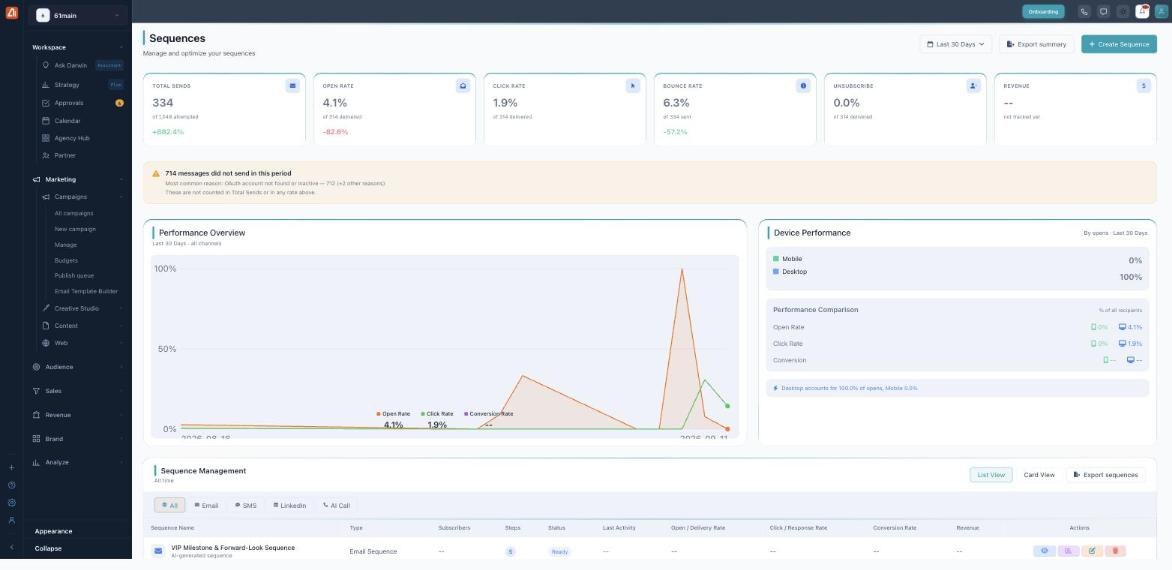
The Sequences dashboard — every sequence, its channels, and how it is performing.
What a sequence is
Instead of sending one message, a sequence sends a planned series — a welcome flow, a cart win-back, a re-engagement drip — each step timed and personalized. AI writes the copy and can span several channels in one flow.
Four channels
Steps can go out over Email, SMS, LinkedIn, or an AI Call (a voice agent). A single sequence can mix them — for example email, then an SMS nudge, then a call.
The dashboard
The Sequences dashboard shows how your outreach is doing — Total Sends, Open Rate, Click Rate, Bounce Rate, Unsubscribe, and Revenue, plus a performance chart and device breakdown. If a message can’t send (often because a channel’s account isn’t connected), a banner explains why — those aren’t counted in your rates.
Managing your sequences
The Sequence Management table lists every sequence with its Type, Subscribers, Steps, Status (Draft, Ready, Active, Paused, Completed — or a red Failed if generation didn’t finish), and its rates. Filter by channel (All / Email / SMS / LinkedIn / AI Call), switch List / Card view, or Export. Each row can be viewed, analyzed, edited, or deleted.
Learn each part
| Topic | What it covers | Guide |
|---|---|---|
| Three ways to build | Describe your goal, step-by-step, or a content pack. | Open → |
| Describe your goal (Express) | Goal, presets, trigger, live preview, and Generate. | Open → |
| Steps, channels & preview | Email / SMS / LinkedIn / AI Call steps and metrics. | Open → |
| Editing & regenerating steps | Edit copy, timing, hero; AI rewrite; regenerate. | Open → |
| Review & Activate | Autonomy modes, trigger, senders, compliance, go live. | Open → |
What costs credits
Building is free. Generating a sequence, regenerating a step, and AI Rewrite / Improve / Enhance / Let AI pick use no credits. You only spend credits when messages actually send (one credit per email beyond your plan’s included sends). AI Call steps draw on a separate call-minutes pool. The “~N credits” shown while you set up is an estimate of the send, not a charge for generating.
What’s next
- Build one — three ways to build.
- The fast way — describe your goal.
- Then review & activate.