
When it’s time, Start a webinar to open the rehearsal room — a private space to check everything before attendees see you.
Where to find it: Left menu → Marketing → Creative Studio → Webinars → a scheduled webinar → Start. Part of the Webinars guide.
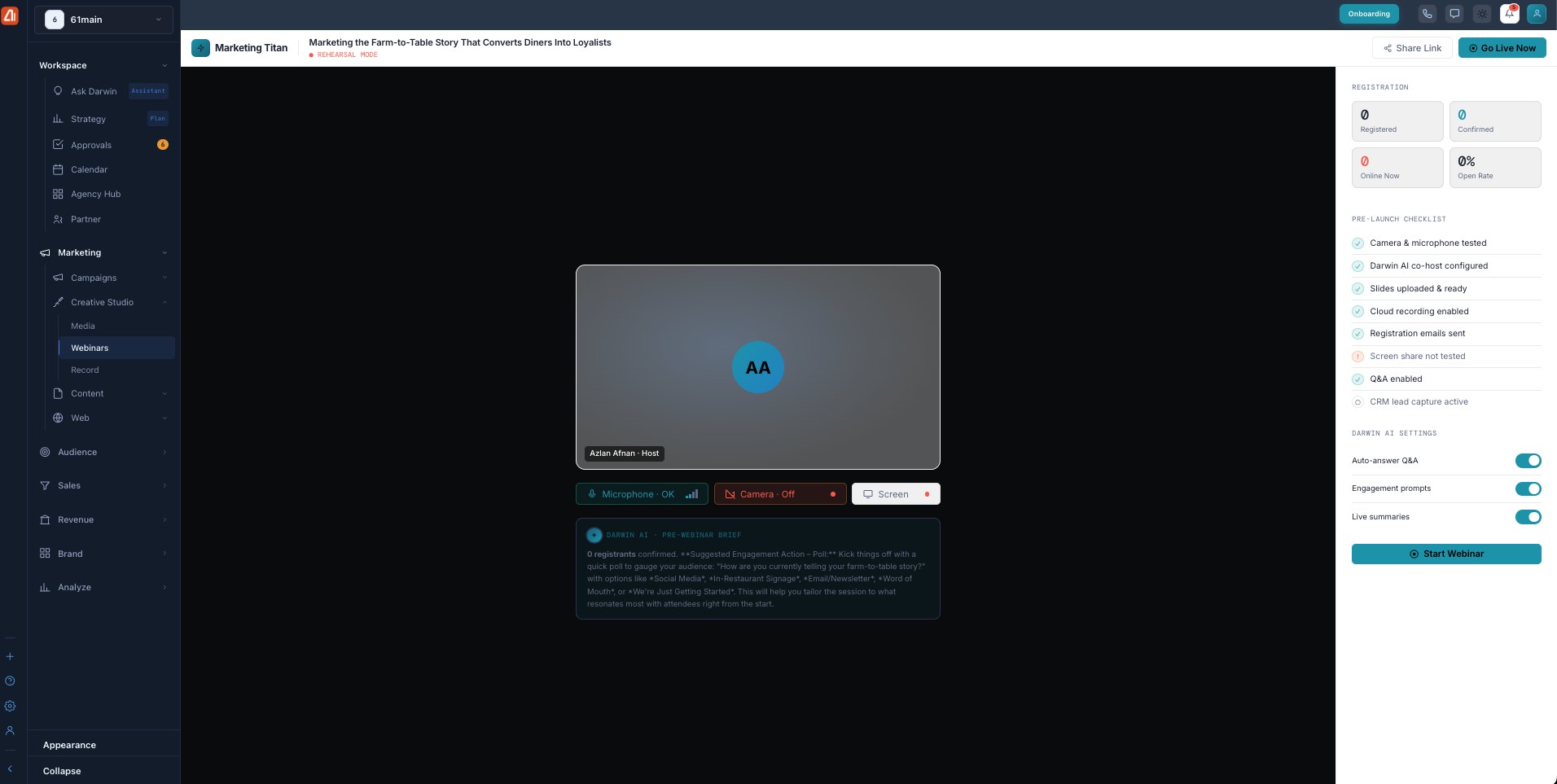
Rehearsal mode — check your setup and Darwin AI before you go live.
Test your setup
The banner reads REHEARSAL MODE — nothing is broadcast yet. Preview your camera, confirm your Microphone, and test Screen share. A registration snapshot (Registered, Confirmed, Online Now, Open Rate) sits alongside.
Pre-launch checklist
A checklist confirms you’re ready: camera & mic tested, Darwin AI co-host configured, slides uploaded, cloud recording enabled, registration emails sent, Q&A enabled, and more — anything not done (like “screen share not tested”) is flagged.
Darwin AI settings
Set how your AI co-host behaves live: Auto-answer Q&A, Engagement prompts, and Live summaries. Darwin also shows a pre-webinar brief with a suggested opening action.
Go live
When you’re happy, Start Webinar (or Go Live Now) takes you live. Share Link copies the attendee link if you need it.
What’s next
- Back to the Webinars overview.
- See Create a webinar.
- See Registration & join page.
- See The live room.
- See Post-webinar report.