
When you publish a webinar, it gets a public page at its own link. This is what you share — where people register, and later join.
Where to find it: Left menu → Marketing → Creative Studio → Webinars (the public registration link). Part of the Webinars guide.
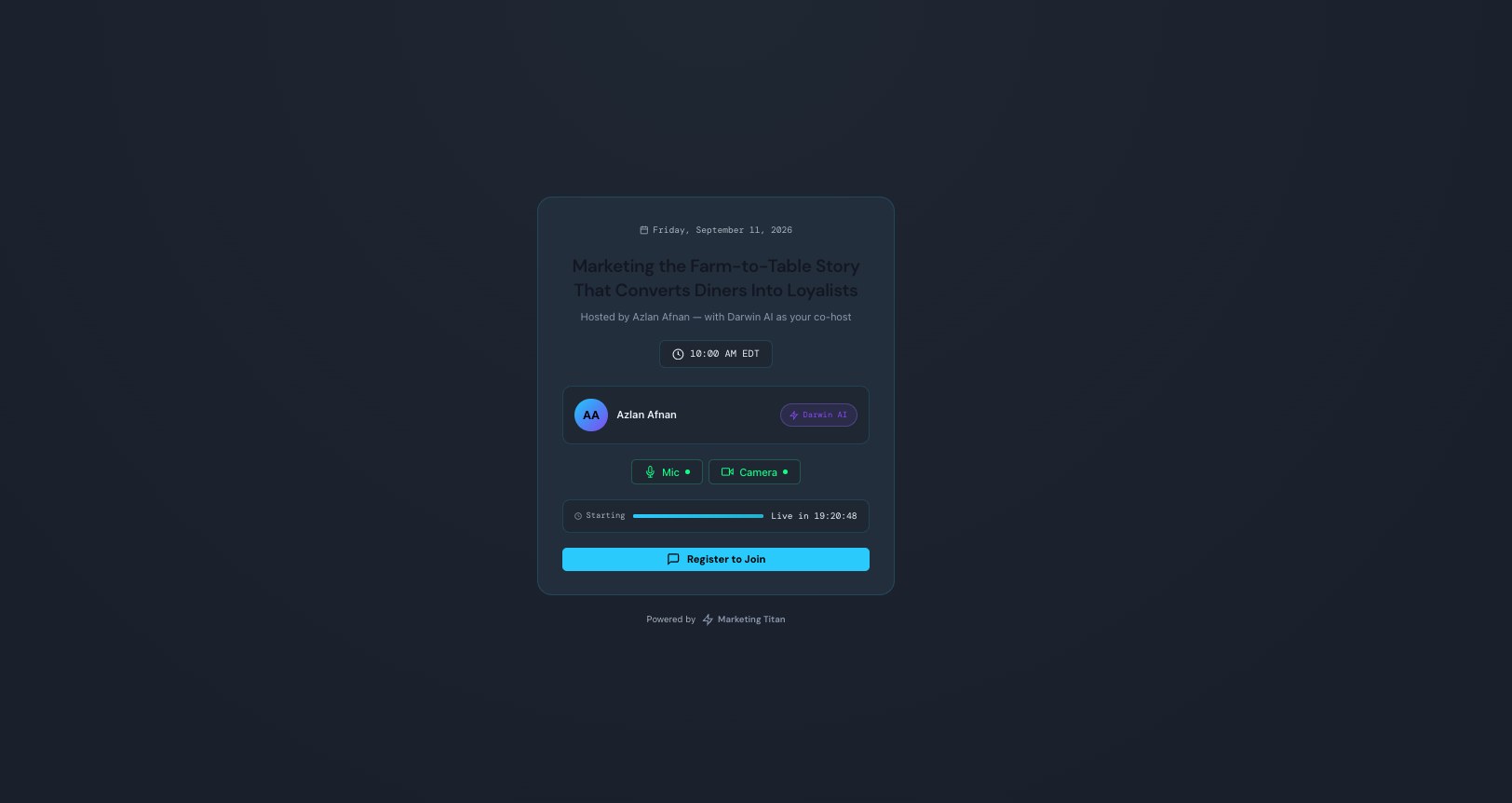
The public page your attendees land on to register and join.
What attendees see
The page shows the date and title, who’s hosting (with Darwin AI noted as co-host), the start time, a quick mic and camera check, and a countdown (“Live in…”). The big Register to Join button starts sign-up.
Registering
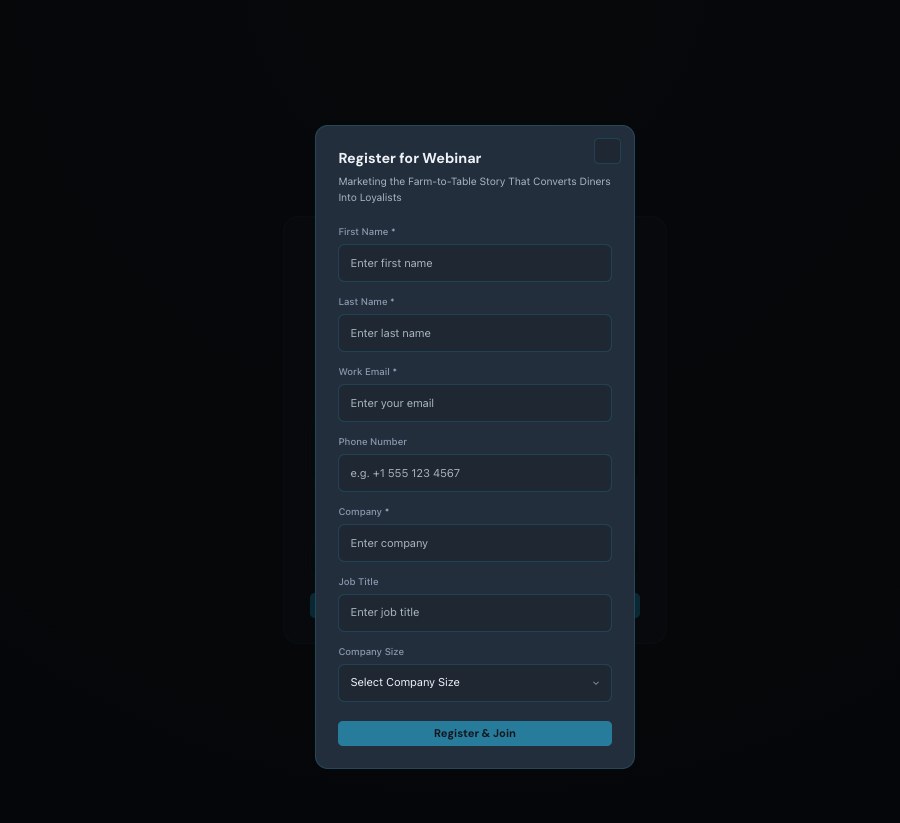
The registration form — the exact fields you set in the wizard.
Clicking Register to Join opens the Register for Webinar form — the exact fields you configured in the wizard (First Name, Last Name, Work Email, and any custom ones). On submit they’re registered, their details flow into your CRM if you enabled that, and they receive their join link.
Already registered? Get the join link
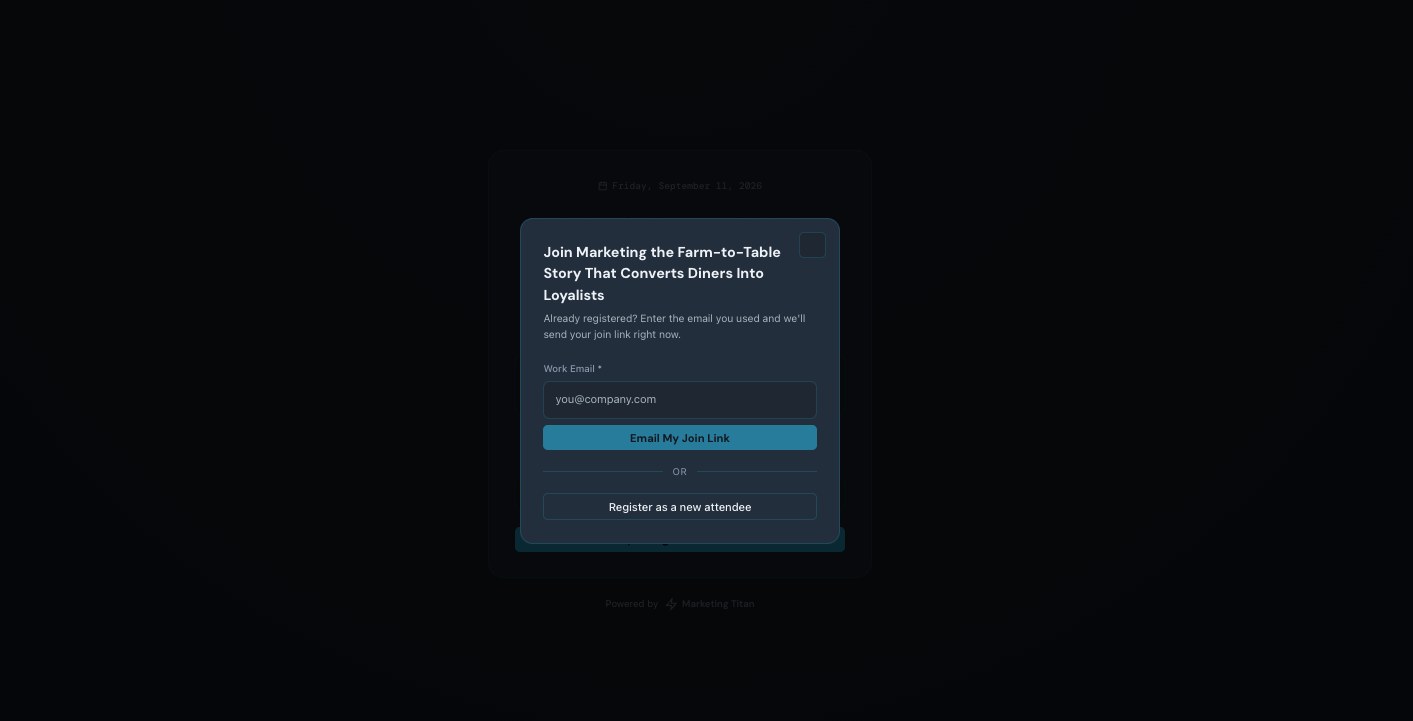
Returning attendees enter their email for the join link — or register fresh.
Someone who already signed up can enter the email they used and get their join link emailed right away (“Email My Join Link”), or choose Register as a new attendee. You can also Copy Link from the dashboard to share this page anywhere.
What’s next
- Back to the Webinars overview.
- See Create a webinar.
- See Rehearse & go live.
- See The live room.
- See Post-webinar report.