
When a webinar ends, open its Post-Webinar Report (from the list via View Report) for a Darwin-AI-written recap of what happened.
Where to find it: Left menu → Marketing → Creative Studio → Webinars → an ended webinar → View Report. Part of the Webinars guide.
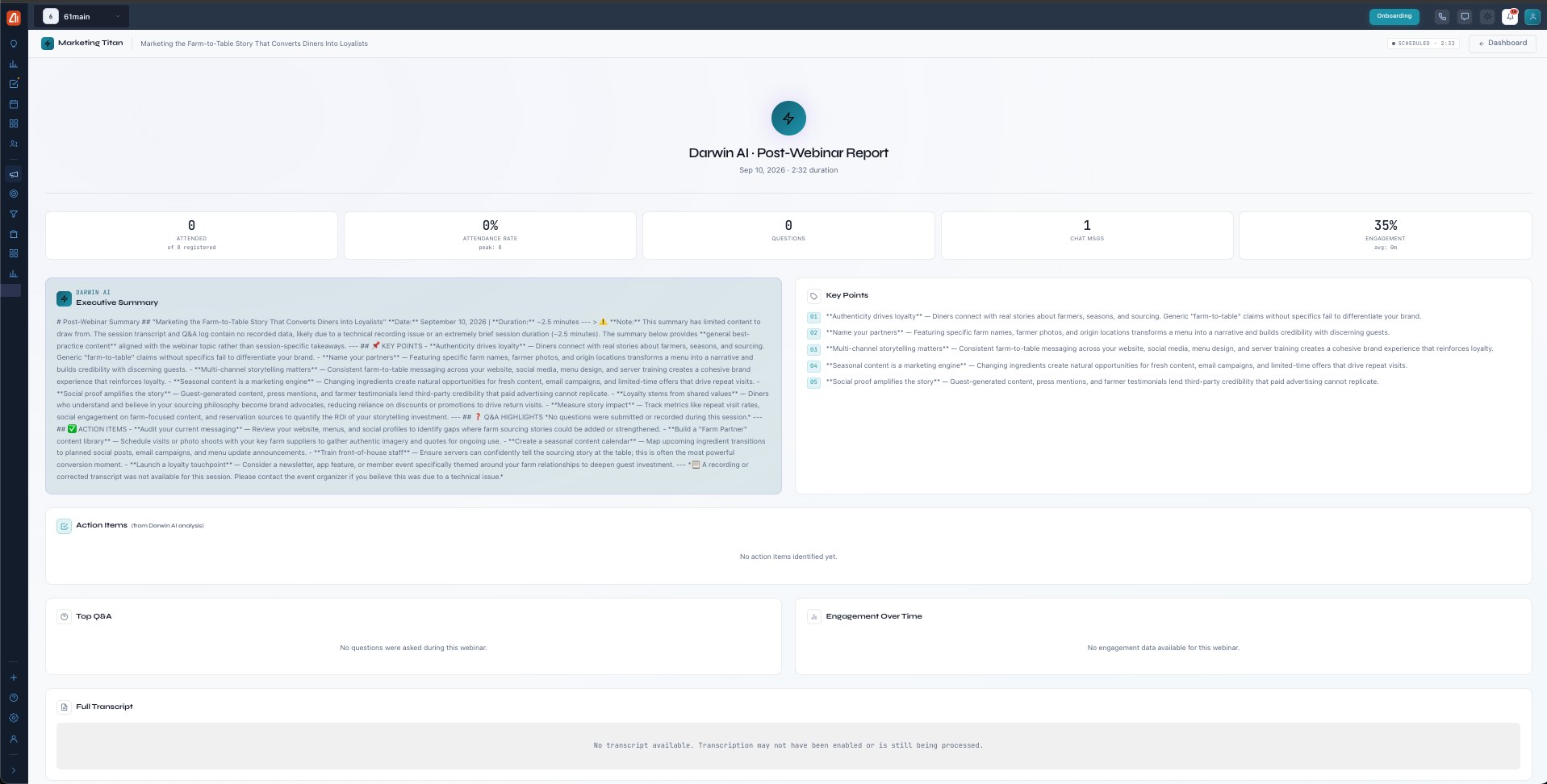
After a webinar ends, Darwin AI writes a full report automatically.
The numbers
Stat cards up top: Attended (of how many registered), Attendance Rate (with peak), Questions, Chat Msgs, and Engagement (average).
Darwin AI summary
Darwin writes an Executive Summary, a list of Key Points, and Action Items — and it’s transparent when a session had little content (e.g. no transcript or Q&A), telling you so rather than inventing a recap.
Q&A, engagement & transcript
Below that: Top Q&A from the session, an Engagement Over Time chart, and the Full Transcript. From the list you can also Export CSV (registrants/attendees) or Share Replay.
Follow-up automations
The report also offers one-click follow-up actions powered by Darwin AI: Send Follow-Up Emails (replay link + thank-you to registrants), Publish Recording, Push Leads to CRM, Export Analytics, and Schedule a Follow-Up Webinar — so the recap turns straight into next steps.
What’s next
- Back to the Webinars overview.
- See Create a webinar.
- See Registration & join page.
- See Rehearse & go live.
- See The live room.