
Once you’re live, the webinar room is your control center: a LIVE badge, attendee count, and elapsed timer up top, your video stage in the middle, and Darwin AI + audience tools on the right.
Where to find it: Left menu → Marketing → Creative Studio → Webinars (live session). Part of the Webinars guide.
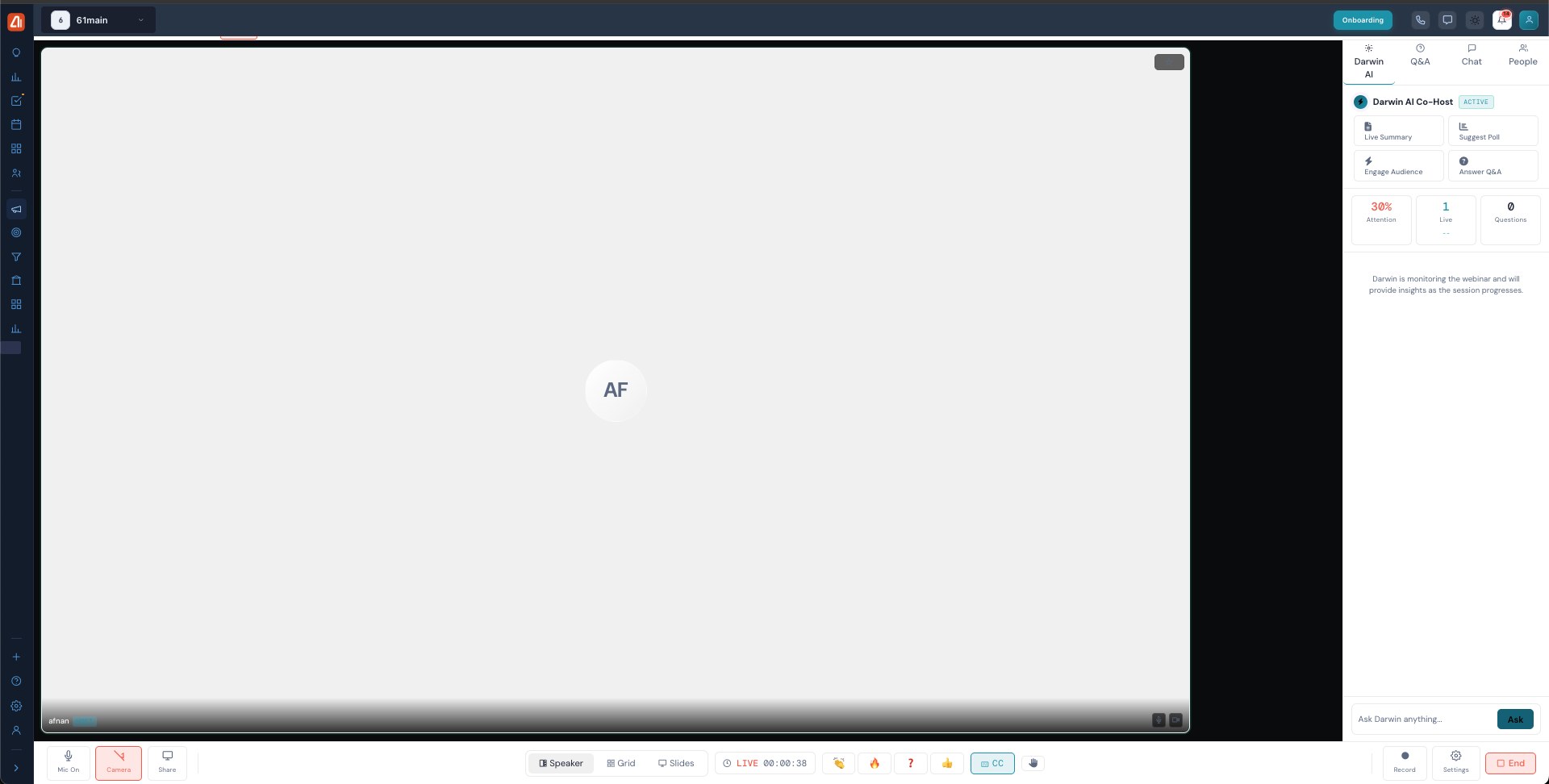
The live room — where you present, and Darwin AI co-hosts alongside you.
The right panel — Darwin AI, Q&A, Chat, People
Four tabs run the session. Darwin AI Co-Host (Active) offers one-click Live Summary, Suggest Poll, Engage Audience, and Answer Q&A, shows Attention / Live / Questions metrics, and lets you Ask Darwin anything. Q&A collects and upvotes questions, Chat is the live conversation, and People lists who’s in.
Present with slides
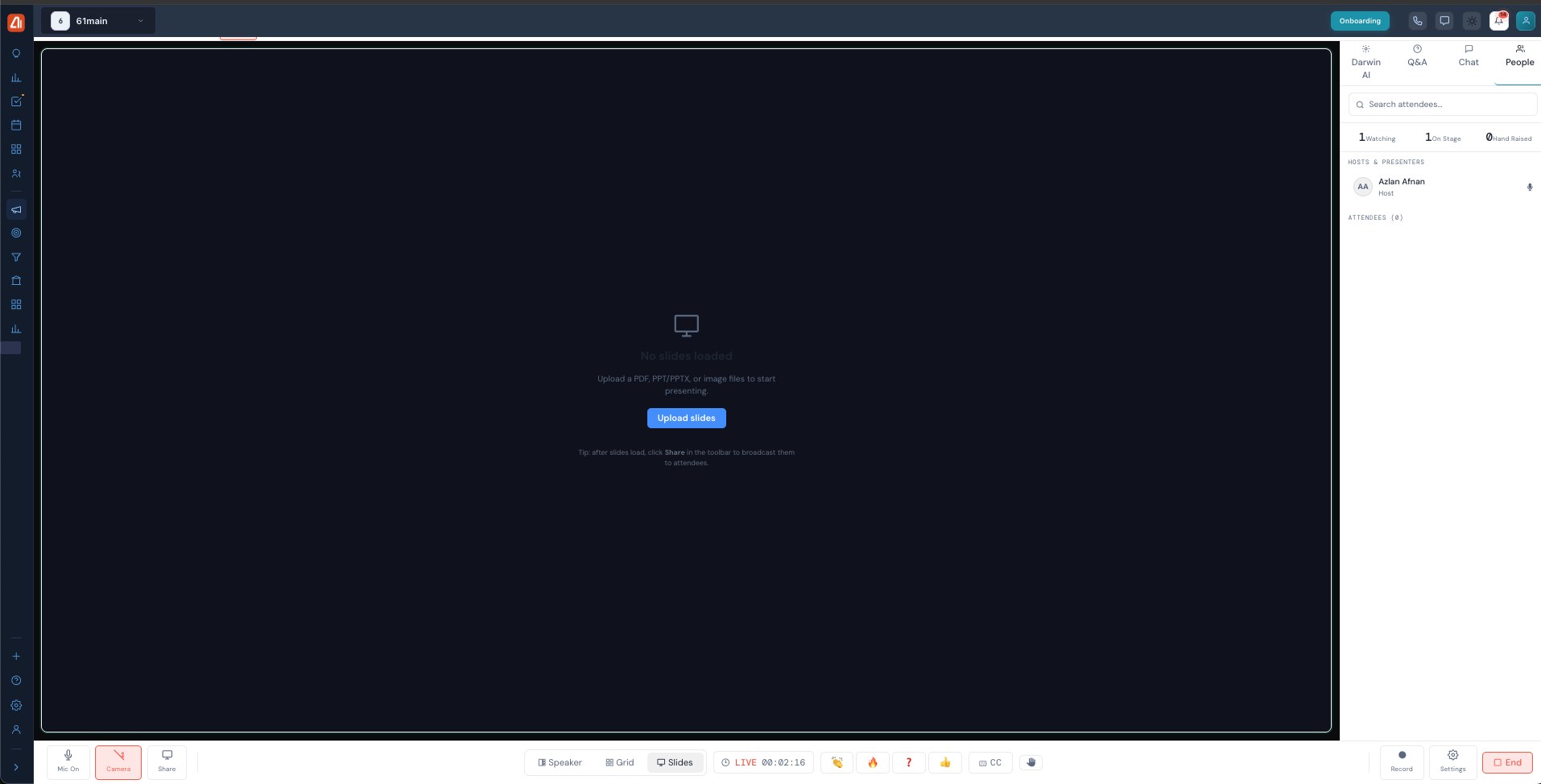
Upload slides (PDF/PPT/images), then Share to broadcast them to attendees.
Switch the stage to Slides and Upload slides — a PDF, PPT/PPTX, or image files. Once they load, click Share in the toolbar to broadcast them to attendees, and page through with the arrows (late-joiners catch up to the current slide).
The control bar
Along the bottom: toggle your Mic and Camera, Share your screen, and switch the layout between Speaker, Grid, and Slides. You also get audience reactions (clap, fire, question, thumbs-up), CC live captions, hand raise (an attendee asks to come on camera; you admit them), Record, Settings, and End.
Ending the webinar
End Webinar stops the session for everyone and starts Darwin AI’s post-webinar report. Share and Settings stay available throughout.
What’s next
- Back to the Webinars overview.
- See Create a webinar.
- See Registration & join page.
- See Rehearse & go live.
- See Post-webinar report.