
Webinars let you schedule, host, and analyze live sessions — with Darwin AI as your co-host answering questions, suggesting polls, and writing the recap. This is the dashboard for every webinar you run.
Where to find it: Left menu → Marketing → Creative Studio → Webinars.
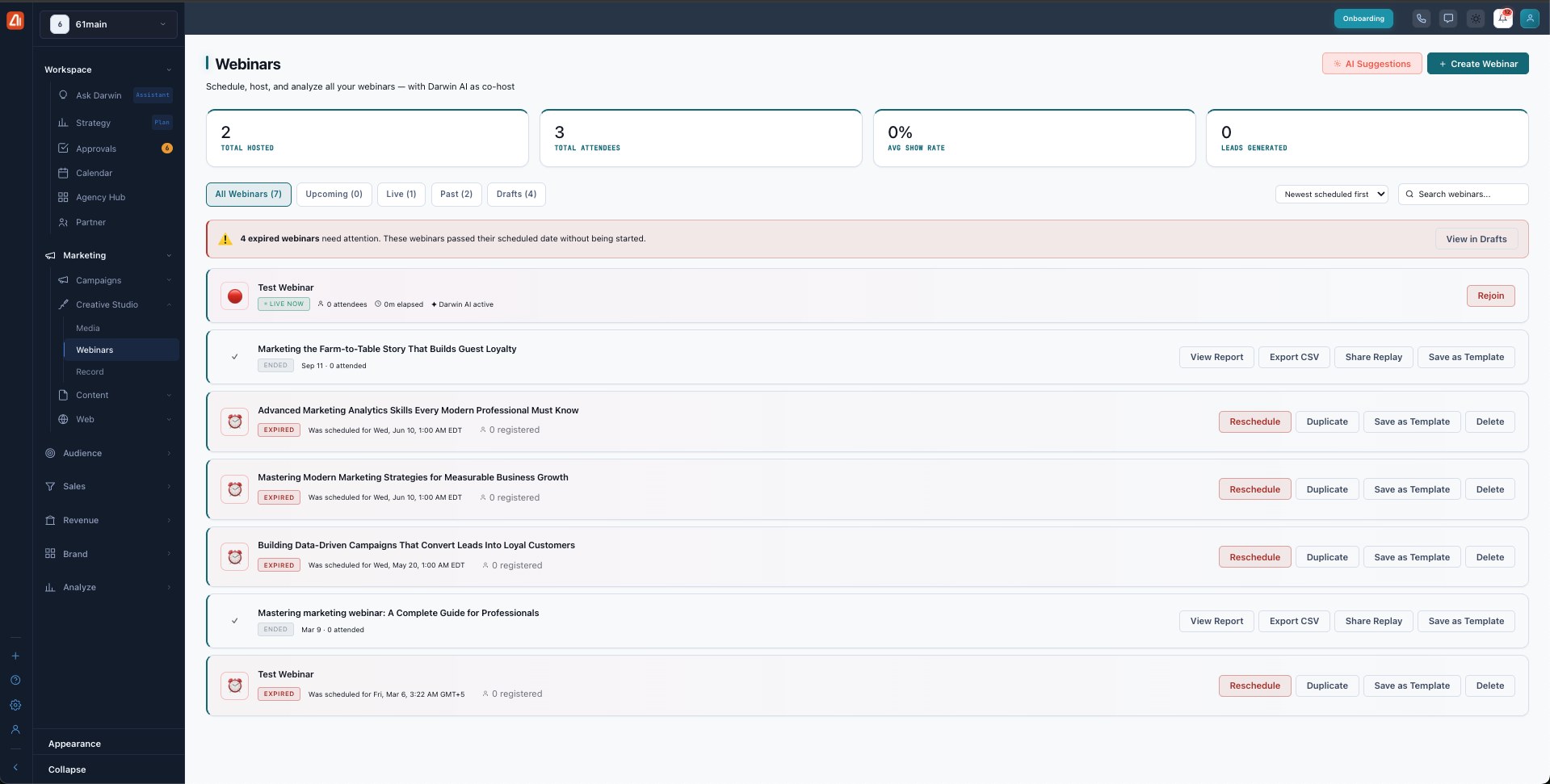
The Webinars dashboard — every webinar, its status, and its actions.
The dashboard
The top cards track Total Hosted, Total Attendees, Avg Show Rate, and Leads Generated. Tabs filter your list by status — All, Upcoming, Live, Past, and Drafts — and a banner warns you about expired webinars (published but never started). Create Webinar starts a new one; AI Suggestions proposes topics.
What each webinar card can do
The buttons on a card depend on its status:
| Status | Actions |
|---|---|
| Draft | Continue Setup, Duplicate, Save as Template, Delete |
| Scheduled | Send Reminder, Start, Edit, Copy Link, Save as Template |
| Live | Rejoin |
| Expired (passed its date, never started) | Reschedule, Duplicate, Save as Template, Delete |
| Ended | View Report, Export CSV, Share Replay, Save as Template |
The stages of a webinar — each has its own guide
| Stage | What it covers | Guide |
|---|---|---|
| Create | The 5-step wizard: details, speakers, registration, settings, review. | Open → |
| Registration page | The public page attendees register and join from. | Open → |
| Rehearse & go live | Test your setup and Darwin AI, then start. | Open → |
| The live room | Present, share slides, run Q&A/chat/polls with Darwin AI. | Open → |
| Post-webinar report | Darwin AI’s automatic recap and analytics. | Open → |
Darwin AI co-hosts the whole way
From title suggestions when you create, to answering Q&A and suggesting polls live, to writing the summary afterward — your AI co-host is part of every stage.
What’s next
- Start with Create a webinar.
- See what attendees get on the registration page.
- When it’s time, rehearse & go live.