
The Clients tab is your client portfolio — every client you work for and the brands linked to them, in one manageable table. It’s where you add a new client, see contract value and status at a glance, and open any client’s own portal.
Where to find it: Left menu → Agency Hub → Clients. Part of the Agency Hub suite.
The Client Portfolio table
Four cards up top count your Total Clients, Enterprise-tier clients, Active Clients, and the current page. Below them, the Client Portfolio table is the heart of the page — one row per client, with brands nested underneath when a client has more than one.
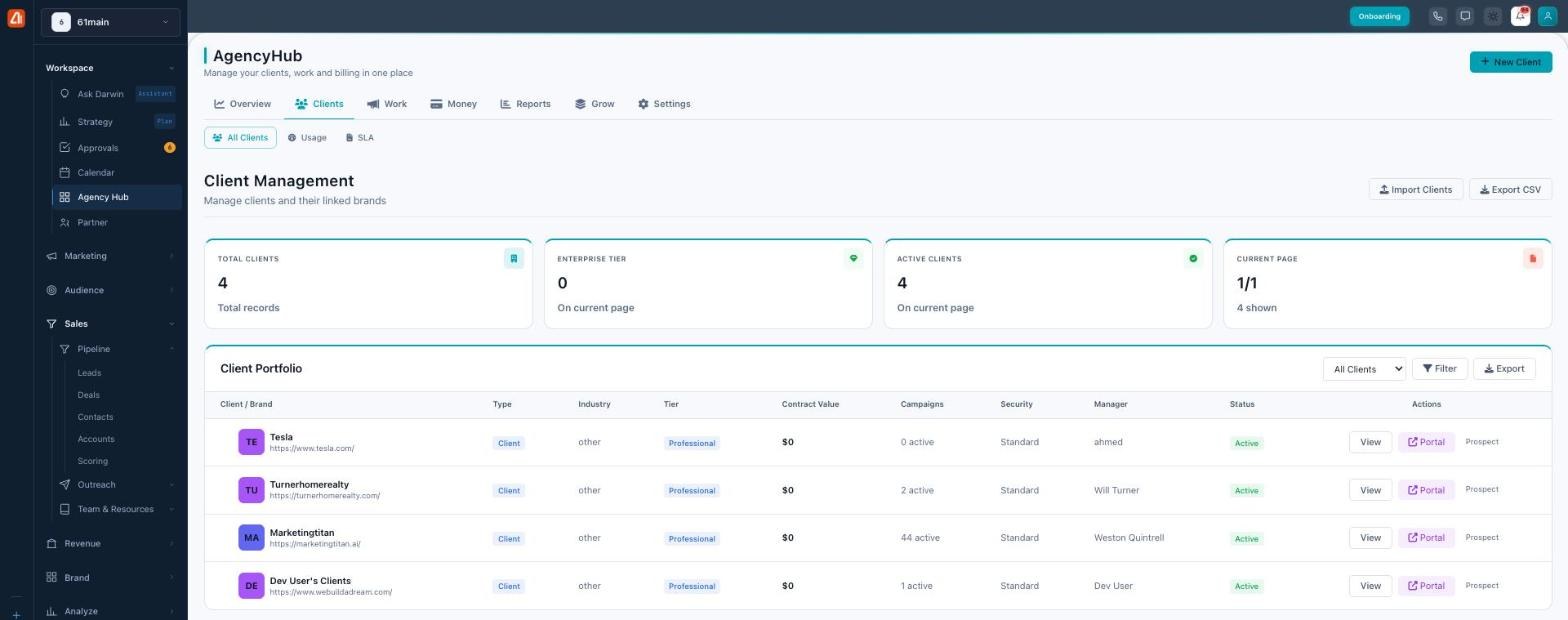
Every client and their linked brands in one portfolio.
| Column | What it shows |
|---|---|
| Client / Brand | The client name, avatar badge, and website (expand a row to see linked brands). |
| Type | Client or prospect (a prospect has no sub-account yet). |
| Industry | The client’s industry — helps Darwin tailor the work. |
| Tier | Their plan level: Startup, Professional, or Enterprise (color-coded). |
| Contract Value | What the account is worth (annual). |
| Campaigns | How many campaigns are active for them. |
| Security | Their security/compliance level. |
| Manager | The account manager who owns the relationship. |
| Status | Active, Inactive, Review, or Suspended (color-coded). |
| Actions | View the client, open their Portal, add a brand, or impersonate the account. |
Use Import Clients to bring a list in from a spreadsheet, or Export CSV to take your portfolio out. Three sub-tabs give you different views: All Clients, Usage, and SLA.
Adding a client
Click New Client (top right of any Agency Hub tab) and a form opens. Fill in the details, and when you save, Agency Hub provisions a real sub-account for that client behind the scenes — you’ll see it move through queued → creating → configuring → ready.
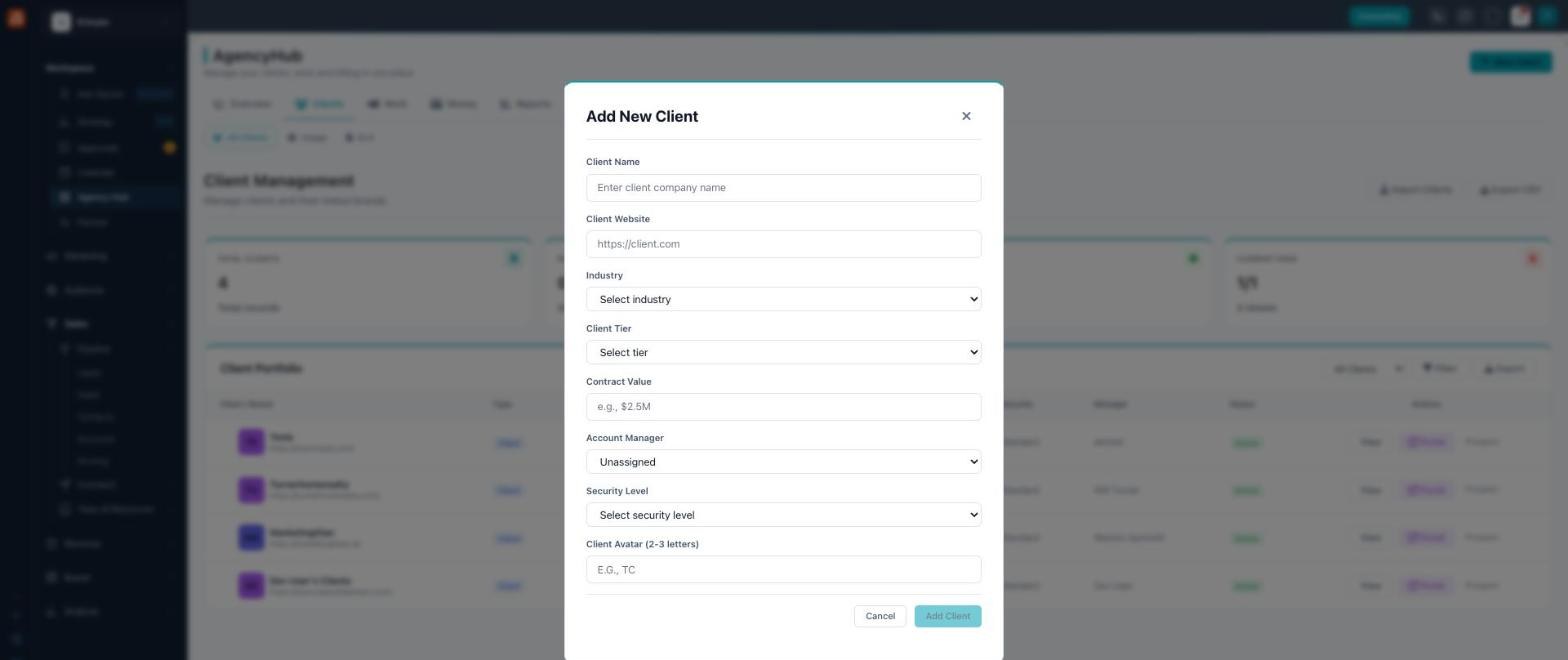
Add a client — saving provisions a real sub-account for them.
| Field | What to enter |
|---|---|
| Client Name | The client’s company name. |
| Client Website | Their main web address. |
| Industry | Technology, Healthcare, Finance, Retail, SaaS, Manufacturing, Education, or Other. |
| Client Tier | Startup, Professional, or Enterprise. |
| Contract Value | What the account is worth per year. |
| Account Manager | Who on your team owns this client. |
| Security Level | SOC 2, HIPAA, PCI DSS, ISO 27001, Standard, or None. |
| Client Avatar | 2–3 letters for the little colored badge. |
Set the Account Manager when you create the client — it routes tasks, alerts, and the “This week” nudges to the right person on your team from day one.
Client vs prospect
A client has a live sub-account linked to it; a prospect is a record you’re tracking that hasn’t been provisioned yet. You can mark a row as a prospect from the Actions menu, and convert it to a full client later.
Common questions
What happens when I add a client?
Agency Hub creates a real, isolated sub-account for them (its own schema and data) and links it to the client record. You can watch it provision in real time.
What do the statuses mean?
Active (working with them now), Review (needs attention), Suspended (paused), or Inactive (not currently live).
Can I bulk-import clients?
Yes — use Import Clients to bring a spreadsheet in, and Export CSV to take the portfolio out.
If a client can’t log in to their portal, check that the sub-account finished provisioning and review Settings → Client Portal.