
The Work tab is Campaign Management for the whole agency — every campaign you’re running for clients, across email, social, and sequences, tracked in one table. It’s the agency-wide view of the same campaigns your clients see inside their own accounts, so you can scan everything without logging into each one.
Where to find it: Left menu → Agency Hub → Work. Part of the Agency Hub suite.
Active Campaigns
Cards up top count your Total Campaigns, Email Campaigns, Social Campaigns, and Sequences. The Active Campaigns table then lists each one with the columns below, and you can filter by type and by status to narrow the list.
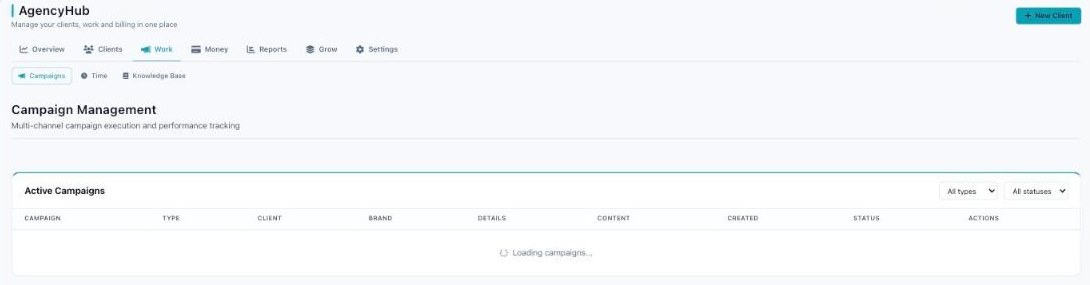
Campaign Management — filter by type and status; switch to Time or Knowledge Base.
| Column | What it shows |
|---|---|
| Campaign | The campaign name. |
| Type | Email, Social, or Sequence. |
| Client / Brand | Which client and brand the campaign belongs to. |
| Details | Channel-specific details (audience, schedule, and so on). |
| Content | How much content the campaign has. |
| Created | When it was created. |
| Status | Draft, active, paused, completed, and so on. |
| Actions | View opens the real campaign editor for that client. |
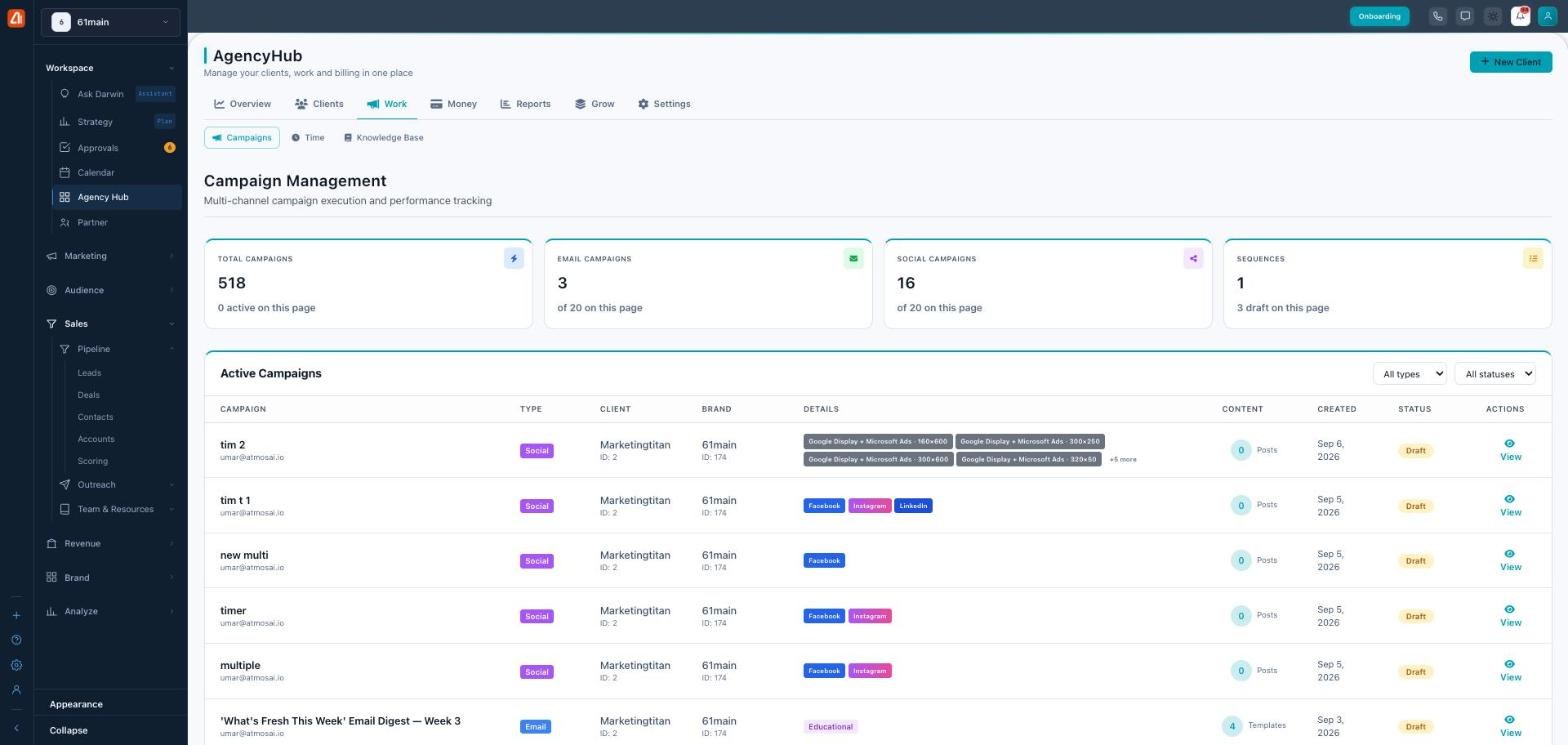
One table for every client’s campaigns, across every channel.
Three sub-tabs
- Campaigns — the table above: every active campaign across your clients.
- Time — time tracking, so you can see the hours going into each client’s work.
- Knowledge Base — shared reference material for the team running these campaigns.
The agency view of real campaigns
Campaigns here aren’t separate copies — they’re the actual email, social, and sequence campaigns living in each client’s account, gathered into one list and tagged with the client and brand they belong to. Click View and you jump straight into that client’s real editor.
The four cards count differently: Total Campaigns is your whole portfolio, while the per-type counts (Email, Social, Sequences) reflect the current page of results — use the filters to see a full type.
Common questions
What campaign types show up here?
Email campaigns, social campaigns, and sequences — from every client — in one table.
How do I find one client’s campaigns?
Use the type and status filters to narrow the list; each row shows the client and brand it belongs to.
Does editing here change the client’s campaign?
Yes — View opens the real campaign in that client’s account, so changes are live.
What’s next
- Filter the table to one client or one channel.
- Track hours under the Time sub-tab.
- See the money side in the Money tab.