
The Settings tab is where you make the platform yours. This is the heart of white-labeling: your agency’s name, colors, logo, your own web address, branded emails, and a client portal that never mentions Marketing Titan. A menu on the left lists every area you can customize; the ones you’ll use most are below.
Where to find it: Left menu → Agency Hub → Settings. Across the top are four areas — General, Team, Developer, and Audit Log. Part of the Agency Hub suite.
White Label Branding
Start here. Give the platform your Agency Name and tagline, pick your Primary, Secondary, and Accent brand colors, and upload your Logo (PNG, JPEG, or SVG, up to 5 MB) and Favicon (ICO, PNG, or SVG, up to 1 MB). Click Save Branding and your brand shows up across the whole platform.
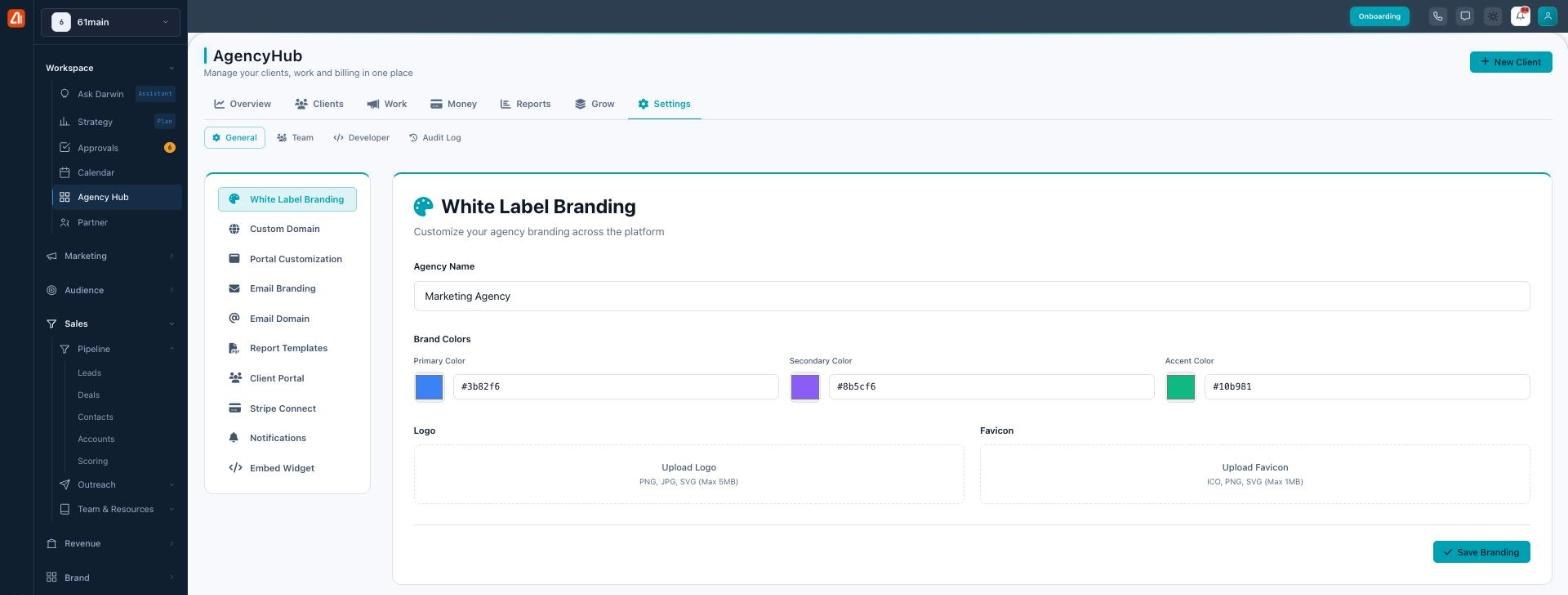
White-label the platform with your agency’s name, colors, and logo.
White-labeling comes in tiers — Basic covers your logo and colors, Professional adds full branding, and Enterprise adds a custom domain. The options you see reflect your tier.
Custom Domain
Take white-labeling all the way by putting the platform on your own web address (like app.youragency.com). A guided, four-step setup walks you through it — Domain Input, DNS Configuration, DNS Verification & SSL, and Activation — and an SSL certificate is provisioned for you automatically.
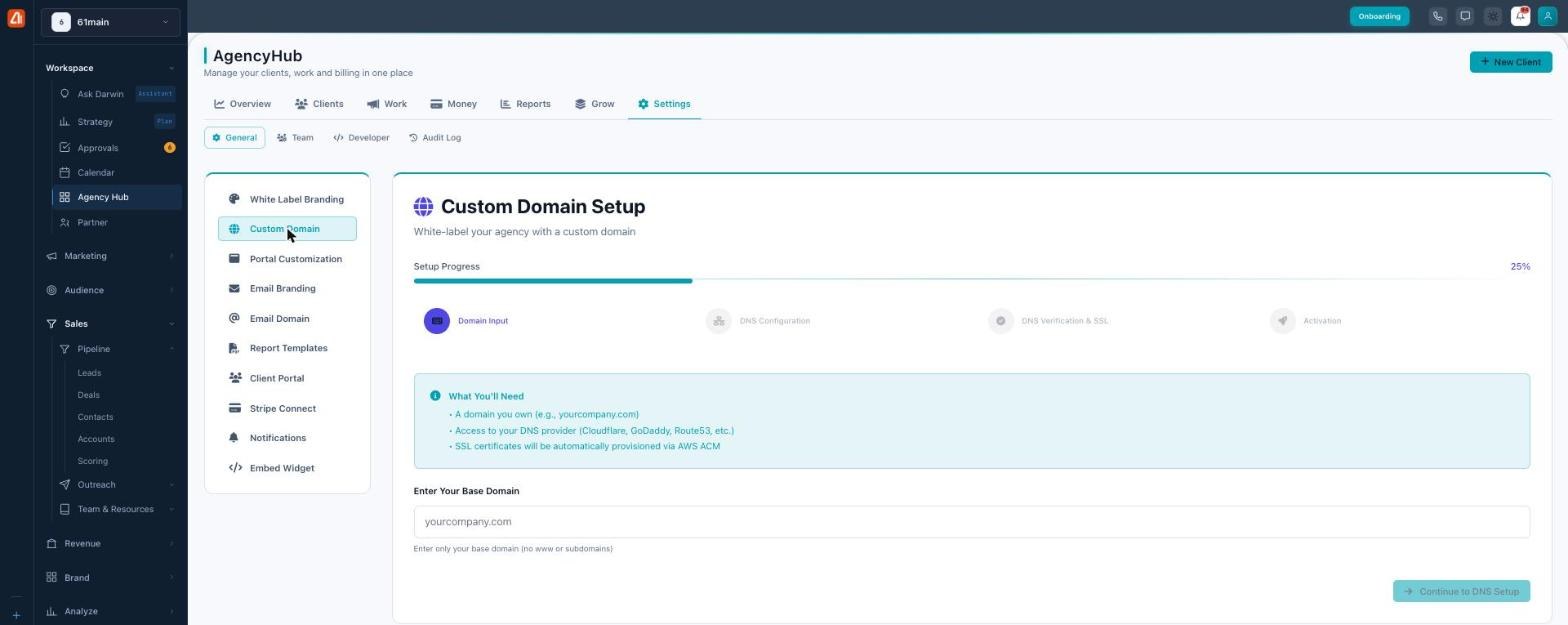
Put the platform on your own domain, with SSL handled for you.
You’ll need a domain you own and access to its DNS provider (Cloudflare, GoDaddy, Route53, and the like). Enter just your base domain — no www or subdomains.
Portal Customization
Your clients get their own portal, and this is where you tailor it. Set the Portal Title that shows in the browser tab and page header, write a Portal Welcome Message, and flip Hide Agency Branding to strip every reference to your agency from a client’s view.
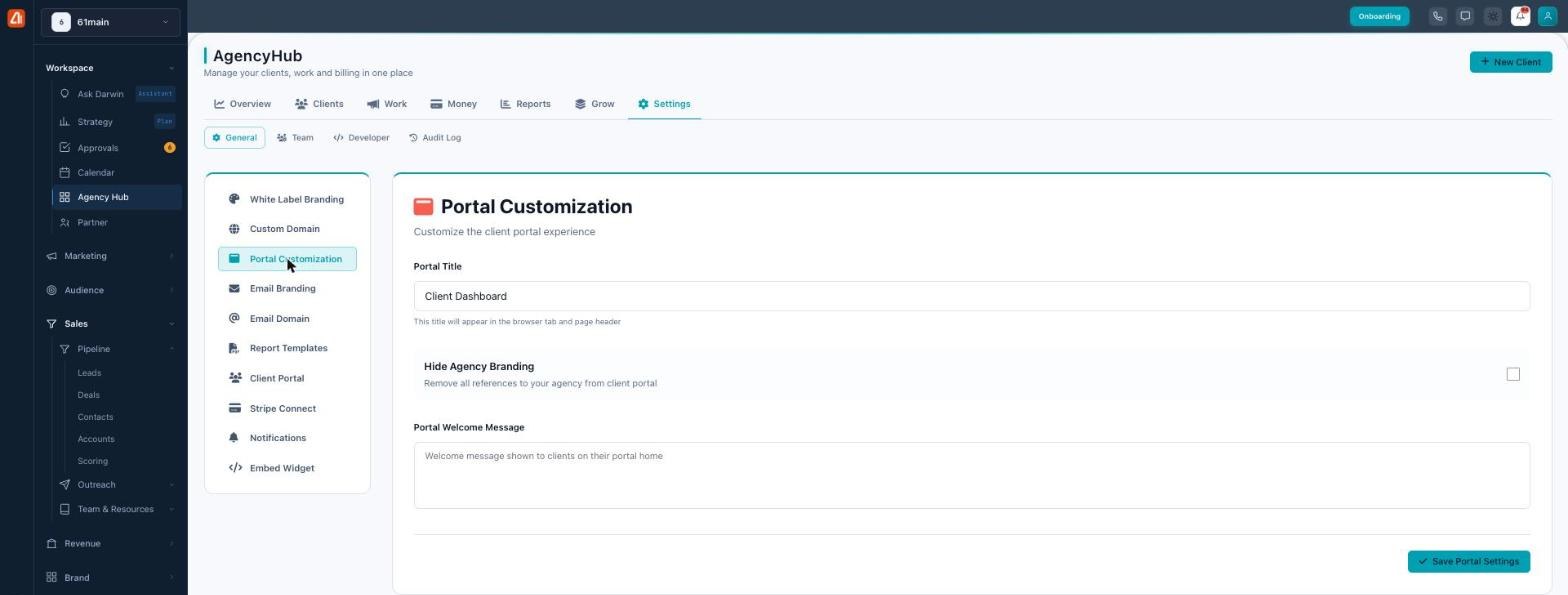
Tailor the client portal — title, welcome message, and branding.
Email Branding
Every email the platform sends on your behalf can carry your identity. Set the Sender Name, Sender Email, and Reply-To Email, and choose an Email Signature from your saved signatures. Click Save Email Settings and your clients hear from you, not from a generic address.
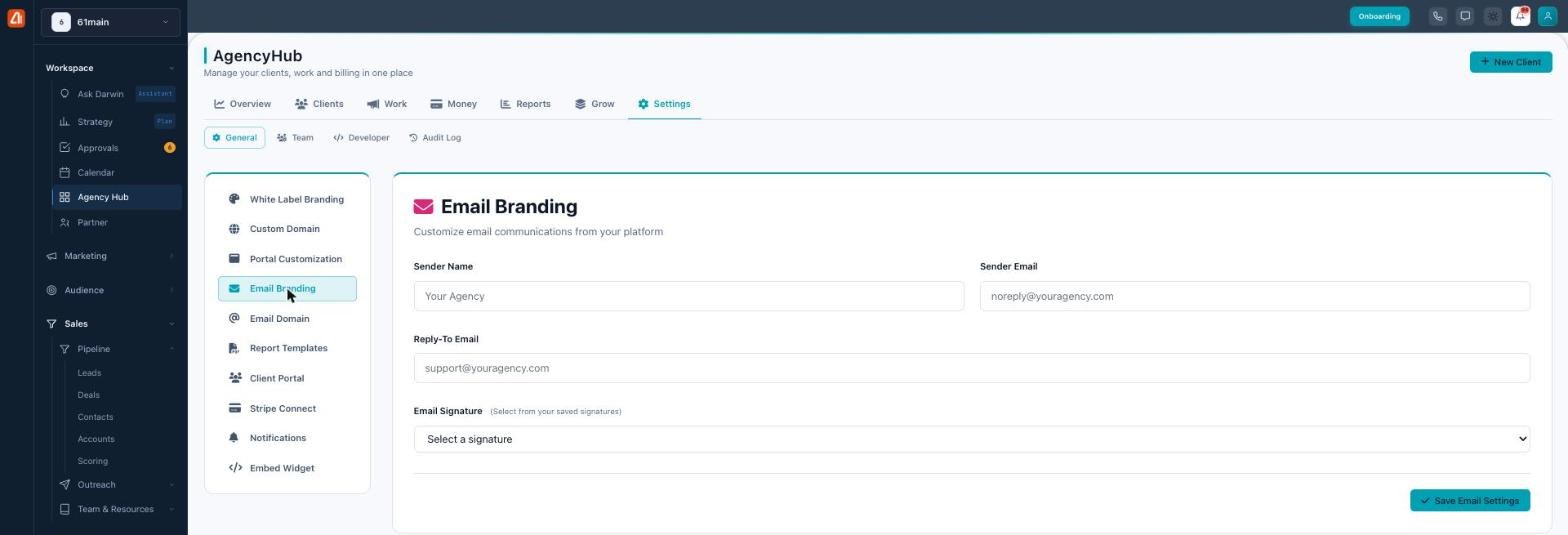
Send client emails under your agency’s name and address.
Report Templates
Brand the reports the platform generates for clients. Set a default Report Title (like “Agency Performance Report”) and the Footer Text that appears at the bottom of every report — usually your copyright line — and toggle off the “Powered by” line. Save it once and every report you send carries your name.
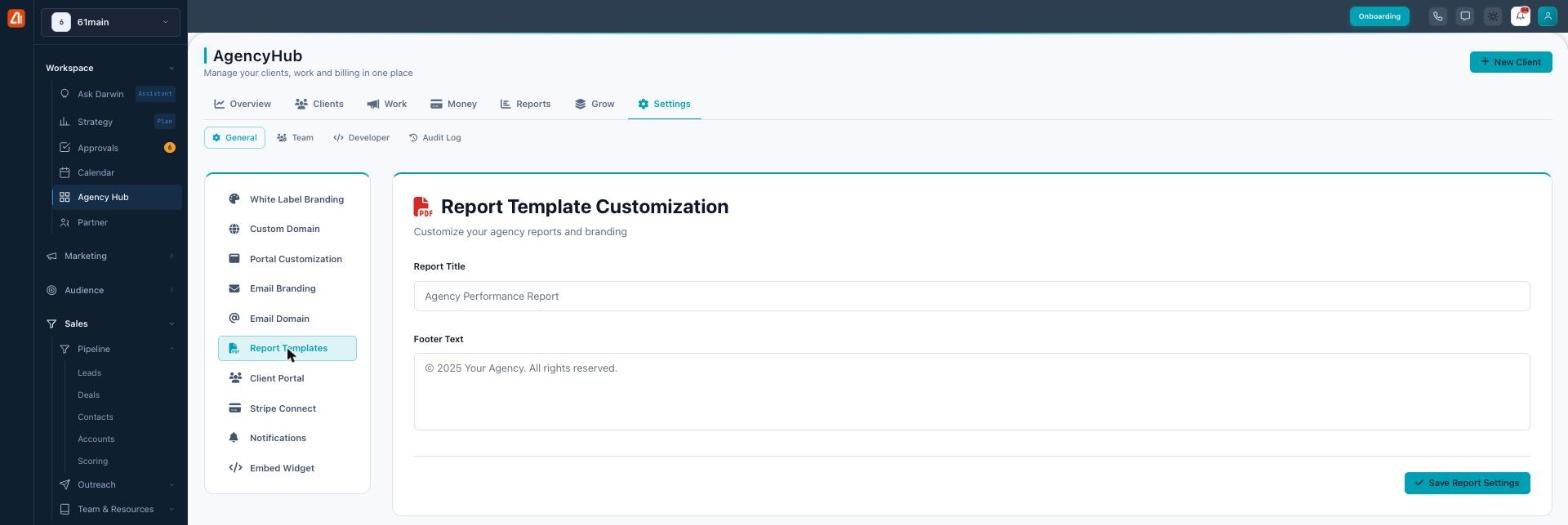
Brand your client reports with a title and footer.
Client Portal
This page controls what clients can do inside their portal. Turn on White Label Emails to send client-facing mail under your brand, confirm your Custom Portal Domain, and toggle whether clients can generate their own reports and get campaign milestone notifications.
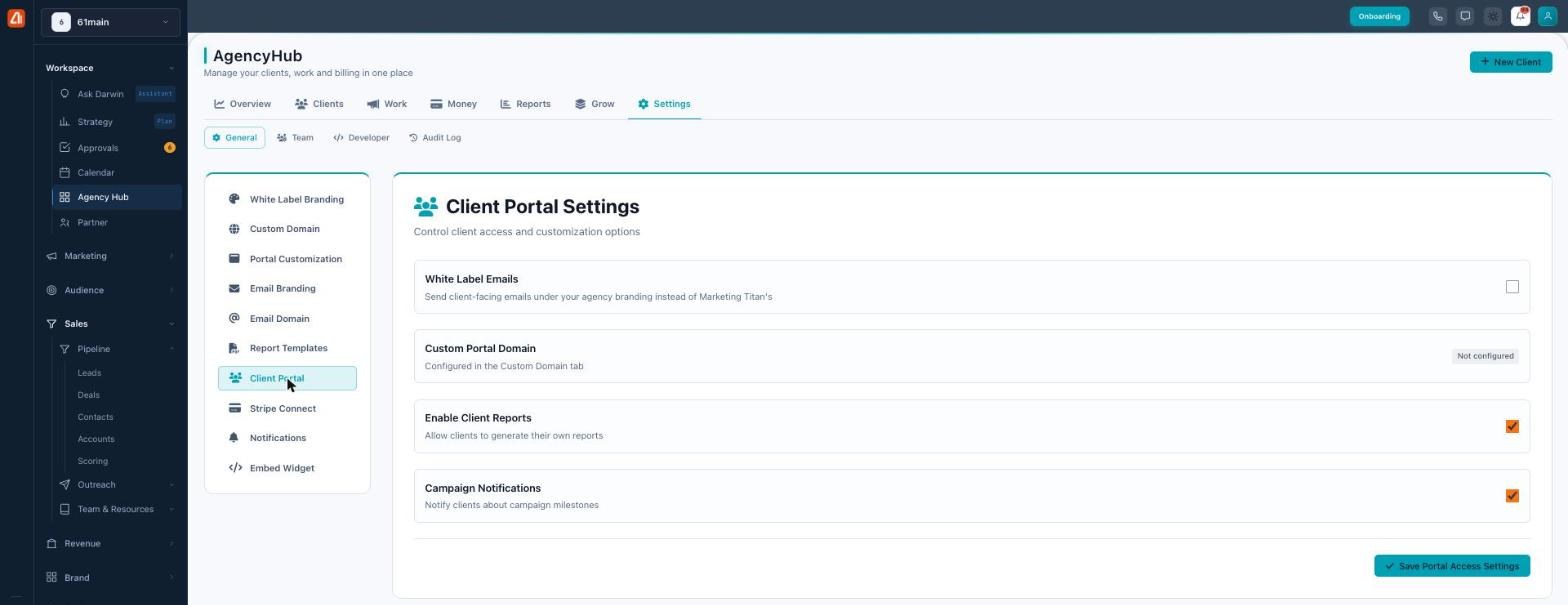
Control what clients can see and do in their portal.
Notifications
Decide exactly how you and your clients get alerted, event by event. Notifications are grouped into Client Events (new signup, subscription canceled or upgraded), Billing Events (payment received or failed), and System Events (SLA breach, SSL expiring, usage limits, and more). For each one you can turn on Email, In-App, Slack, or Webhook delivery, and hit Test to send yourself a sample.
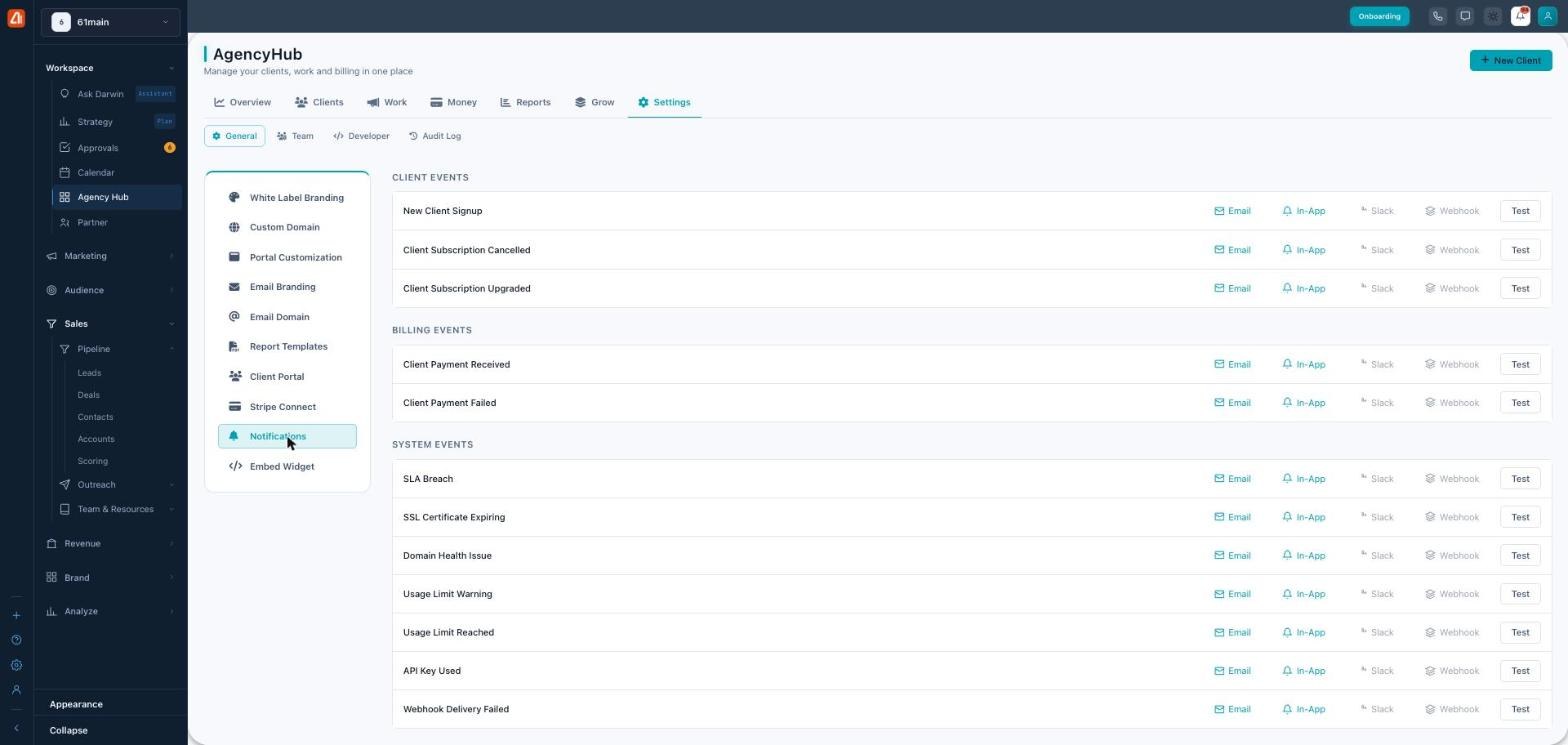
Choose how every event reaches you — email, in-app, Slack, or webhook.
Embed Widget
Want prospects to see your pricing on your own website? The Embed Pricing Widget gives you a copy-paste snippet — either a JavaScript embed or an iFrame — that drops your live plans onto any page. It pulls your plans automatically, renders branded pricing cards, and sends buyers to your checkout.
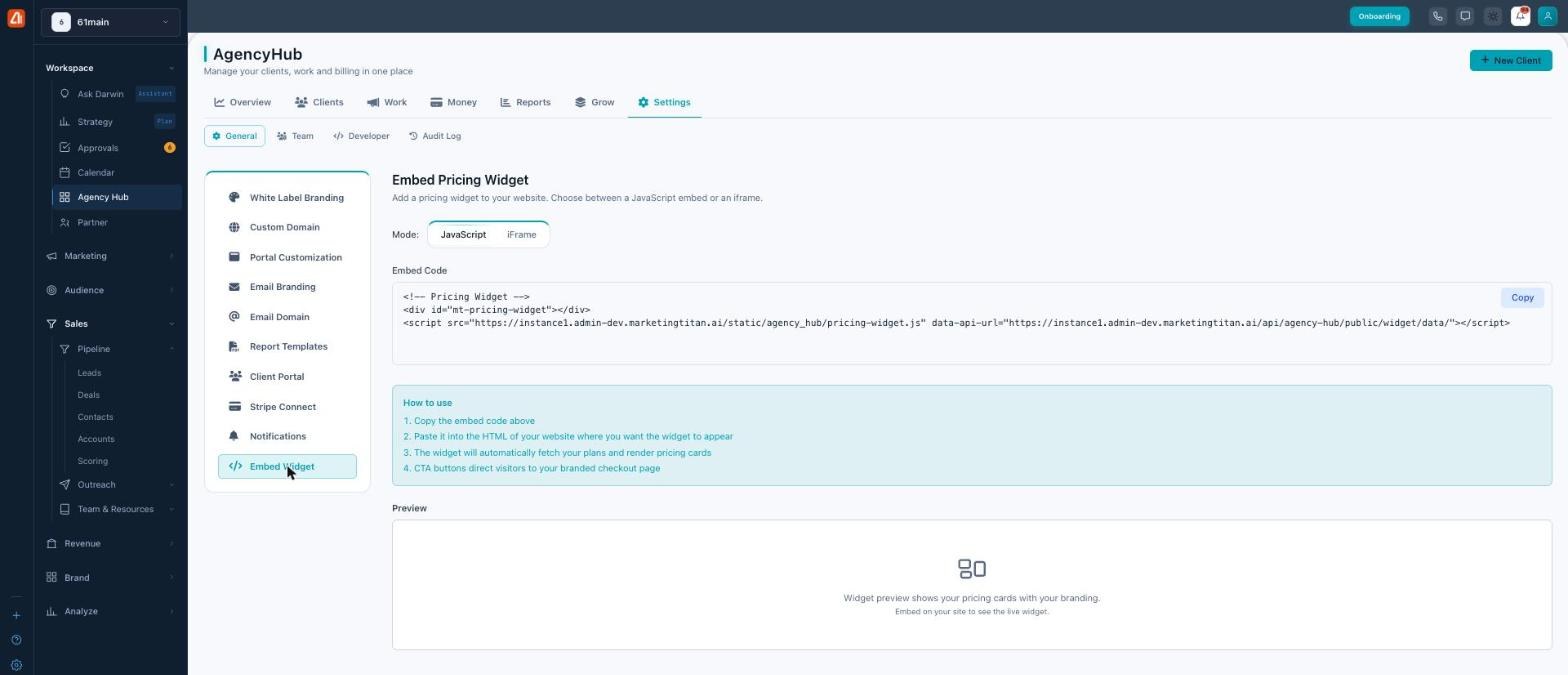
Drop a live, branded pricing widget onto your own website.
Two more rooms round things out: Email Domain (verify your own sending domain so branded emails land reliably) and Stripe Connect (link Stripe so billing metrics and client payments flow in). And across the top, Team manages your staff and their access, Developer holds API keys, and Audit Log records who changed what.
Everything a client sees can be yours
Between branding, a custom domain, branded emails, branded reports, and a portal with agency branding hidden, a client can use the entire platform and never see Marketing Titan’s name once. That’s the point of the Settings tab — it’s your platform, wearing your brand.
Common questions
What image formats and sizes can I upload?
Logo: PNG, JPEG, or SVG up to 5 MB. Favicon: ICO, PNG, or SVG up to 1 MB.
Where do I set a custom domain?
Settings → Custom Domain. A four-step wizard handles the domain, DNS, verification, and go-live — with SSL provisioned automatically.
How do notifications reach me?
Per event, choose Email, In-App, Slack, or Webhook — and use Test to send yourself a sample.
Can I hide Marketing Titan from clients entirely?
Yes — hide agency branding in the portal, turn on white-label emails, brand your reports, and use a custom domain.
If billing shows $0 across Agency Hub, connect Stripe here (Settings → Stripe Connect). If a client’s custom-domain portal won’t load, re-check the DNS and SSL status in the Custom Domain wizard.
What’s next
- Set your branding — name, colors, logo, favicon.
- Put the platform on your own custom domain.
- Connect Stripe so the Overview and Money numbers come alive.
- Embed your pricing plans on your website.