
The Reports tab is Advanced Analytics & Reporting — enterprise-grade views of your agency’s performance, plus reports that build and send themselves on a schedule. It’s how you prove your value to clients without spending your Friday exporting spreadsheets.
Where to find it: Left menu → Agency Hub → Reports. Part of the Agency Hub suite.
Live analytics
Four report cards give you live views of Budget Allocation, Client Profitability, Campaign Performance, and a Business Overview chart of budget, spend, and revenue. Two sub-tabs split the view into Analytics and Profitability so you can move from the big picture to per-client margin.
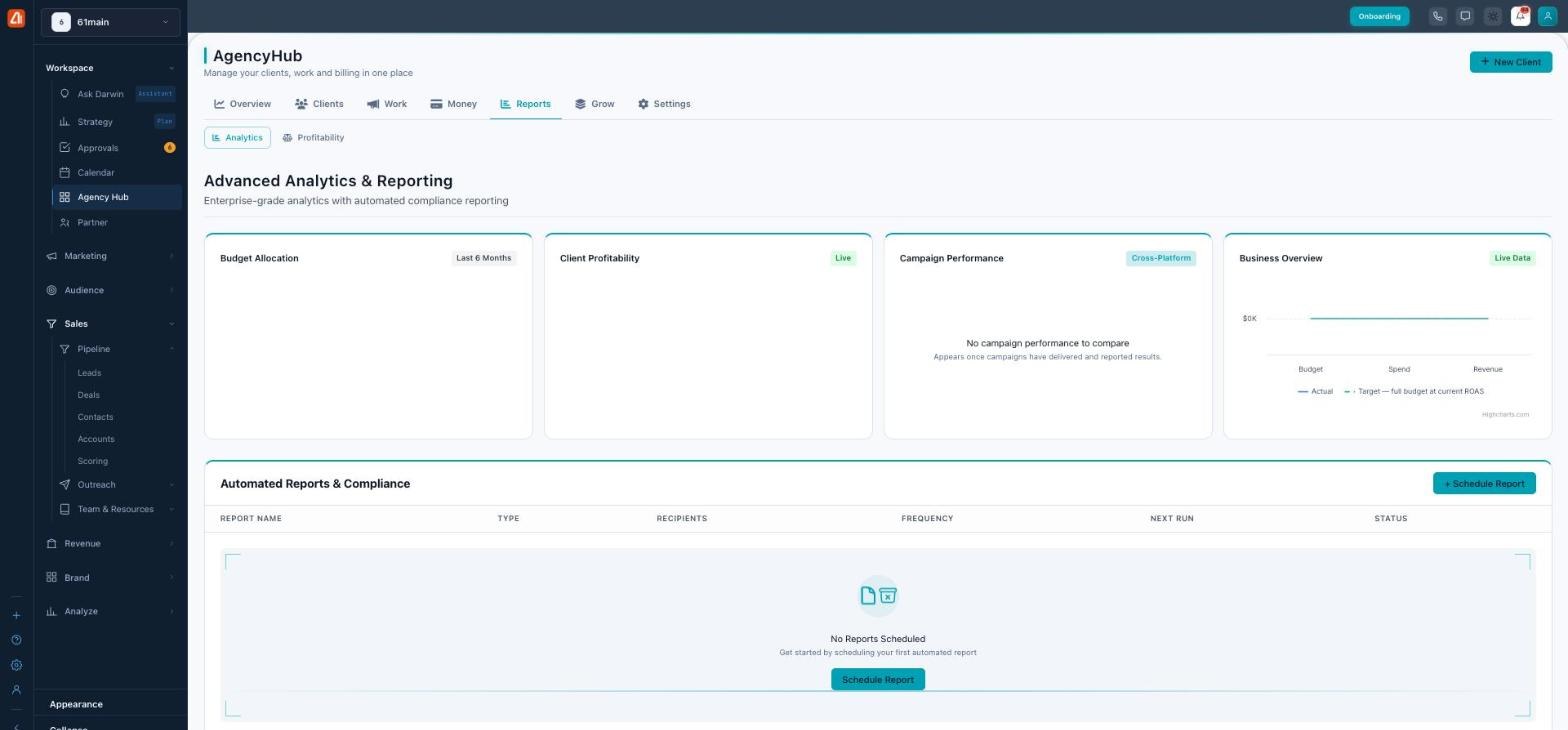
Enterprise reporting, plus reports that run and send themselves.
Automated Reports & Compliance
The best part is the Automated Reports & Compliance section. Click Schedule Report, set it up once, and the platform builds and delivers that report on schedule — without you touching it again.
| Setting | Options |
|---|---|
| Report Name | A label you choose (e.g. “Monthly Client Summary”). |
| Report Type | Performance Summary, Financial, Security, Client ROI (and more, like Brand Performance and HR Analytics). |
| Frequency | Daily, Weekly, Monthly, or Quarterly — set the day and time for weekly runs. |
| Format | PDF, Excel, or JSON. |
| Delivery | Email, the client Portal, or API. |
| Recipients | Who receives it (leave the client blank for an agency-wide report). |
| Next Run | When the next copy goes out. |
Reports carry your brand, not ours
Every report the platform generates can be white-labeled: set a report title and footer text under Settings, and toggle off the “Powered by Marketing Titan” line. Your clients receive a polished PDF that looks like it came from your agency. See the Settings guide (Report Templates).
Common questions
How do I schedule a report?
Go to Reports → Automated Reports & Compliance → Schedule Report, set the name, type, frequency, format, and recipients, and the platform sends it for you.
What report types can I send?
Performance Summary, Financial, Security, and Client ROI reports (with more, like Brand Performance, available for scheduling).
Can a report go to the client’s portal instead of email?
Yes — choose Portal (or API) as the delivery method.
Can I remove Marketing Titan’s branding from reports?
Yes — turn off “Powered by” and set your own title and footer in Settings.
If Reports look empty, connect Stripe so there’s revenue data to chart, and make sure campaigns are running for the clients you’re reporting on.
What’s next
- Schedule a monthly report for each client.
- Brand your reports in the Settings tab.
- Check per-client margin under the Profitability sub-tab.