
Quick Navigation
Quick Start Darwin Chat Agent Builder Agent Management AI Flows Use Cases TroubleshootingAI Agents in Marketing Titan are your autonomous marketing workforce. From Darwin—your conversational AI assistant—to custom agents you build yourself, these intelligent systems can create content, analyze data, manage campaigns, and execute complex marketing workflows 24/7.
Estimated setup time: 15-20 minutes for basic setup, ongoing optimization
Quick Start Guide
Get up and running with AI Agents in 4 simple steps:
01Meet Darwin
Navigate to Darwin in the sidebar and start chatting with your AI assistant.
02Try Quick Actions
Use Create ad, Write, Analyze, Find leads, or Email buttons for instant tasks.
03Build Custom Agents
Go to Agent Builder and describe what you need in plain English.
04Monitor & Optimize
Track performance in Agent Management dashboard and refine your workflows.
Darwin Chat Interface
Darwin is your primary AI assistant—the front door to Marketing Titan's AI capabilities. Think of Darwin as your intelligent marketing co-pilot who can help with any task.
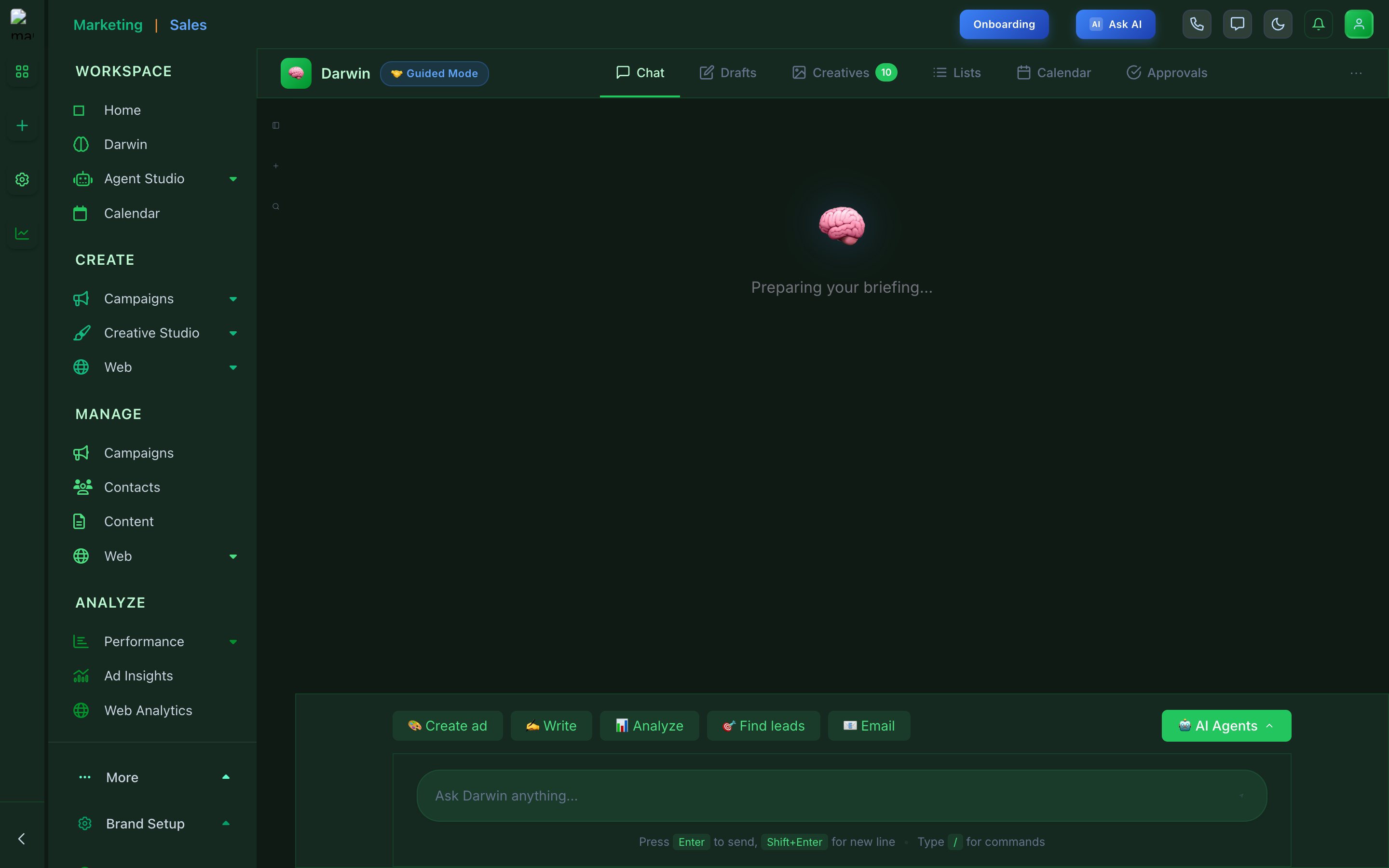
Darwin Chat — Your AI marketing assistant ready to help
Darwin Features & Tabs
| Tab/Feature | Description |
|---|---|
| Chat | Main conversation interface for interacting with Darwin. Ask questions, request content, or give commands. |
| Drafts | Access content drafts created by Darwin—emails, ads, posts waiting for your review and approval. |
| Creatives | View and manage AI-generated creative assets including images, banners, and ad variations. |
| Lists | Manage audience lists and segments that Darwin has identified or created from your data. |
| Calendar | View scheduled content and campaigns. Darwin shows what's planned and when it will publish. |
| Approvals | Review items requiring your approval before they go live—content, campaigns, budget changes. |
Quick Action Buttons
Use these one-click buttons below the chat for common tasks:
- Create ad — Generate ad copy and creatives for any platform
- Write — Create blog posts, emails, social content
- Analyze — Get insights from your campaign data
- Find leads — Discover and qualify potential customers
- Email — Draft and send email campaigns
Guided Mode
Toggle "Guided Mode" for a more structured experience. Darwin will ask clarifying questions and guide you through complex tasks step-by-step—perfect for beginners or when you want extra hand-holding.
Agent Builder
Create custom AI agents tailored to your specific needs. No coding required—just describe what you want in plain English, and the builder will configure everything for you.
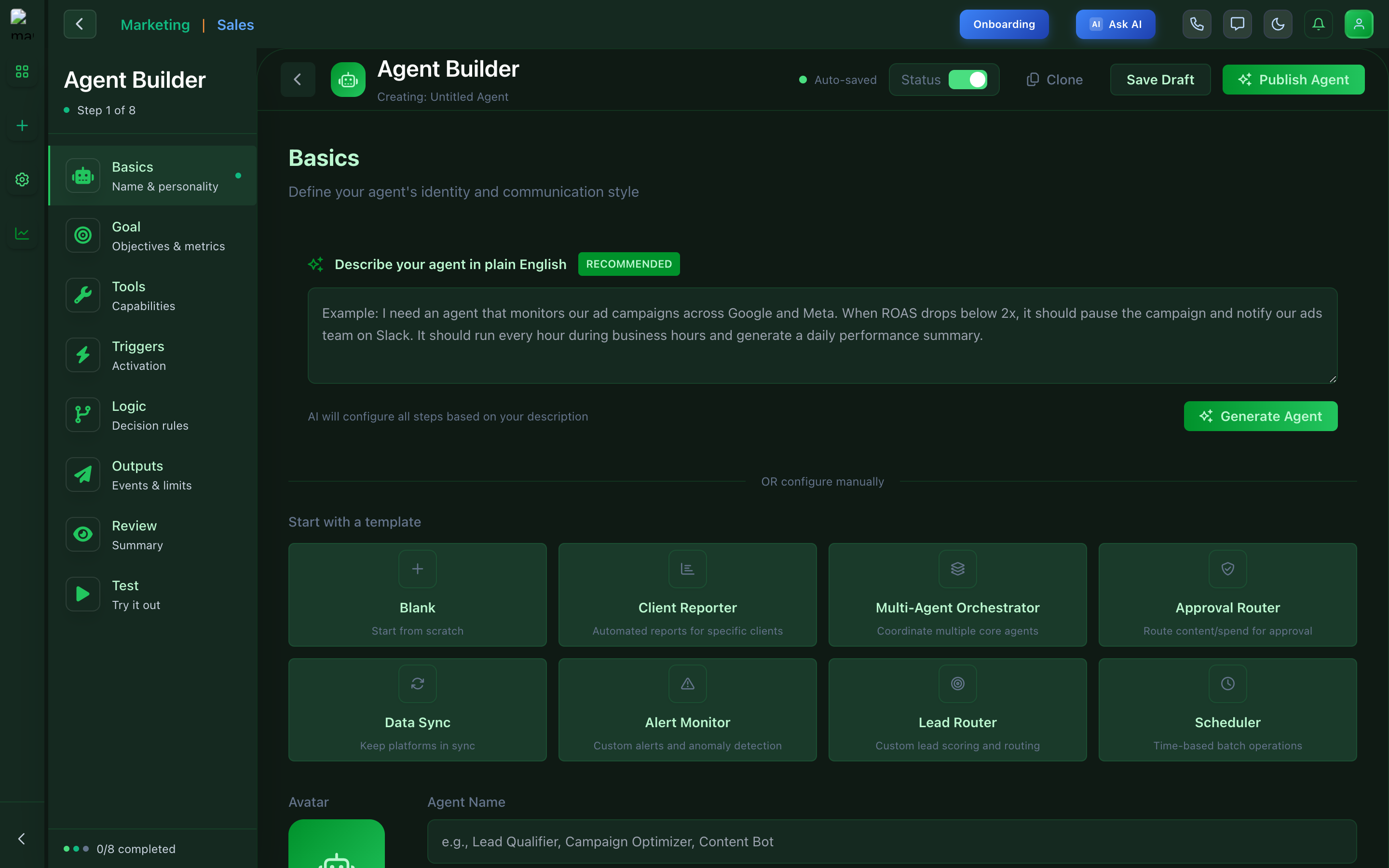
Agent Builder — Create custom AI agents with natural language
Builder Steps
| Step | Purpose | What to Configure |
|---|---|---|
| 1. Basics | Name & personality | Agent name, avatar, description, communication style |
| 2. Goal | Objectives & metrics | What the agent should achieve and how to measure success |
| 3. Tools | Capabilities | Which tools the agent can use (email, ads, analytics, etc.) |
| 4. Triggers | Activation | When the agent should run (schedule, events, conditions) |
| 5. Logic | Decision rules | If/then rules for how the agent makes decisions |
| 6. Outputs | Events & limits | What the agent produces and any rate limits |
| 7. Review | Summary | Preview all settings before publishing |
| 8. Test | Try it out | Run the agent in test mode to verify behavior |
Pro Tip: Natural Language Creation
Use the "Describe your agent in plain English" box for fastest setup. Example:
"I need an agent that monitors our ad campaigns across Google and Meta. When ROAS drops below 2x, it should pause the campaign and notify our ads team on Slack. It should run every hour during business hours and generate a daily performance summary."Agent Templates
📋 Client Reporter Automated reports for clients 🔄 Multi-Agent Orchestrator Coordinate multiple agents ✅ Approval Router Route content for approval 🔔 Alert Monitor Custom alerts & anomaly detection 🎯 Lead Router Custom lead scoring & routing ⏰ Scheduler Time-based batch operationsAgent Management Dashboard
Monitor your entire AI workforce from a single dashboard. Track performance, costs, and activity across all agents in real-time.
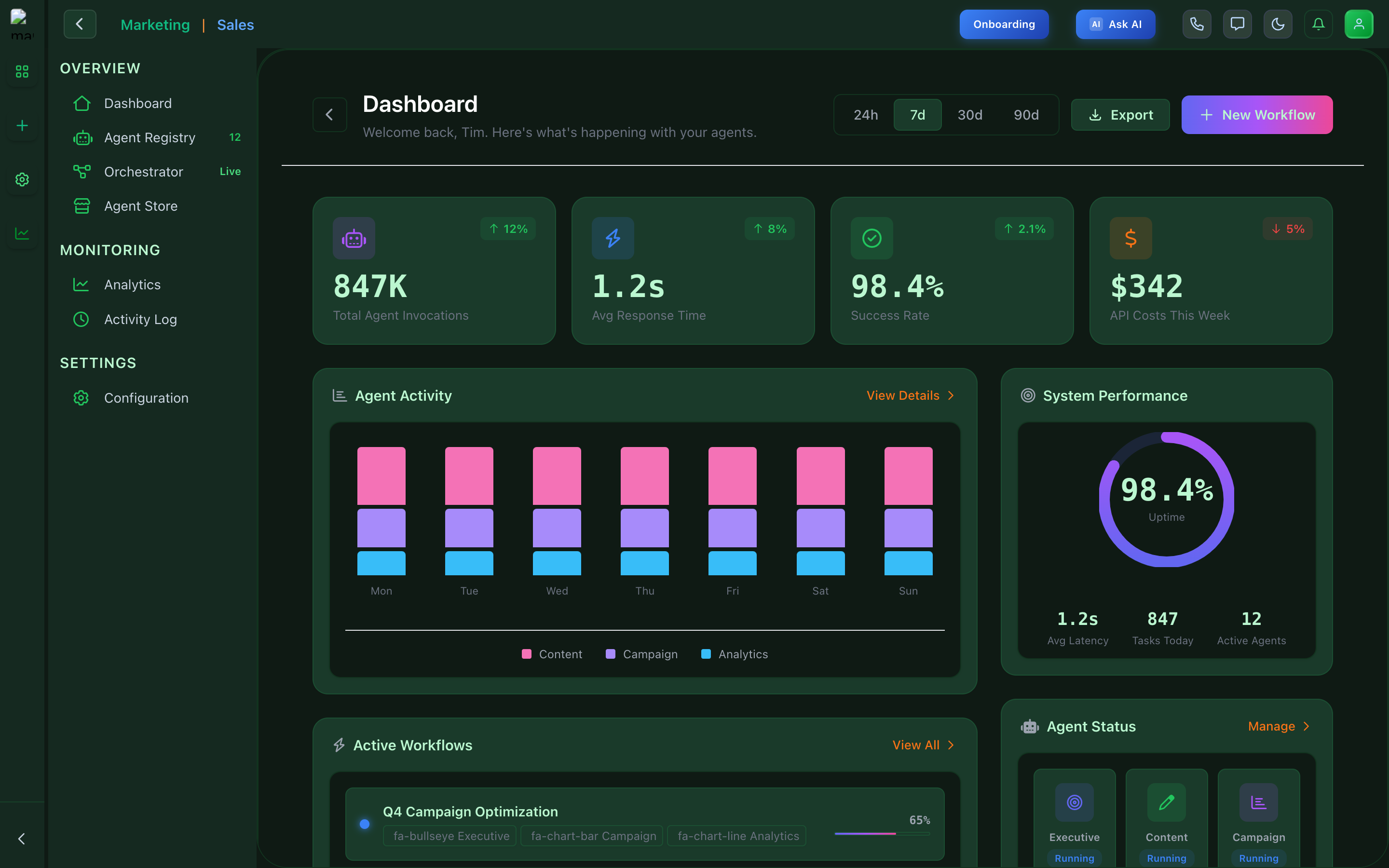
Agent Management — Real-time dashboard showing agent performance metrics
Key Metrics
847K Total Invocations ↑ 12% 1.2s Avg Response Time ↑ 8% 98.4% Success Rate ↑ 2.1% $342 API Costs/Week ↑ 8%Dashboard Sections
| Section | Description |
|---|---|
| Dashboard | Overview with key metrics, charts, and agent status at a glance |
| Agent Registry | List of all agents (shows count, e.g., "12" active agents) |
| Orchestrator | Live view of agent coordination and workflow execution |
| Agent Store | Pre-built agents you can install and customize |
| Analytics | Deep dive into agent performance data and trends |
| Activity Log | Detailed log of every action taken by agents |
| Configuration | Global settings affecting all agents |
AI Flows Builder
Create complex multi-agent workflows by connecting AI agents visually. Drag agents onto the canvas and link them to create automated pipelines that handle your entire marketing process.
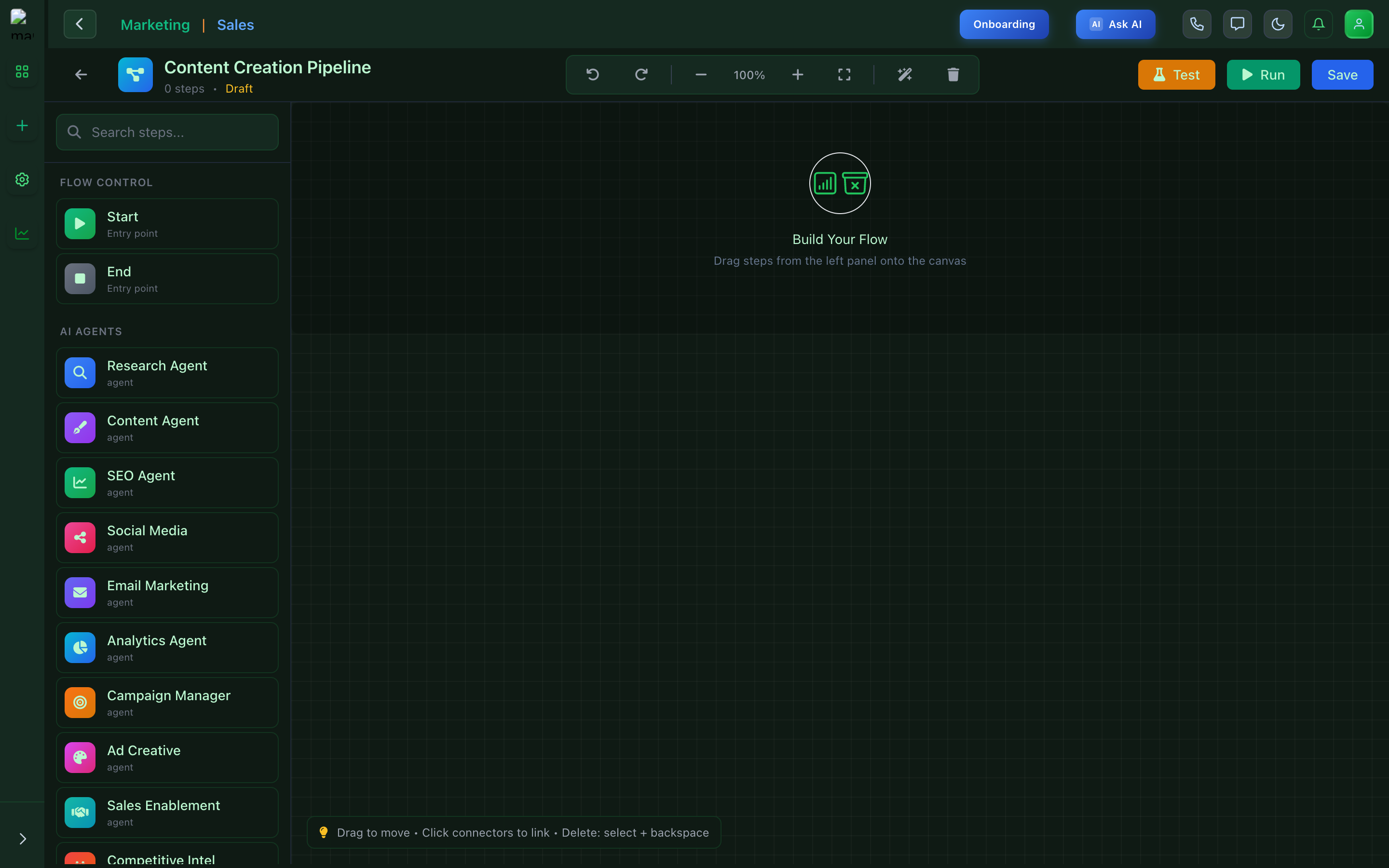
AI Flows Builder — Visual editor for creating multi-agent workflows
Available AI Agents for Flows
Research Agent Market & competitor research Content Agent Create & optimize content SEO Agent Search optimization Social Media Post scheduling & engagement Email Marketing Email campaigns & automation Analytics Agent Data analysis & insights Campaign Manager Campaign coordination Ad Creative Generate ad visuals & copyStep-by-Step Guides
How to: Create Your First Custom Agent
- Navigate to Agent Builder — Click "Builder" under Agent Studio in the sidebar
- Use natural language — In the "Describe your agent in plain English" box, type what you want your agent to do
- Click "Generate Agent" — AI will auto-configure all settings based on your description
- Review the configuration — Walk through each step (Basics, Goal, Tools, etc.) to verify settings
- Test your agent — Use the Test tab to run your agent in sandbox mode
- Publish — Click "Publish Agent" to make it live
How to: Build a Multi-Agent Content Pipeline
- Open AI Flows — Navigate to Flows in the sidebar
- Start with a trigger — Drag the "Start" node onto the canvas
- Add Research Agent — Connect it to gather market data first
- Add Content Agent — Link it to create content based on research
- Add SEO Agent — Connect to optimize the content
- Add distribution agents — Connect Social Media and Email agents for publishing
- End the flow — Add the "End" node and save
How to: Monitor Agent Performance
- Go to Agent Management — Click "Manage" in Agent Studio
- Check the Dashboard — Review key metrics (invocations, response time, success rate)
- Use time filters — Toggle between 24h, 7d, 30d, 90d views
- View Agent Status — Check which agents are Running vs. Paused
- Check Activity Log — Deep dive into individual agent actions
- Export reports — Click "Export" for detailed performance data
Use Cases & Scenarios
SCENARIO Marketing Agency Managing Multiple Clients
Challenge: Managing campaigns for 20+ clients with limited staff
Solution: Deploy Client Reporter agents for each account that automatically generate weekly performance reports, Campaign Manager agents to optimize ad spend, and Alert Monitors to catch issues before clients notice.
Result: 60% reduction in reporting time, 2x client capacity without new hires
SCENARIO E-commerce Brand Scaling Content
Challenge: Need to create 500+ product descriptions and social posts monthly
Solution: Build a Content Creation Pipeline flow connecting Research → Content → SEO → Social agents. Feed in product data, get optimized content automatically.
Result: Content production increased 10x, consistent brand voice across all channels
SCENARIO B2B Company Qualifying Leads
Challenge: Sales team overwhelmed with unqualified leads
Solution: Create a Lead Router agent that scores incoming leads based on firmographic data, engagement signals, and ICP fit. High-score leads go to sales, others go to nurture sequences.
Result: Sales team focuses on 3x higher quality leads, 40% increase in close rate
SCENARIO SaaS Startup Monitoring Ad Performance
Challenge: Small team can't monitor ad performance around the clock
Solution: Deploy an Alert Monitor agent that watches ROAS, CPA, and spend metrics hourly. When performance drops below thresholds, it automatically pauses underperforming ads and notifies the team.
Result: $15K/month saved in wasted ad spend, issues caught within 1 hour vs. 24 hours
Troubleshooting & FAQ
My agent isn't responding or seems stuck- Check the Agent Status in the Management dashboard—ensure it shows "Running"
- Review the Activity Log for any error messages
- Verify the agent has the required tools enabled (Tools section in builder)
- Check if you've hit any rate limits in the Configuration settings
- Try restarting the agent by toggling its status off and on
- Review the Outputs section of each agent—reduce output limits if set too high
- Check Triggers—agents running every minute cost more than hourly runs
- Use the Analytics section to identify which agents consume the most tokens
- Consider batching operations instead of real-time processing
- Set cost alerts in Configuration to get notified before overspending
- Go to Agent Settings → Voice & Tone and update your brand guidelines
- Provide example content in the agent's Basics section
- Use the "Identity & Persona" settings to define personality traits
- Review and refine outputs—Darwin learns from your edits over time
- Consider creating a dedicated Content Agent with strict style rules
- Ensure all nodes are properly connected (look for broken links)
- Verify the Start node has a valid trigger configured
- Check that each agent in the flow has required permissions
- Use the Test button to run the flow in debug mode
- Check the Orchestrator view for real-time execution status
Related Articles
⚙️ Agent Settings Guide Configure global and per-agent settings 🧠 Ada Assistant Guide Master your AI assistant 🔄 Flow Builder Guide Create automated workflows ⚡ AutoMate AI Guide Automation best practicesPro Tips
- ✓ Start with templates — Don't build from scratch. Use existing templates and customize them to your needs.
- ✓ Use natural language — The "Describe your agent" feature saves hours of manual configuration. Be specific about what you want.
- ✓ Monitor the first week — New agents need tuning. Watch the Activity Log closely and adjust Logic rules based on real behavior.
- ✓ Set up alerts early — Configure cost and error alerts before you scale. Prevention is cheaper than cleanup.
- ✓ Use the Orchestrator — For complex multi-agent workflows, the Orchestrator view shows real-time execution and helps debug issues fast.
Ready to Build Your AI Workforce?
Start with Darwin for quick tasks, then graduate to custom agents for automation.
Open DarwinWas this article helpful? Let us know so we can improve our documentation.