
A campaign is a list of contacts the AI dials on a schedule, using a script you choose. The Campaigns tab lists every campaign with its live numbers so you can see what’s working at a glance.
Where to find it: Left menu → Sales → Outreach → AI Caller → Campaigns. Part of the AI Caller guide.
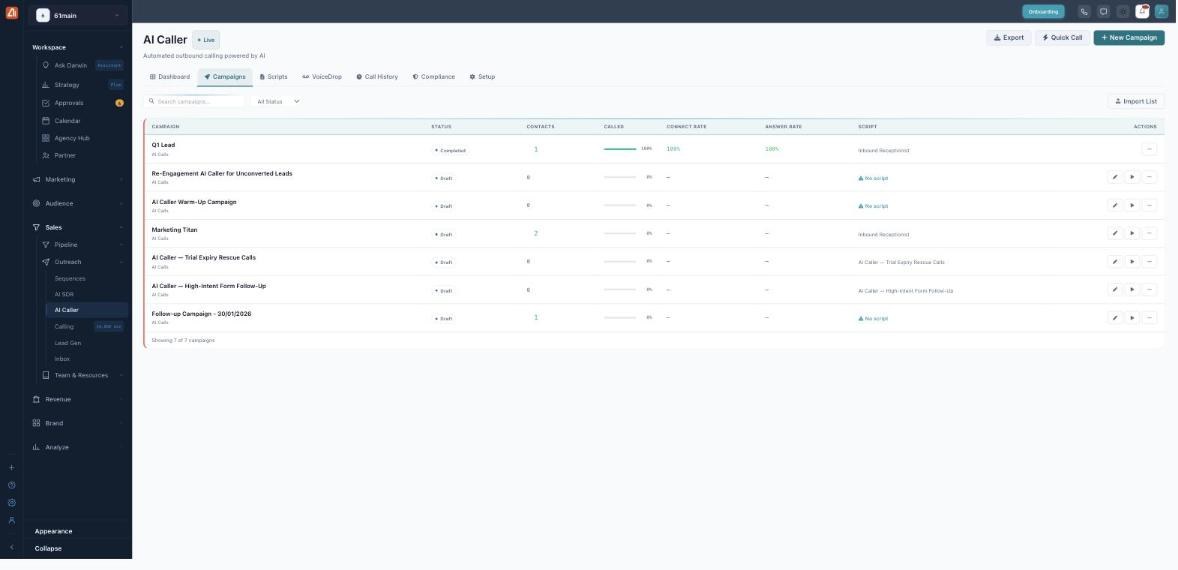
Every campaign with its status, reach and results in one table.
How to create a campaign
- Click New Campaign (top right).
- Enter a Campaign Name and an optional Description.
- Choose a Campaign Type — AI Calls, Voicemail or Hybrid.
- Pick a Call Script (create one first if the list is empty).
- Set the Brand, Caller ID, calling Hours, Days and Timezone.
- Click Create Campaign — it’s saved as a Draft.
- Add contacts with Import List, then press Play on the row to start dialing.
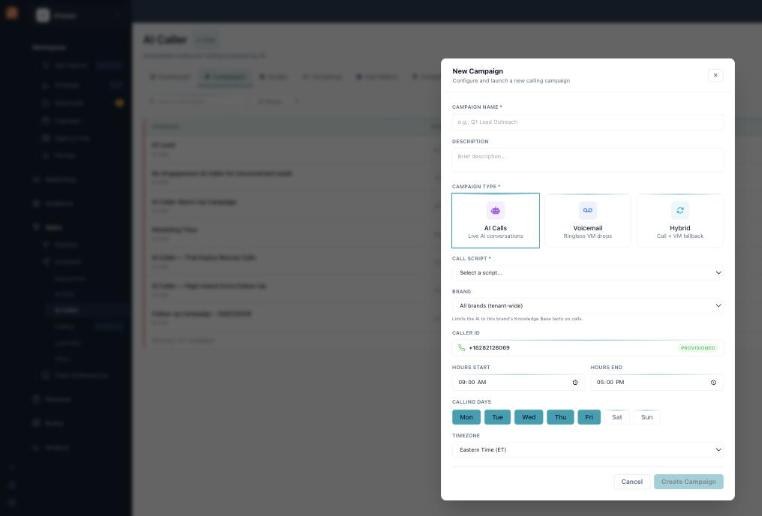
The New Campaign form — name it, pick a type and script, set the calling window.
Every field in the form
| Field | What to enter |
|---|---|
| Campaign Name | Required. A clear label, e.g. “Q1 Lead Outreach”. |
| Description | Optional note about the campaign’s purpose. |
| Campaign Type | Required. AI Calls, Voicemail or Hybrid (see the table below). |
| Call Script | Required for AI/Hybrid. The script the AI follows. |
| Brand | Limits the AI to that brand’s Knowledge Base facts, or leave it tenant-wide (all brands). |
| Voicemail Message | Shown for Voicemail and Hybrid — the recording to drop. |
| Caller ID | The provisioned number the call comes from. |
| Hours Start / End | The daily window the AI may call in. |
| Calling Days | Which days of the week to dial (e.g. Mon–Fri). |
| Timezone | The timezone the hours are measured in (ET, CT, MT, PT or UTC). |
Which campaign type?
| Type | What happens | Use it when |
|---|---|---|
| AI Calls | A live AI conversation. | You want to talk, qualify and book. |
| Voicemail | A ringless voicemail drop — no call. | Light-touch reminders or re-engagement. |
| Hybrid | Call first; if there’s no answer, leave a voicemail. | You want a call but never a wasted attempt. |
Reading the campaign list
Each row shows the campaign’s Status, number of Contacts, how many were Called, the Connect Rate (reached a person) and Answer Rate (picked up), and the attached Script. Use the status tabs (All / Active / Paused / Draft / Completed) to filter. The Actions menu on each row lets you edit, view or import contacts, and play or pause.
💡 Watch out: A campaign showing “No script” cannot dial. Open it and attach a Call Script first.
FAQ
Why won’t my campaign start?
The two usual reasons are no script attached (“No script”) and no contacts imported. Add both, then press Play.
What’s the difference between Connect Rate and Answer Rate?
Answer Rate is how often the phone was picked up. Connect Rate is how often the call reached a real, live person the AI could talk to.
Can I limit a campaign to one brand?
Yes — set the Brand field. The AI will only use that brand’s Knowledge Base facts on the call. Leave it tenant-wide to allow all.
When will it call?
Only inside the Hours, Days and Timezone you set — and never a number on your Do-Not-Call list.