
Create an audience by defining who’s in it — here’s the step-by-step.
Where to find it: Left menu → Audience. Part of the Audience Manager guide.
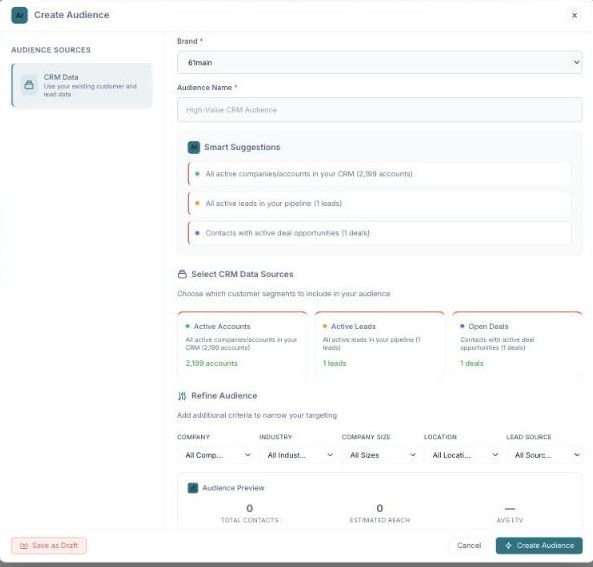
Create an audience — pick a CRM source, refine with filters, and preview the reach.
Create an audience, step by step
Ready to build one? Click Create Audience to open the create window, then follow the steps below.
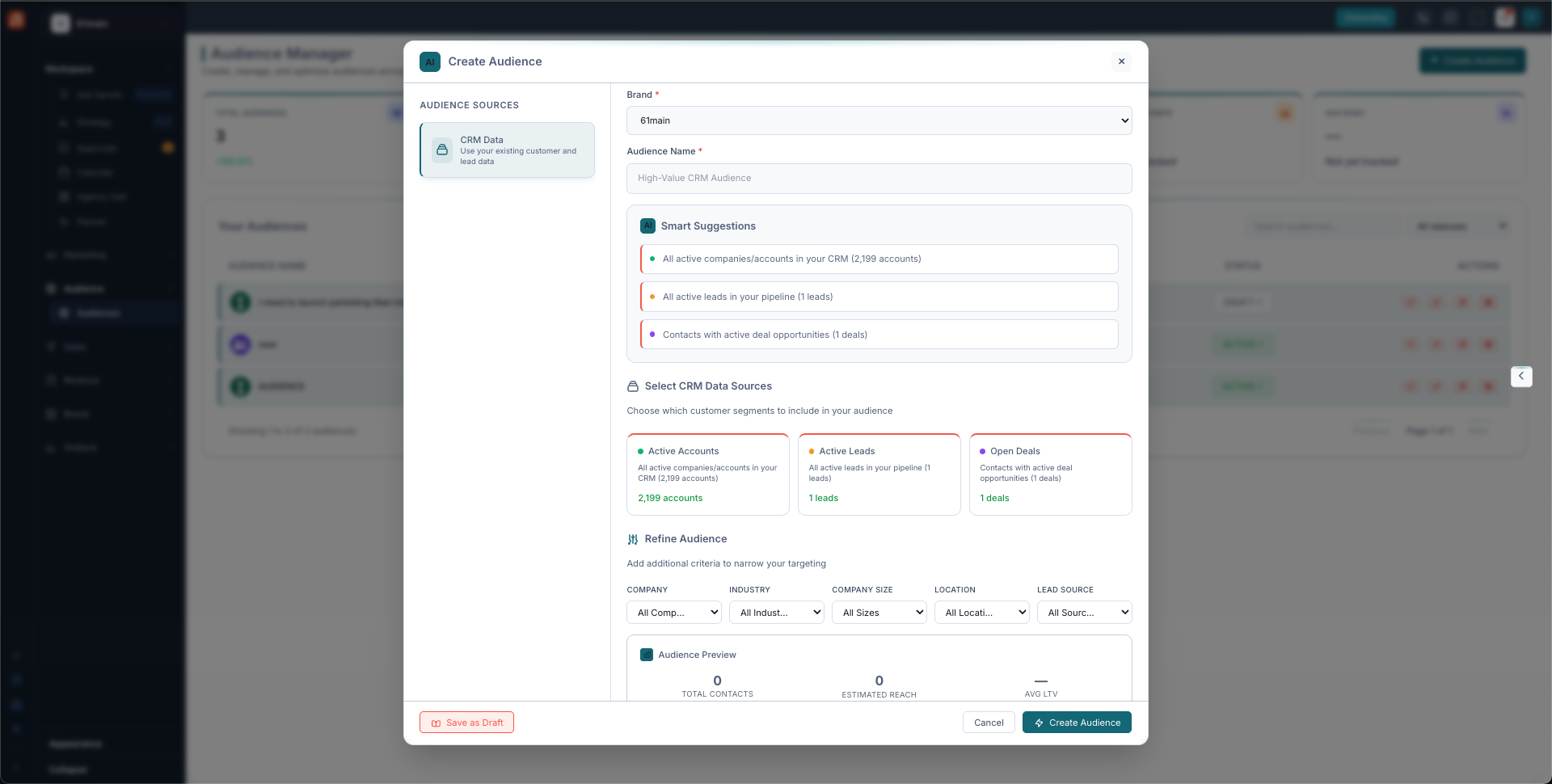
The Create Audience window — pick your data, let the AI suggest, then refine and preview.
- Pick the Brand and give the audience a name so you can find it later.
- Choose your source. The source is CRM Data — your existing customer and lead data.
- Use Smart Suggestions. The AI offers ready-made picks such as “all active companies/accounts in your CRM,” “all active leads in your pipeline,” and “contacts with active deal opportunities.” Pick one to start fast.
- Select CRM Data Sources. Choose which segments to include: Active Accounts, Active Leads, and Open Deals. Each one shows a count so you know how many people it holds.
- Refine Audience. Narrow it down by Company, Industry, Company Size, Location, and Lead Source.
- Check the Audience Preview. This shows the Total Contacts, Estimated Reach, and Avg LTV so you know what you’re building before you save.
- Save it. Save as a Draft to finish later, or click Create Audience to make it ready.
Not sure where to begin? Start with a Smart Suggestion, then use Refine Audience to make it your own. It’s the fastest way to a solid audience.
What’s next
- Back to the Audience Manager overview.
- See AI Suggestions.