
Your product catalog is the heart of your marketing. It’s where you keep every detail about what you sell — names, prices, descriptions, features, and specs. But typing all of that in by hand takes hours, and it’s easy to leave gaps.
The Products manager does the heavy lifting for you. Upload a product image (or a PDF) and the AI reads it and writes the complete product info instantly — description, features, and specs. You review, tweak, and save. That’s it.
Where to find it: In the left menu, go to
Brand → Products.
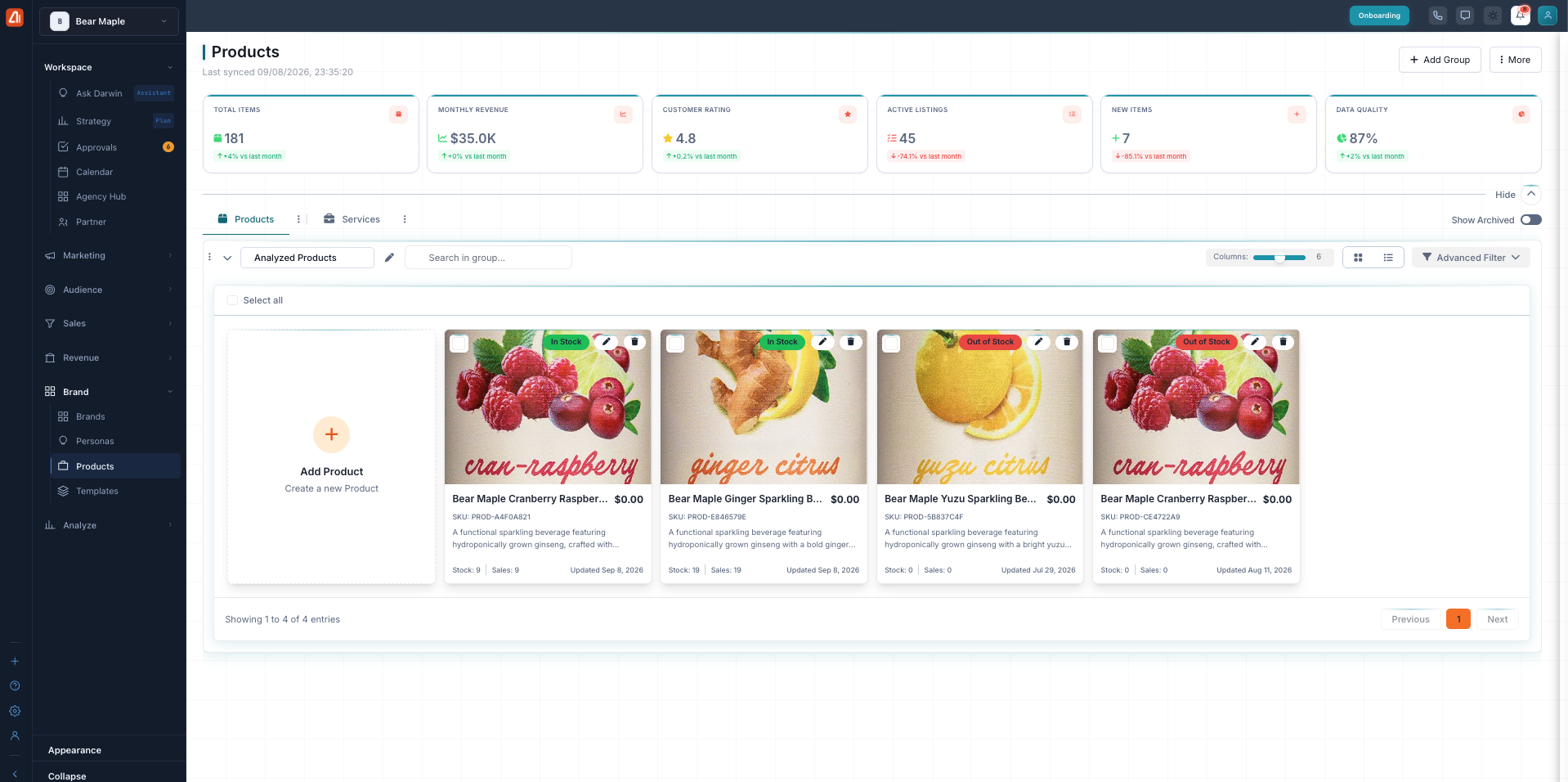
The Products manager in card view — each product is a card, with stat cards summarizing your catalog up top.
What is the Products manager?
The Products manager is your product catalog, powered by AI. Instead of filling in every field yourself, you hand the AI an image or a PDF and it creates the full product record for you.
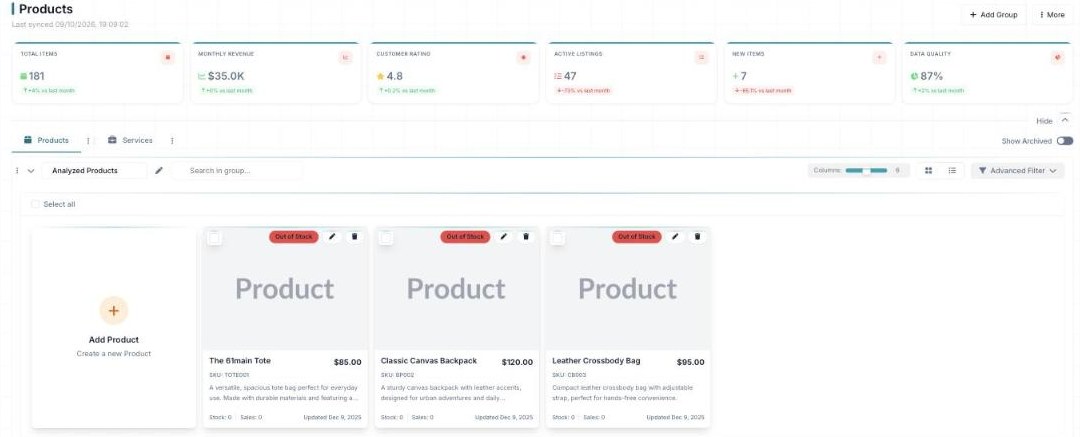
The Products manager — KPIs up top, your catalog below, AI-written details.
At the top you’ll find Products and Services tabs, a group selector, a search box, and a Show Archived toggle. The search box helps you find one product fast. The Show Archived toggle brings back products you’ve set aside so they stay out of your everyday view.
Use the group selector to focus on one set of products at a time. It keeps a big catalog easy to scan.
The dashboard numbers
Across the top of the Products manager you’ll see stat cards. They give you a quick read on your catalog at a glance.
| Stat card | What it tells you |
|---|---|
| Total Items | How many products are in your catalog. |
| Monthly Revenue | The revenue tied to your products this month. |
| Customer Rating | The average rating your products earn. |
| Active Listings | How many products are live and listed. |
| New Items | Products you’ve added recently. |
| Data Quality | How complete and consistent your product info is. |
The AI helps keep your Data Quality score up by filling in complete, consistent product info for you.
Two ways to see your products: cards and list
You can view your catalog in two ways. Switch between them with the grid/list toggle in the top-right corner. Pick whichever fits what you’re doing.
Card view
Card view shows each product as its own card. Every card includes:
- The product image
- An In Stock or Out of Stock badge
- The name, price, and SKU
- A short description
- Stock and sales counts
- The last-updated date
There’s also an Add Product card, so you can start a new product right from this view.
List view
List view is a powerful spreadsheet-style table. Use it when you want to scan or sort many products at once. Its columns are sortable and resizable, so you can arrange things exactly how you like.
The columns are: Product, SKU, Price, Stock Count, Description, Product Icon, Product Image, Value Propositions, Message Preferences, Created At, and Updated. It also has page-size and paging controls and an Add Products button.
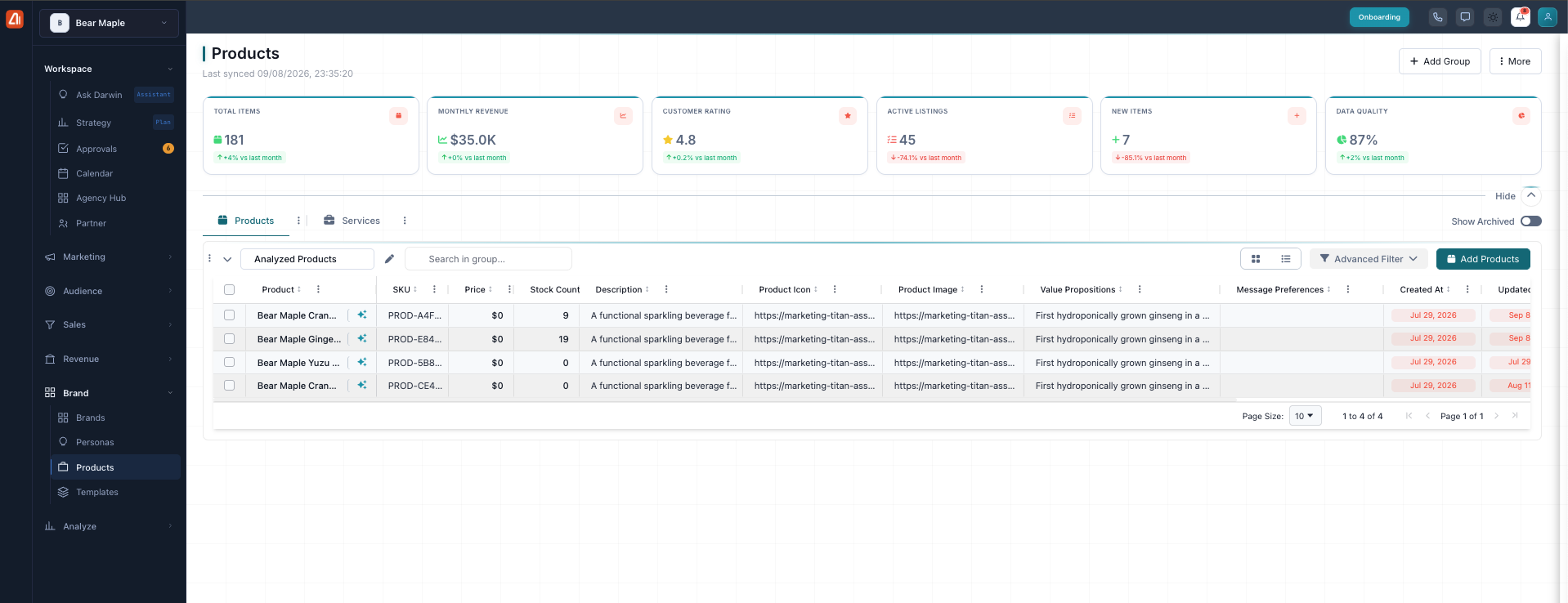
List view — a spreadsheet-style table for scanning and sorting many products at once.
Use card view to browse and see product images. Use list view when you need to sort by price or stock, or compare a lot of products side by side.
The sections — each has its own guide
Products is organized into the areas below. Open any one for the full, detailed walkthrough.
| Section | What it covers | Guide |
|---|---|---|
| Add a Product | Add a product and let the AI do the work. | Open guide → |
| Edit & Enhance with AI | Refine and enrich a product with AI. | Open guide → |
Frequently asked questions
Do I have to type in all my product details myself?
No. Upload a product image or a PDF and the AI writes the complete product info for you — description, features, and specs. You just review and save.
What can I upload to let the AI do the work?
You can upload a product image or a PDF. The AI reads either one and creates the product record from it.
What’s the difference between card view and list view?
Card view shows each product as a card with its image, badge, price, and short description. List view is a spreadsheet-style table with sortable, resizable columns — best for scanning or sorting many products at once. Switch between them with the toggle in the top-right.
Can I fix or improve what the AI wrote?
Yes. Review every field and change anything you like. The Description and Value propositions fields have an enhance button that uses AI to improve your wording, and an AI Assistant is on hand to help.
What is the Data Quality score?
It’s a stat card that shows how complete and consistent your product info is. The AI helps keep it high by filling in full, consistent details for you.
Where did my archived products go?
Archived products are hidden from your everyday view. Turn on the Show Archived toggle to see them again.
Having trouble?
If the AI can’t read your upload, check that the image is clear and the product is easy to see, or try a PDF instead. If a product isn’t showing up, make sure you’re on the right tab (Products or Services), check your group selector and search box, and turn on Show Archived in case it was set aside. Always click Save Product to keep your changes.
What’s next
- Open the Add a Product guide.
- Open the Edit & Enhance with AI guide.