
The Audience Manager is where you create, manage, and optimize audiences across all your marketing channels — social ads, email campaigns, and organic content. Instead of building lists by hand, you let Darwin, the AI, do the heavy lifting. Darwin looks at your data, suggests audiences worth building, and helps you shape them into groups that are ready to use.
Think of it as one home for every audience you target. You can see how big each audience is, how it’s likely to perform, and what Darwin recommends to make it better. This guide walks you through the dashboard, your audience list, how to build a new audience, and the smart help the AI gives along the way.
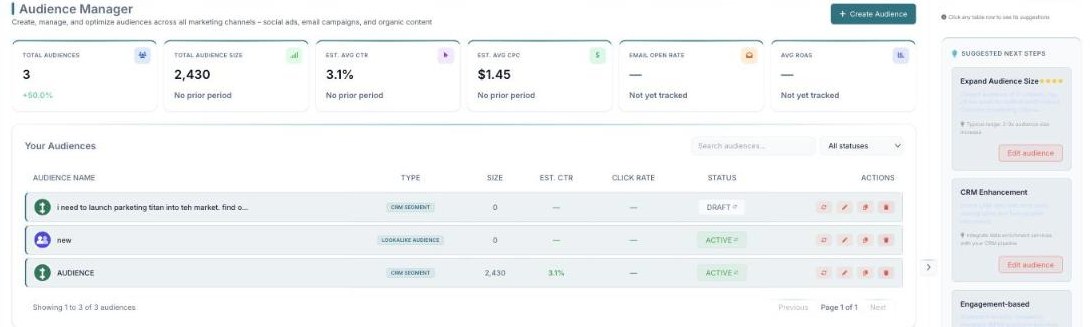
The Audience Manager — KPIs, your audiences, and Suggested Next Steps on the right.
Where to find it: In the left menu, go to
Audience → Audiences.
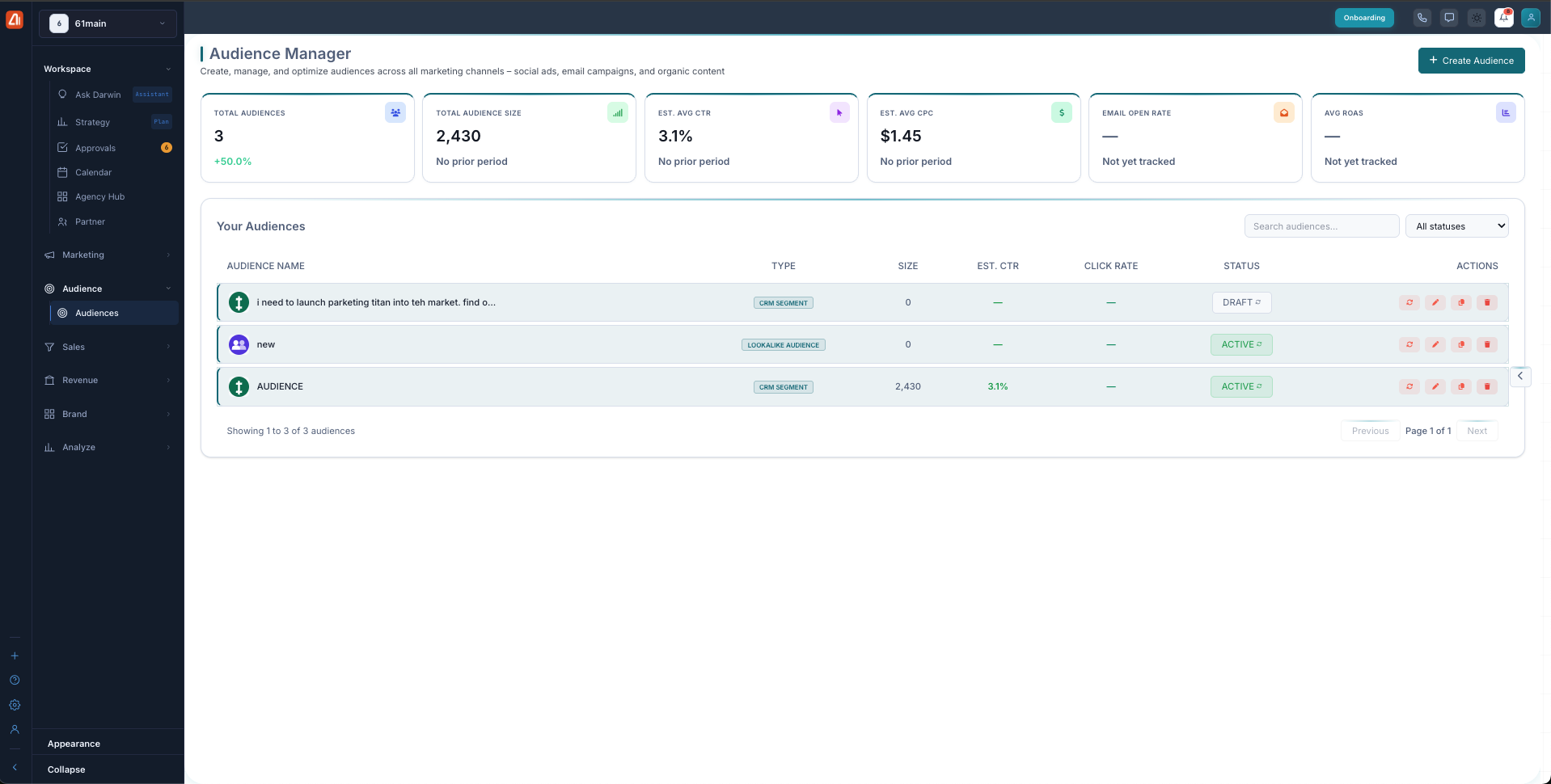
The Audience Manager dashboard — your stat cards at the top and all your audiences in one list.
What is the Audience Manager?
The Audience Manager brings all your audiences together in one place. An audience is a group of people you want to reach — for example, your active customers, your open sales leads, or contacts who look like your best buyers.
What makes it different is that it’s AI-first. Darwin studies the data you already have in your CRM and suggests audiences you can build in a click. It also watches how each audience performs and gives you tips to grow or sharpen it. You stay in control — the AI just does the guessing for you.
The dashboard numbers
At the top of the page you’ll see a row of stat cards. These give you a quick health check on all your audiences at once.
| Stat card | What it tells you |
|---|---|
| Total Audiences | How many audiences you have built. |
| Total Audience Size | The combined number of people across all your audiences. |
| Est. Avg CTR | The estimated average click-through rate across your audiences. |
| Est. Avg CPC | The estimated average cost per click. |
| Email Open Rate | The average rate at which your emails get opened. |
| Avg ROAS | The average return on ad spend. |
Your audiences
Below the stat cards is your audience list. Each row is one audience, and the columns show you everything you need at a glance.
- Name — what you called the audience.
- Type — how the audience was built.
- Size — how many people are in it.
- Est. CTR — the estimated click-through rate.
- Click Rate — how often people click.
- Status — whether it’s a draft or live.
- Actions — quick buttons to refresh, edit, duplicate, or delete the audience.
To find a specific audience, use the search box. You can also use the “All statuses” filter to show only the audiences you want to see.
Audience types
You’ll see two kinds of audiences in the list:
- CRM Segment — built straight from your CRM data, such as your active accounts or open deals.
- Lookalike Audience — modeled on your best contacts, so you can reach new people who behave like your top customers.
Statuses
Each audience carries a status: Draft (saved but not yet in use), Active (running in your marketing), Paused, Archived, or Error. Use the status filter to show just the ones you want.
The sections — each has its own guide
Audience Manager is organized into the areas below. Open any one for the full, detailed walkthrough.
| Section | What it covers | Guide |
|---|---|---|
| Create an Audience | Build an audience step by step. | Open guide → |
| AI Suggestions | Smart suggestions and AI recommendations to improve your audiences. | Open guide → |
Frequently asked questions
Where do I find the Audience Manager?
In the left menu, go to Audience → Audiences.
What’s the difference between a CRM Segment and a Lookalike Audience?
A CRM Segment is built directly from your CRM data, like your active accounts or open deals. A Lookalike Audience is modeled on your best contacts, so it helps you reach new people who behave like your top customers.
What does the Draft status mean?
Draft means the audience is saved but not yet in use. You can keep editing it and set it to Active when it’s ready. An Active audience is live and being used in your marketing.
Where does my audience data come from?
Your audiences are built from CRM Data — the customer and lead information you already have. You choose which segments to include: Active Accounts, Active Leads, and Open Deals.
Can I see how big an audience will be before I save it?
Yes. The Audience Preview shows the Total Contacts, Estimated Reach, and Avg LTV while you build, so you know what you’re creating before you save.
How do I act on the AI’s recommendations?
Click any audience row to open its Suggested Next Steps, then use Edit audience to make the change.
Having trouble? If an audience looks empty or its size seems off, check that you selected at least one CRM Data Source and that your refine filters aren’t too narrow. Try the refresh action on the audience row to update its numbers. If a change still isn’t showing, make sure you saved the audience and picked the right Brand.
What’s next
- Open the Create an Audience guide.
- Open the AI Suggestions guide.