
The Active tab is your performance dashboard for the assistant — how much it’s handling, how well it’s doing, and which rules are pulling their weight.
Where to find it: Left menu → Sales → Outreach → Inbox → AI Assistant → the Active tab. Part of the AI Assistant & Rules guide.
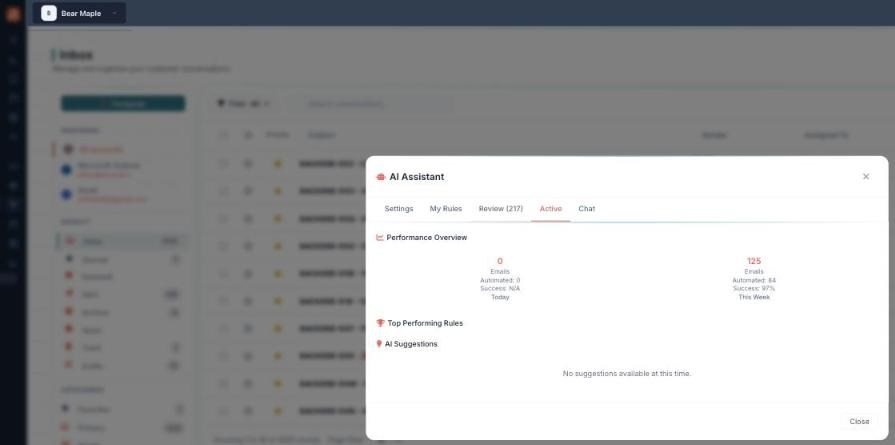
Performance at a glance — volume, automation and success rate.
How to read it
- Open AI Assistant → Active.
- Check Performance Overview to compare Today with This Week.
- See which rules do the most work under Top Performing Rules.
- Act on anything the assistant raises under AI Suggestions.
What’s on the tab
| Section | What it shows |
|---|---|
| Performance Overview | Today and This Week figures — emails handled, how many were automated, and the success rate (e.g. 125 emails, 84 automated, 97% this week). |
| Top Performing Rules | The rules doing the most work, so you know what’s effective. |
| AI Suggestions | Ideas from the assistant to improve your setup (shows “No suggestions available” when there are none). |
💡 Tip: Check the success rate after adding a new rule to see whether it’s helping.
FAQ
What counts as “automated”?
Emails the assistant handled for you (drafted or, if approval is off, replied to) rather than ones you did by hand.
Why is Today 0 but This Week higher?
The figures are per period — nothing has run yet today, but the week total carries earlier activity.
What are AI Suggestions?
Recommendations to improve your rules and settings; the section is empty when there’s nothing to suggest.