
Send a new email, reply, or forward — all from inside the Inbox. The composer opens in the corner so you can keep scanning your conversations while you write.
Where to find it: Left menu → Sales → Outreach → Inbox → Compose. Part of the Inbox guide.
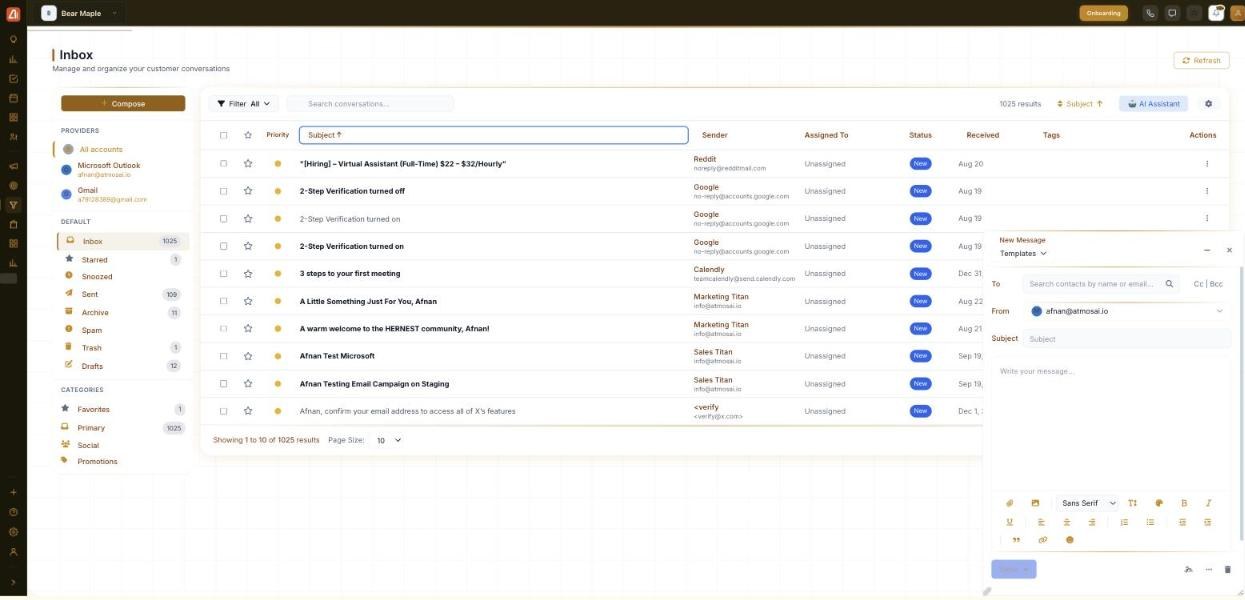
The composer — pick who it’s from, add recipients, write and send.
How to compose an email
- Click Compose (top of the sidebar). The New Message window opens.
- In To, search contacts by name or email; use Cc / Bcc for others.
- Check the From address — the connected account it sends from.
- Add a Subject and write your message in the body.
- Format the text, attach files or images, and click Send.
The composer fields
| Field / control | What it does |
|---|---|
| Templates | Drop in a saved message so you don’t start from scratch. |
| To / Cc / Bcc | Recipients — search contacts by name or email. |
| From | Which connected address the email is sent from. |
| Subject | The email subject line. |
| Message body | A rich-text editor — fonts, bold/italic, lists, links. |
| Toolbar | Attach files, insert images, and format the text. |
| Send | Sends the email; the arrow next to it offers send options. |
Replying and forwarding
Open a conversation and use its reply controls to answer in the same thread, or Forward it to someone else. Replies send from the same connected account and stay attached to the conversation, so the whole history is in one place. If you close the composer before sending, your message is kept in Drafts.
💡 Tip: Use Templates for messages you send often — it keeps your wording consistent and gets the email out in seconds.
FAQ
Which address does my email come from?
The one shown in the From field — your connected account. If you have more than one connected, pick the right one.
Can I attach files?
Yes — use the attach and image buttons in the composer toolbar.
What happens if I close the composer before sending?
The message is saved to Drafts so you can finish it later.