
My Rules is where you set up automatic handling for incoming mail. Each rule is a simple WHEN → THEN: when an email matches, the assistant responds the way you told it to.
Where to find it: Left menu → Sales → Outreach → Inbox → AI Assistant → the My Rules tab. Part of the AI Assistant & Rules guide.
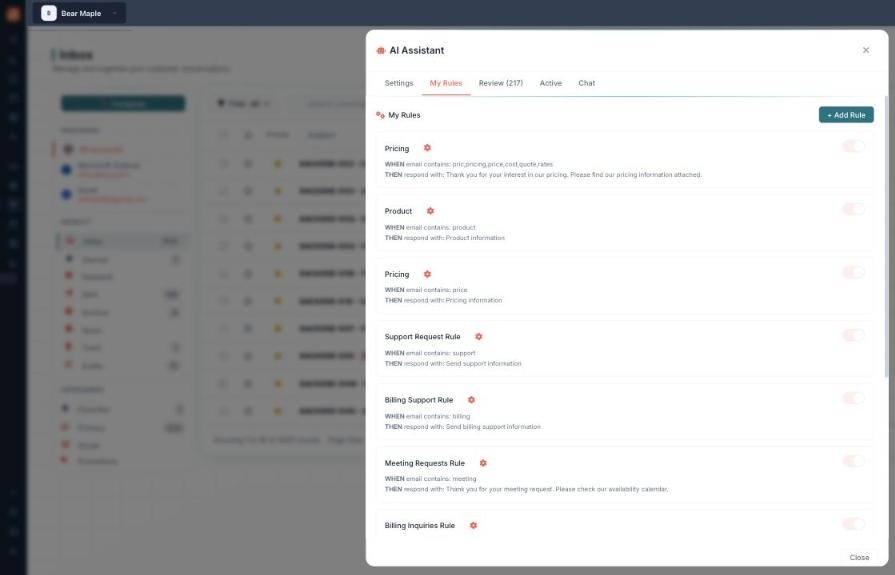
Each rule matches incoming email on keywords and sends the response you set.
How a rule works
A rule has two parts and a switch:
| Part | Meaning |
|---|---|
| WHEN email contains… | The keywords that trigger it (e.g. price, pricing, cost, quote, rates). |
| THEN respond with… | The reply the assistant prepares (e.g. “Thank you for your interest in our pricing…”). |
| On/off toggle | Enable or pause the rule without deleting it. |
How to add a rule
- Open AI Assistant → My Rules.
- Click + Add Rule.
- Enter the trigger keywords (WHEN) and the response (THEN), and save.
- Or open the Chat tab and describe the rule in plain English — the AI builds it and it appears here.
💡 Good to know: With Require Approval on, a rule’s response is prepared as a draft in Review rather than sent automatically.
FAQ
Can I pause a rule without deleting it?
Yes — use its on/off toggle.
What if two rules match the same email?
Keep triggers specific to avoid overlap; the assistant applies the matching rule’s response.
Do rules send on their own?
Only if Require Approval is off. With it on, everything waits in Review.