
Everything you receive shows up in the conversation list. From here you sort, filter, and act on each one — star it, snooze it, assign it to a teammate, tag it, or move it to a folder.
Where to find it: Left menu → Sales → Outreach → Inbox → a folder such as Inbox or Archive. Part of the Inbox guide.
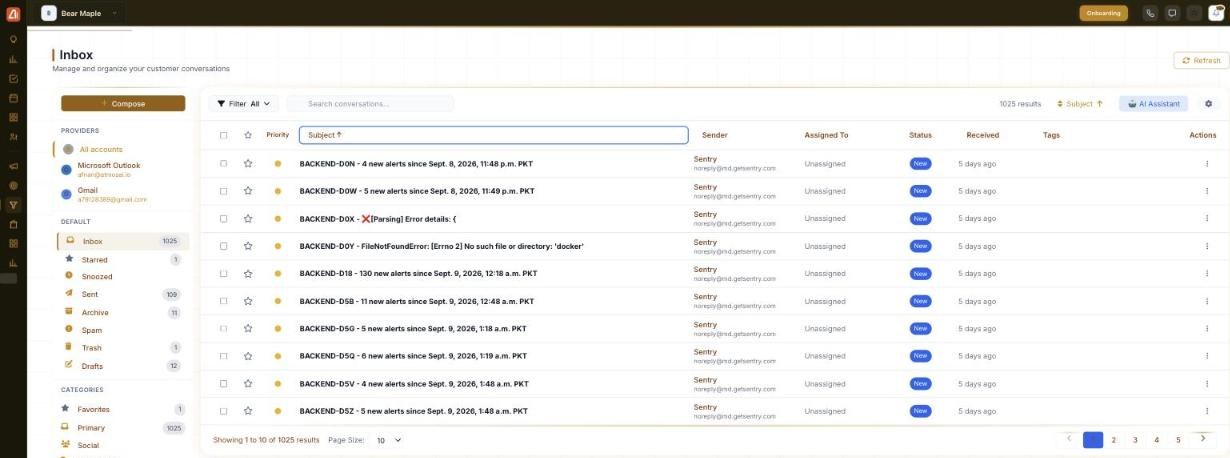
Each row is a conversation, with its owner, status, tags and actions.
Folders
| Folder | What’s in it |
|---|---|
| Inbox | New, active conversations. |
| Starred | Conversations you’ve flagged as important. |
| Snoozed | Hidden until a time you chose, then they reappear. |
| Sent | Messages you’ve sent. |
| Archive | Done with, but kept. |
| Spam / Trash | Junk, and deleted conversations. |
| Drafts | Messages you started but haven’t sent. |
Below the folders, Categories — Favorites, Primary, Social and Promotions — group your mail by type. A number next to a folder or category is how many conversations are in it.
The columns
| Column | What it shows |
|---|---|
| ★ / Priority | A star for important, and a priority marker. |
| Subject | The conversation subject — click it to open and read. |
| Sender | Who it’s from (and the address). |
| Assigned To | The teammate responsible for it. |
| Status | Where it stands (e.g. Archived). |
| Received | When it arrived. |
| Tags | Labels you’ve added. |
| Actions | The per-row menu — star, snooze, archive, assign, tag and more. |
Find a conversation
- Pick a folder or category in the sidebar.
- Use Filter to narrow the list, or Search to find by text.
- Sort by Date to bring the newest (or oldest) to the top.
- Click a Subject to open and read the full conversation.
Act on a conversation
From a row’s Actions menu (or while it’s open) you can Star it, Snooze it to a later time, Archive it, Assign it to a teammate, add Tags, and set its priority and status. The AI Assistant (top of the list) helps you triage and draft replies.
💡 Tip: Assign a conversation and set its status so your team always knows who owns it and what’s left to do — it turns a mailbox into a shared workflow.
FAQ
What’s the difference between Archive and Trash?
Archive keeps a conversation out of your inbox but stored for later. Trash is for deleting.
What does Snooze do?
It hides the conversation until a time you pick, then brings it back to the top so you deal with it then.
Can two people work the same inbox?
Yes — assign conversations to different teammates and use status and tags to stay coordinated.