
The AI Assistant helps you keep on top of your inbox. It triages incoming mail, drafts replies for you, and can run rules automatically — and with Require Approval on, nothing is sent until you say so, so you stay in control.
Where to find it: Left menu → Sales → Outreach → Inbox → AI Assistant (top of the conversation list). Part of the Inbox guide.
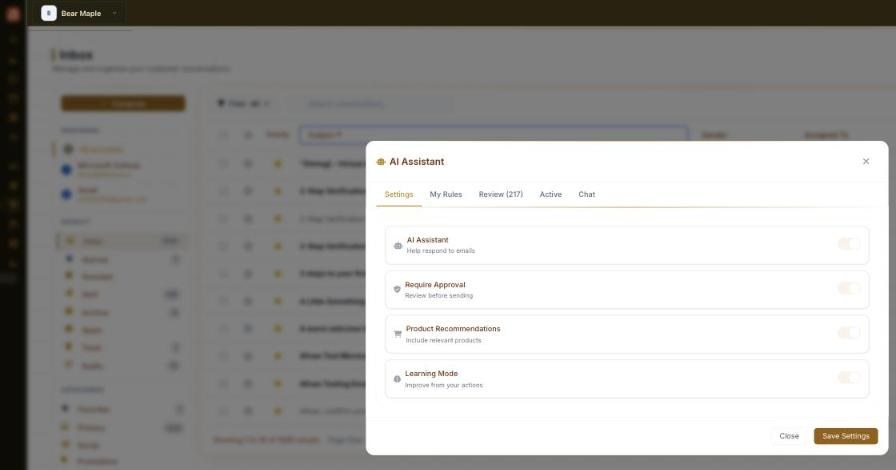
The AI Assistant — settings, rules, a review queue, and a chat, in one place.
Open the AI Assistant
- In the inbox, click the 🤖 AI Assistant button above the conversation list.
- Use the tabs along the top to switch between Settings, My Rules, Review, Active and Chat.
- Change what you need, then click Save Settings.
The five tabs
| Tab | What it’s for |
|---|---|
| Settings | Turn the assistant on and set how it behaves. |
| My Rules | Your automation rules — how incoming mail is handled. |
| Review | AI-prepared drafts waiting for your approval. The number in the tab is how many are queued. |
| Active | Performance stats and top-performing rules. |
| Chat | Ask the AI in plain English — have it draft a reply or create a rule. |
Settings
| Setting | What it does |
|---|---|
| AI Assistant | Turns the assistant on so it helps respond to emails. |
| Require Approval | The AI drafts, but you review and approve before anything is sent. Recommended. |
| Product Recommendations | Lets the AI include relevant products in its replies. |
| Learning Mode | The assistant improves by learning from the actions you take. |
Rules & the review queue
A rule tells the assistant how to handle certain mail automatically — for example, tag or assign anything from a given sender, or draft a standard reply. The easiest way to make one is the Chat tab: describe what you want in plain English and the AI creates the rule, which then shows under My Rules.
When Require Approval is on, anything the assistant drafts lands in Review instead of sending. Open Review, check the draft, and approve or edit it — nothing leaves your inbox without your say-so.
💡 Recommended: Leave Require Approval on while you get comfortable — you get the speed of AI drafts with a human check before anything sends.
FAQ
Will it send emails without me?
Not while Require Approval is on — drafts wait in the Review tab for you to approve. Turn it off only when you trust a rule to run on its own.
How do I create a rule?
Open the Chat tab and describe what you want in plain English; the AI builds the rule and lists it under My Rules.
What is Learning Mode?
It lets the assistant improve over time by learning from the edits and choices you make.
Where do approved drafts go?
Once you approve a draft in Review, it sends from your connected account and threads back into the conversation, just like any reply.