
Inbox

AI Assistant: Settings

Turn the AI Assistant on and set how it behaves: the AI Assistant, Require Approval, Product Recommendations and Learning Mode toggles.

Beginner3 min read

The Settings tab is where you turn the AI Assistant on and decide how much it’s allowed to do on its own. Start here before using any of the other tabs.

Where to find it: Left menu → Sales → Outreach → Inbox → AI Assistant → the Settings tab. Part of the AI Assistant & Rules guide.
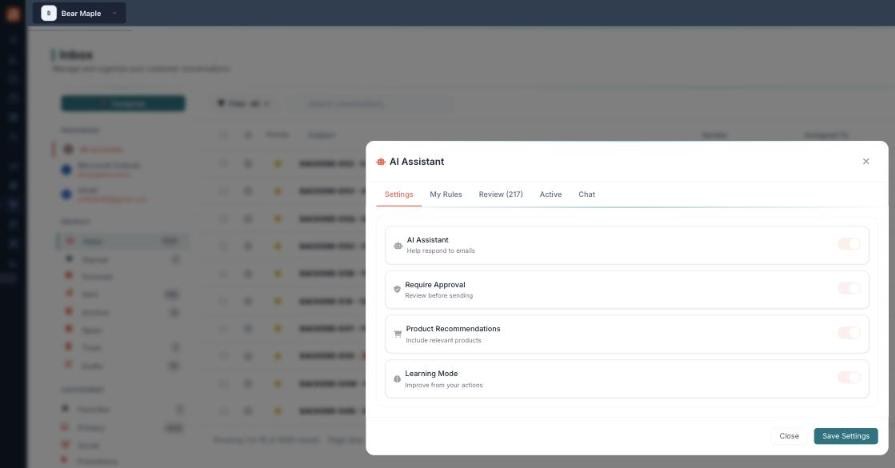
The AI Assistant Settings tab with four toggles: AI Assistant (help respond to emails), Require Approval (review before sending), Product Recommendations (include relevant products), and Learning Mode (improve from your actions), plus Close and Save Settings buttons.

The four toggles that control how the assistant behaves.

How to turn it on

  1. Open AI Assistant from the inbox and stay on the Settings tab.
  2. Switch on AI Assistant.
  3. Leave Require Approval on so you review drafts before they send.
  4. Turn on any extras you want, then click Save Settings.

The four settings

SettingWhat it does
AI AssistantTurns the assistant on so it helps respond to emails.
Require ApprovalThe AI drafts, but nothing sends until you approve it in Review. Recommended.
Product RecommendationsLets the AI include relevant products in its replies.
Learning ModeThe assistant improves by learning from the edits and choices you make.

💡 Recommended: Keep Require Approval on until you trust a rule to run on its own — you get AI speed with a human check.

FAQ

Do I have to turn everything on?

No. At minimum switch on AI Assistant; the rest are optional.

Will it send without me?

Not while Require Approval is on — drafts wait in Review.

What does Learning Mode change?

It lets the assistant get better over time from how you edit and act on its drafts.

Keep reading

  • AI Assistant: Active

    The performance dashboard: emails automated, success rate, top-performing rules and AI suggestions.

  • AI Assistant: Chat

    Ask the assistant in plain English to draft replies, create rules, reconfigure its tone, and analyze conversations.

  • AI Assistant: Review

    The approval queue: read each AI-drafted reply and Approve, Edit or Reject it before anything is sent.

More ways to get help

These guides are the same ones that sit inside the app’s help center, next to the screens they describe. If you prefer to watch, the Marketing Titan Academy has short video courses recorded in the product. Signed in, you can also ask Darwin, the built-in assistant, to explain a screen or do the step for you. If something is not covered here, contact us and a person will answer.

Try it yourself

Every guide here describes the live product.

Start free and follow along: every core module, unlimited users, no card required.