
Review is the approval queue. When Require Approval is on, every reply the assistant drafts waits here for you to check — nothing sends until you say so. The number on the tab (e.g. Review (217)) is how many are waiting.
Where to find it: Left menu → Sales → Outreach → Inbox → AI Assistant → the Review tab. Part of the AI Assistant & Rules guide.
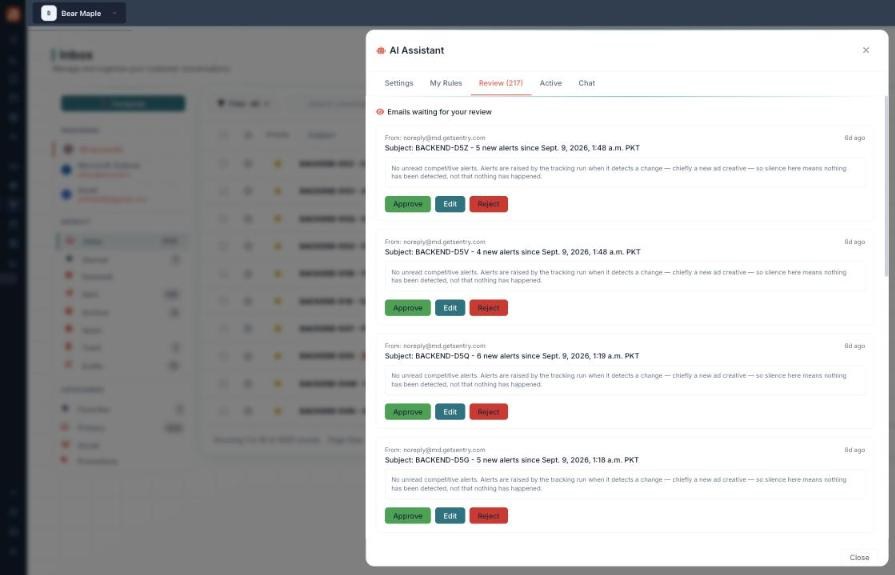
Each draft shows the reply the AI wrote, with Approve, Edit and Reject.
How to review a draft
- Open AI Assistant → Review.
- Read the email and the AI’s drafted reply beneath it.
- Choose an action.
Your three choices
| Action | What happens |
|---|---|
| Approve | Sends the draft as-is from your connected account. |
| Edit | Adjust the wording first, then send. |
| Reject | Discard the draft — nothing is sent. |
Working through the queue keeps the number on the Review tab down and your replies moving. Approved messages send straight away, and rejected ones are discarded — either way they leave the queue immediately, so the count always reflects what still needs you.
💡 Tip: Working through Review is the safe way to use the assistant at scale — you get AI-written replies but every one gets a human yes before it leaves.
FAQ
Why is my Review queue empty?
Either the assistant hasn’t drafted anything yet, or Require Approval is off (so replies send without queuing).
Where does an approved reply go?
It sends from your connected account and threads back into the conversation, like any reply.
Can I change a draft before sending?
Yes — use Edit.