
AI Workflows run the repetitive parts of recruiting for you. A workflow is a simple rule — when something happens, do something — so new applications get noticed, get assigned and get escalated without anyone watching the queue.
Where to find it: Left menu → Sales → Team & Resources → Sales Teams → AI Workflows. Part of the Team Management guide.
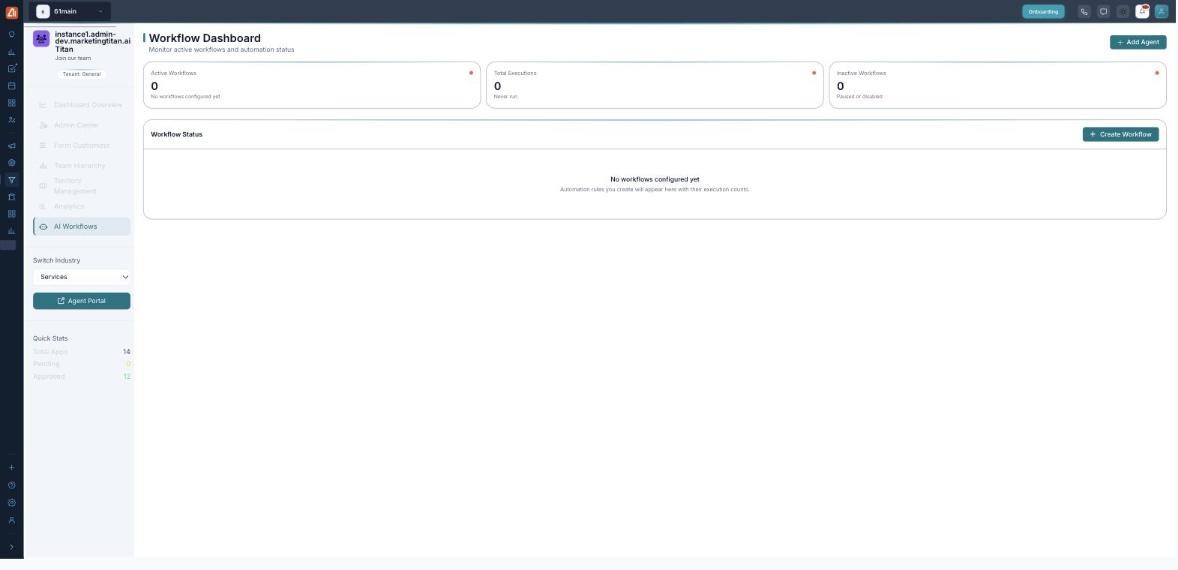
AI Workflows — the automation rules that watch your pipeline for you.
The built-in rules
| Rule | What it does |
|---|---|
| Notify on new application | Alerts you the moment a candidate submits. |
| Assign to team | Routes a new application to the right team automatically. |
| Escalate low scores | Flags weaker applications for a closer look. |
| Notify on approval | Sends a message when a candidate is approved. |
Turn a workflow on
- Open AI Workflows from the left menu.
- Find the rule you want in the Workflow Dashboard.
- Flip its toggle on — it starts working immediately.
- Flip it off any time to pause it.
💡 Start small: Turn on Notify on new application first — it is the one that stops candidates going unnoticed, and it is safe to leave on permanently.
FAQ
Do workflows approve people for me?
No — they notify, assign and flag, but the approve/reject decision stays yours in the Admin Center.
Can I pause a workflow?
Yes — each rule has an on/off toggle; turning it off pauses it without deleting it.
What is “escalate low scores”?
It flags applications that score poorly so a manager reviews them rather than letting them sit in the queue.