
Team Management is your recruiting and sales-team command center. It is where you design the agent application form, share it with candidates, review and approve the people who apply, organize your approved agents into teams and territories, and watch the numbers — all from one place.
Where to find it: Left menu → Sales → Team & Resources → Sales Teams. Part of the Team Management guide.
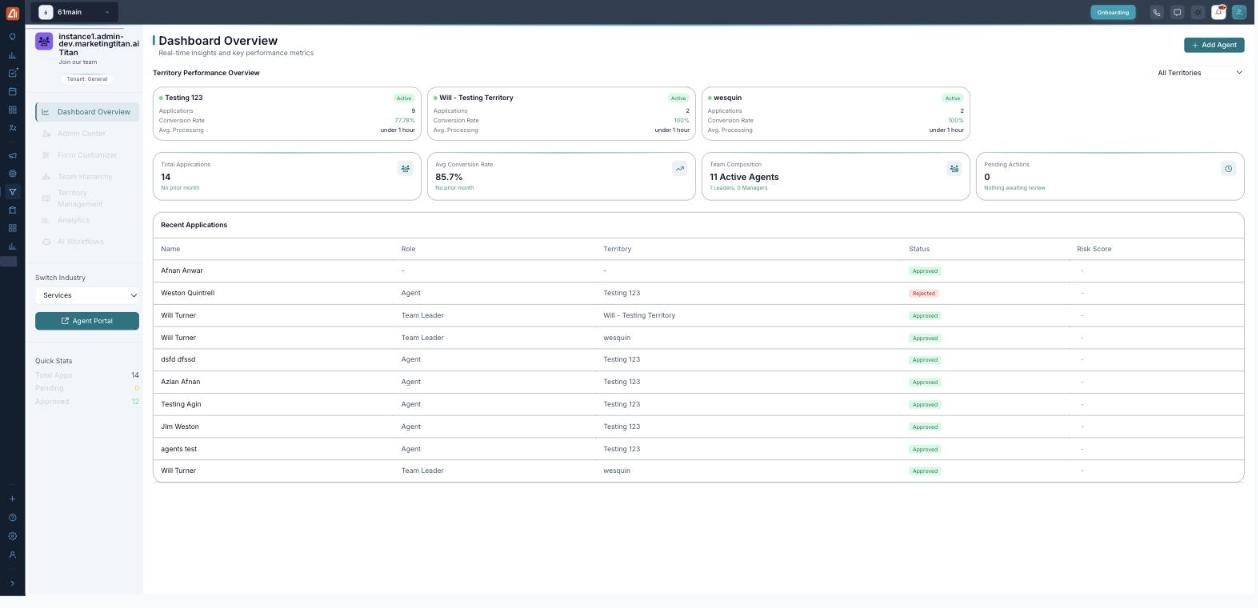
The Team Management dashboard — the module menu on the left, performance and recent applications on the right.
What you can do here
- Design the application — build the onboarding form candidates fill in, with the Form Customizer.
- Collect applications — share the Agent Onboarding Portal link; every submission arrives here.
- Review & approve — accept or reject candidates in the Admin Center.
- Organize the team — structure people into a Team Hierarchy and assign them to Territories.
- Measure everything — track revenue, agents and the onboarding pipeline in Analytics.
- Automate the busywork — notify, assign and escalate automatically with AI Workflows.
The module menu
| Tab | What it’s for |
|---|---|
| Dashboard Overview | The at-a-glance home — key metrics, territory performance and the latest applications. |
| Admin Center | Review, approve, reject and export agent applications. |
| Form Customizer | Build the onboarding form — steps, fields, templates and territories. |
| Team Hierarchy | The org chart — who reports to whom, and which team each agent is on. |
| Territory Management | Define territories and assign managers and agents to them. |
| Analytics | Revenue, agent and territory charts plus the onboarding pipeline. |
| AI Workflows | Automation rules for notifications, assignment and escalation. |
Two more things on the left
- Switch Industry — the dropdown at the top (for example Services) tailors the form fields and territories to your industry. Changing it re-scopes what the whole module shows.
- Agent Portal — the button that opens (and lets you copy) the public application link you send to candidates. See the Agent Onboarding Portal.
Read the dashboard
- Quick Stats (left, under the menu) — a running count of Total Apps, Pending and Approved.
- Territory Performance Overview — a card per territory (applications, conversion rate, avg. processing time), with an All Territories filter to focus on one.
- Key metrics — Total Applications, Avg Conversion Rate, Team Composition (active agents, leaders, managers) and Pending Actions.
- Recent Applications — the newest candidates with role, territory, status and risk score; open one to review it in the Admin Center.
- Add Agent — the button at the top right adds an agent manually, without waiting for an application.
💡 Start here: New to the module? Build your form in the Form Customizer first, share the Agent Portal link, then come back to the Admin Center as applications land.
FAQ
Who can see Team Management?
It sits under Sales and is meant for managers and admins who recruit and organize the field team.
What does “Switch Industry” change?
It swaps the form, fields and territory set for the ones that fit that industry, so Services and other verticals each get the right questions.
Where do applications come from?
From the Agent Onboarding Portal — the public link candidates fill in. Every submission shows up here and in the Admin Center.