
The Agent Onboarding Portal is the public page candidates fill in to apply to your team. You design it in the Form Customizer, share its link, and every completed application flows into your Admin Center.
Where to find it: Left menu → Sales → Team & Resources → Sales Teams → Agent Portal. Part of the Team Management guide.
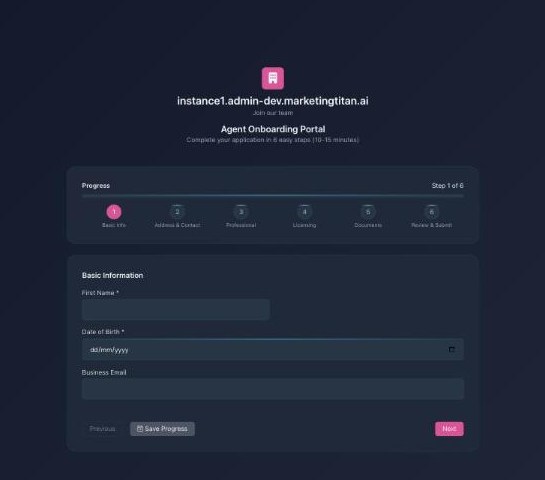
The candidate-facing Agent Onboarding Portal — a branded six-step application.
Share the link with candidates
- In Team Management, click the Agent Portal button (top of the left menu).
- Copy the public application link it gives you.
- Send it to candidates — in a job post, an email or a message. Anyone with the link can apply; they do not need a Marketing Titan login.
💡 Industry link: The link carries the industry (for example ?industry=services), so candidates see the right questions for the role you are hiring for.
What the candidate sees
- A branded welcome — your workspace name and “Join our team.”
- A progress bar showing Step 1 of 6 and every step ahead.
- Each step in turn — Basic Info, Address & Contact, Professional, Licensing, Documents, then Review & Submit.
- Save Progress to come back later, Previous/Next to move between steps, and a final submit on the review step.
The six steps
| Step | What it collects |
|---|---|
| 1. Basic Info | First name, date of birth, business email. |
| 2. Address & Contact | Where the candidate is and how to reach them. |
| 3. Professional | Experience and background. |
| 4. Licensing | Licenses and credentials. |
| 5. Documents | Files the candidate uploads. |
| 6. Review & Submit | A summary, then send. |
After they submit
- The candidate sees a confirmation that their application was received.
- The application appears in your Admin Center as Pending.
- Your AI Workflows can notify you and route it automatically.
- You approve or reject it, then place the new agent in a team and territory.
FAQ
Do candidates need an account?
No — the portal is public. Anyone with the link can apply without logging in.
Can a candidate finish later?
Yes — Save Progress lets them return and pick up where they left off.
How do I change the questions?
Edit the steps and fields in the Form Customizer; changes appear on the portal right away.
Where do finished applications go?
Straight into your Admin Center queue as Pending, ready for review.