
The Hierarchy Table is the working view of your team — the “Team Hierarchy & Downline Structure”. Every agent is a row you can group, expand into downlines, and act on, with team size, performance and revenue side by side.
Where to find it: Left menu → Sales → Team & Resources → Sales Teams → Team Hierarchy → Hierarchy Table. Part of the Team Management guide.
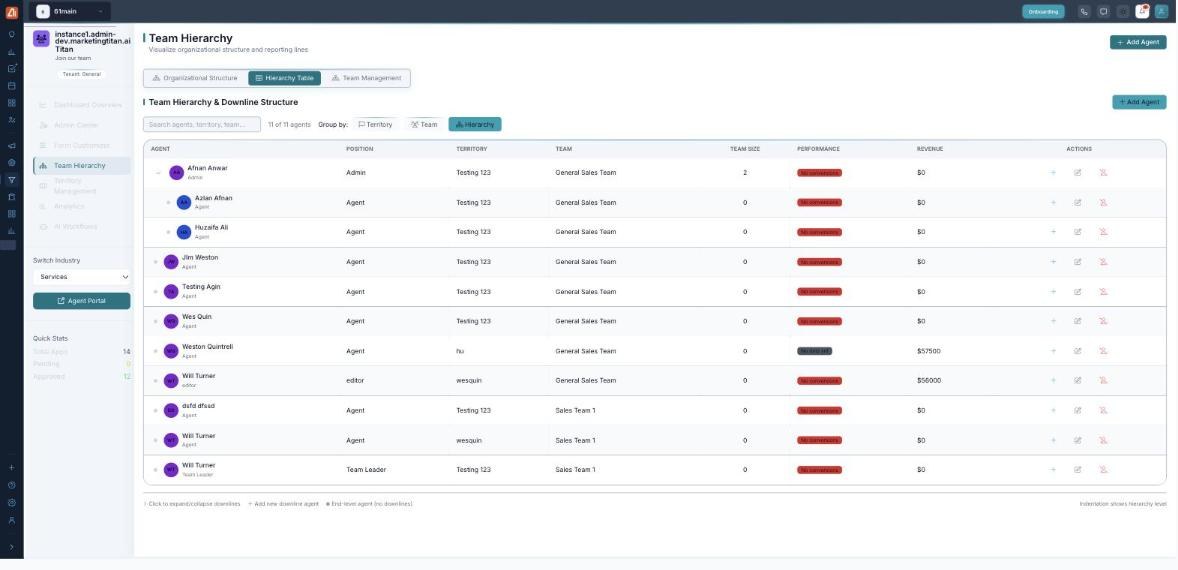
Hierarchy Table — the downline structure with position, team size, performance and revenue.
The columns
| Column | Meaning |
|---|---|
| Agent / Position | The person and their role (Admin, Agent, Editor, Team Leader). |
| Territory / Team | Where they work and which team they are on. |
| Team Size | How many agents sit under them (their downline). |
| Performance | Conversions to date. |
| Revenue | Revenue attributed to that agent. |
| Actions | Add a downline agent, edit, or remove. |
Work the table
- Open Team Hierarchy → Hierarchy Table.
- Group by Territory, Team or Hierarchy to view the list the way you need.
- Click a row to expand or collapse its downlines — indentation shows the level.
- Use the row Actions to add a downline agent, edit an agent, or remove one; or Add Agent to add a new person.
💡 Tip: An agent with no downlines is an end-level agent. Add downlines from the row actions to build depth under a team leader.
FAQ
What is a downline?
The agents who report under a given person. Team Size counts them, and expanding a row reveals them.
How do I change grouping?
Use the Group by control — Territory, Team or Hierarchy.
Where does Revenue come from?
It is the revenue attributed to that agent; team and territory totals roll up in Analytics.