
The Team Management sub-tab is where you create teams and assign members within departments. Each team is a card showing its department, territory, specialization and member count.
Where to find it: Left menu → Sales → Team & Resources → Sales Teams → Team Hierarchy → Team Management. Part of the Team Management guide.
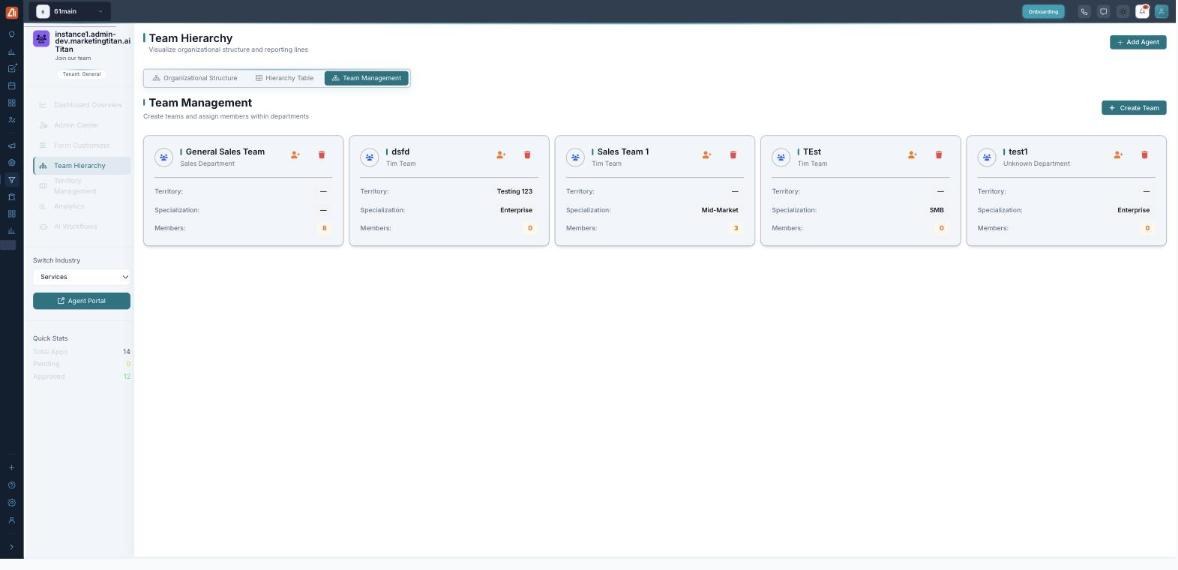
Team Management — team cards with department, territory, specialization and members.
What a team card shows
| Field | Meaning |
|---|---|
| Department | The department the team belongs to (for example Sales Department). |
| Territory | The territory the team covers. |
| Specialization | The team’s focus — for example Enterprise, Mid-Market or SMB. |
| Members | How many agents are on the team. |
Create a team and add members
- Open Team Hierarchy → Team Management.
- Click Create Team and give it a name, department, territory and specialization.
- Use the add-member control on the team card to assign approved agents.
- Remove a team with its delete control if you no longer need it.
💡 Tip: Set each team’s specialization (Enterprise / Mid-Market / SMB) so downstream routing and reporting line up with how you sell.
FAQ
How is this different from the Hierarchy Table?
This sub-tab defines the teams; the Hierarchy Table sets who reports to whom within them.
Can a team have no members yet?
Yes — a new team can show 0 members until you assign agents.
Where do members come from?
Approved agents from the Admin Center.