
Territory Management is where you carve up your market into territories and assign a manager and agents to each. Every territory carries its own agent count and revenue so you can compare them at a glance.
Where to find it: Left menu → Sales → Team & Resources → Sales Teams → Territory Management. Part of the Team Management guide.
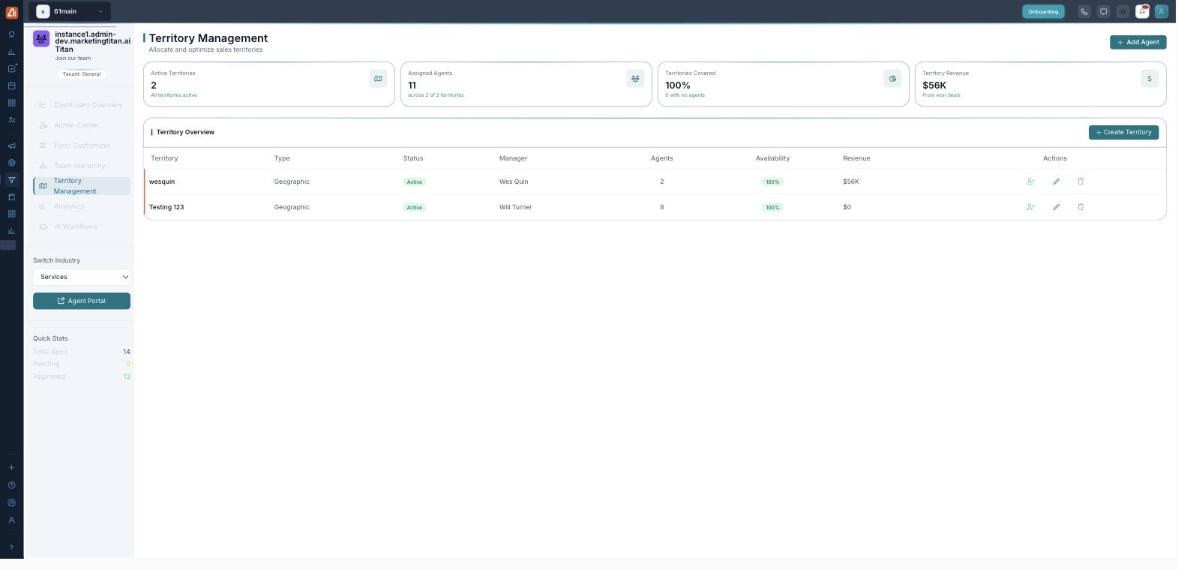
Territory Management — territories with their manager, agents and revenue.
What a territory holds
| Field | Meaning |
|---|---|
| Territory | The area or segment — for example a region. |
| Manager | The person responsible for that territory. |
| Agents | How many agents are assigned to it. |
| Revenue | The revenue attributed to the territory. |
Create and staff a territory
- Open Territory Management from the left menu.
- Add a territory and give it a name.
- Assign a manager and the agents who cover it.
- Save — the territory now appears on the dashboard’s territory-performance cards and in Analytics.
💡 Tip: Balance your territories — if one has far more agents or revenue than the rest, it may be time to split it.
FAQ
Can an agent be in more than one territory?
Assign each agent to the territory they cover; use Team Hierarchy for reporting lines that cross areas.
Where does the revenue number come from?
It is the revenue attributed to that territory, and it feeds the territory charts in Analytics.
How do territories link to the application form?
The Form Customizer’s Territories sub-tab connects the two so submissions route to the right area.