
The fastest way to a new post: describe what you want, and AI writes the whole thing — the article and ready-to-post versions for your other channels.
Where to find it: Left menu → Marketing → Web → Blog → New Post (or the AI Assistant) (the page is titled Blog Management). Part of the Blog guide.
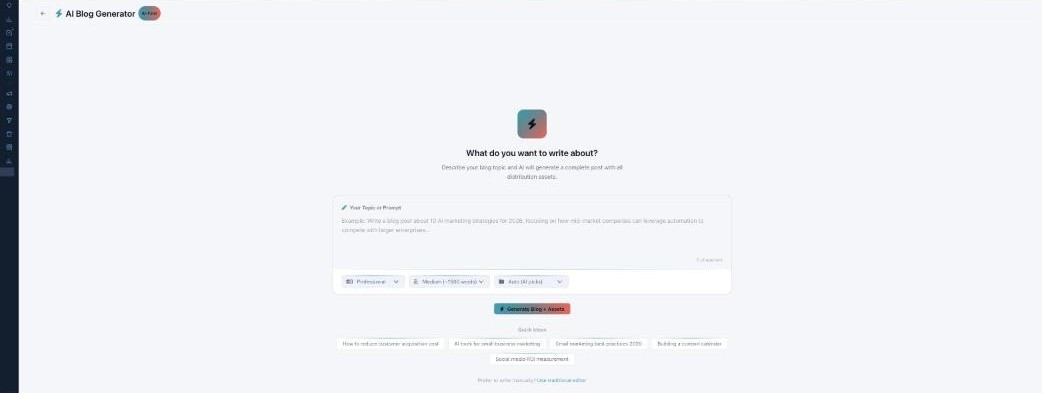
The AI Blog Generator — a full post from a single sentence.
Describe it
In Your Topic or Prompt, say what the post should cover. Then choose a Tone (Professional, Conversational, Educational, or Persuasive), a Length (Short ~800, Medium ~1500, or Long ~2500 words), and a Category (or let AI pick), and click Generate Blog + Assets. In a hurry? Tap a Quick Idea chip.
What the AI does
Behind the scenes it runs an 8-step pipeline: analyze the topic → build an outline → write → edit & format → optimize for SEO → generate images → optimize for AI search engines → create the channel versions.
Review & publish
When it’s done you get the article plus tabs for LinkedIn, Twitter, Email, and Social, with Content Scores (SEO, Readability, Engagement, Originality). Fine-tune with Regenerate, Expand More, or Adjust Tone, then Publish Now, Schedule, or save a Draft. Prefer to write it yourself? Open the full editor instead.
What’s next
- Back to Blog Management.
- See The editor.
- See Categories & Tags.
- See Authors.
- See Media Library.
- See Analytics.