
Blog

Blog - Media Library

Every blog image in one place, with AI alt text and one-click optimization.

Beginner3 min read

The Media Library holds every image your blog uses, and keeps them fast and accessible with AI.

Where to find it: Left menu → Marketing → Web → Blog → Media (the page is titled Blog Management). Part of the Blog guide.
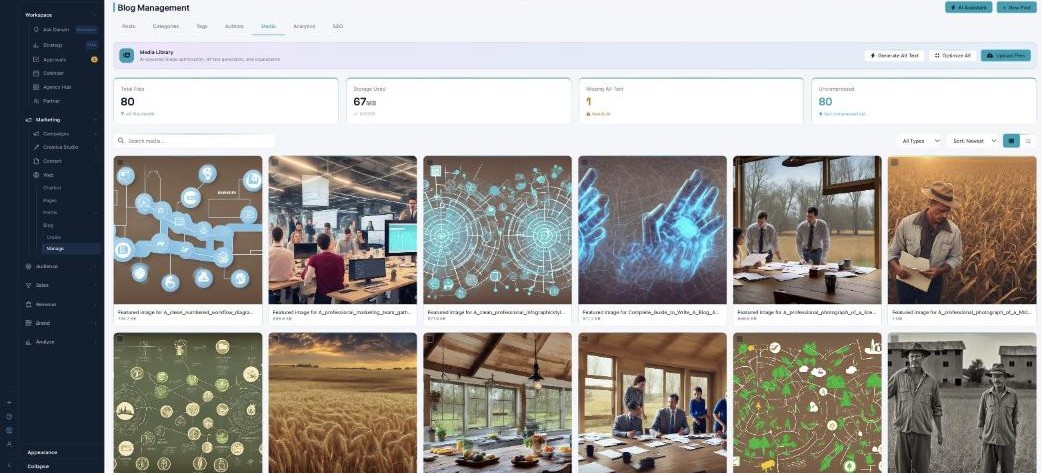
The Media Library: stats for Total Files, Storage Used, Missing Alt Text, and Uncompressed, with buttons to Generate Alt Text, Optimize All, and Upload Files above a grid of images.

Media Library — your blog images, optimized.

The library

Upload Files (drag-and-drop, up to 10 MB each), then search, sort, and switch between grid and list. Open View Details on any file to edit its Alt Text and see its type, size, and dimensions. The stat cards track Total Files, Storage Used, Missing Alt Text, and Uncompressed.

Let AI tidy up

Generate Alt Text writes descriptive alt text for images that are missing it (better for accessibility and SEO), and Optimize All compresses your images so pages load faster.

What’s next

Keep reading

  • Blog - Analytics

    See what your blog drives — views, visitors, time on page, leads, and conversions.

  • Blog - Writing a Post with AI

    Describe a topic and AI writes the whole post — plus LinkedIn, Twitter, Email, and social versions.

  • Blog - The Editor

    Write, repurpose per channel, optimize for SEO and AI search, then publish — all in one editor.

More ways to get help

These guides are the same ones that sit inside the app’s help center, next to the screens they describe. If you prefer to watch, the Marketing Titan Academy has short video courses recorded in the product. Signed in, you can also ask Darwin, the built-in assistant, to explain a screen or do the step for you. If something is not covered here, contact us and a person will answer.

Try it yourself

Every guide here describes the live product.

Start free and follow along: every core module, unlimited users, no card required.