
The editor is where a post is written and polished. It handles the writing, the versions for each channel, SEO and AI-search tuning, and publishing — without leaving the page.
Where to find it: Left menu → Marketing → Web → Blog (open a post → Edit Post) (the page is titled Blog Management). Part of the Blog guide.
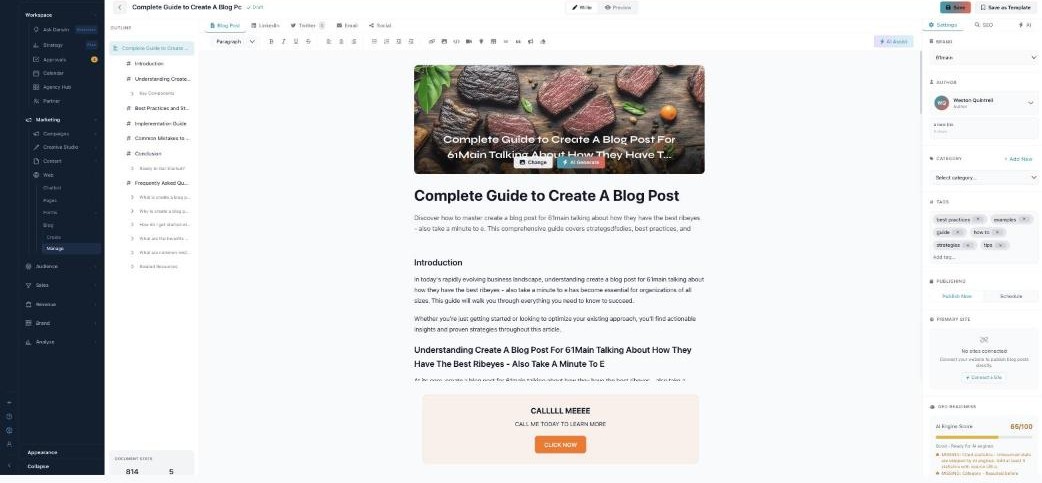
The editor — write once, publish everywhere, tuned for search.
Writing
Use the toolbar for headings, bold/italic, lists, links, images, video, tables, callout boxes, a CTA button, and quotes — or click AI Assist to have AI help. The Outline panel lets you jump between headings and drag to reorder them, Write / Preview flips between editing and reading, and everything autosaves (Draft → Saving → Saved). Set a featured image with Change or AI Generate.
One post, every channel
The tabs across the top — Blog Post, LinkedIn, Twitter, Email, Social — each hold an editable, AI-made version of your post (the Twitter one is a thread of 280-character tweets; the Email one has a subject line, preheader, and your author signature). Copy or Regenerate any of them.
The right panel
Three tabs run the setup:
| Tab | What it holds |
|---|---|
| Settings | Brand, Author (and bio), Category, Tags, Publishing (Publish Now / Schedule), Primary Site (connect your website), and GEO Readiness (the AI Engine Score). |
| SEO | A Google search preview, Meta Title / Description (with AI Generate), your Focus Keyword (density and placement), and competitor gaps. |
| AI | Your AI agent, AI scores, suggestions, and quick actions — Rewrite, Expand, Shorten, Fix Grammar — plus an AI chat. |
Publishing & history
Publish goes live now, or Schedule picks a date and time. Version History lets you view and Restore any earlier version, and Save as Template reuses the post’s structure for the next one.
What’s next
- Back to Blog Management.
- See Writing with AI.
- See Categories & Tags.
- See Authors.
- See Media Library.
- See Analytics.