
The Add Event button opens a dialog where you build an event or a task without leaving the calendar.
Where to find it: Left menu → Calendar → the Add Event button (top right). Part of the Calendar guide.
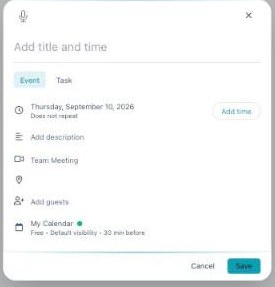
Add an event or task from a single dialog — type a title, set the details, and Save.
Event or Task
A toggle at the top switches between an Event (something at a time, with guests and a location) and a Task (something to get done, with an owner and a priority). Pick the one that fits before filling in the rest. There’s also a microphone button — click it and speak the event, and it fills the fields for you.
Event fields
For an Event, you can set:
- Title, date & time — type the title, pick the date, and Add time for start and end. (It shows “Does not repeat” — recurring events come from synced calendars.)
- Description — notes or an agenda.
- Meeting type — Team Meeting, One-on-One, Client Call, Brainstorming, or Review.
- Location — pick a connected video provider (Zoom, Google Meet, Microsoft Teams), “Main Conference Room,” or type a custom link/address. Providers you haven’t connected show grayed with a hint to connect them in Settings.
- Guests — search your team or add external emails, and set each guest’s permissions: Modify event, Invite others, or See guest list.
Task fields
For a Task, you set a Status (To Do / In Progress / Completed), a Priority (High / Medium / Low), an Assignee, and a Team (Marketing, Creative, Development, or Sales) — plus a title, date, and description.
Calendar, color, visibility & reminders
Every item also gets calendar settings: which calendar it lands on and a color (12 to choose from), whether it marks you Busy or Free, its visibility (Default / Public / Private), and a reminder — from “At time” through 5/10/15/30 min, 1–2 hours, a day, or a week before. Use Add notification to set more than one.
Save — and quick ways to start
Save adds it in your chosen color; Cancel discards it. You can also start one by clicking an empty day in Month view or an empty time slot in Week/Day view — the dialog opens pre-filled to that date and time.
Editing & deleting
Click any item to open its details, then Edit or Delete (delete asks you to confirm). One thing to know: items that flow in from another module — a scheduled social post, an email campaign — open their own editor instead, and can’t be edited or deleted from the calendar. Change those where they were created.
What’s next
- Back to the Calendar overview.
- See Month view.
- See Week view.
- See Day view.
- See List view.
- See Calendars & colors.
- See Appointment scheduling.